Markdown Documents
A Notion-style block editor for the markdown already in your repo — with comments you can send straight to an agent, media pasting, Mermaid diagrams, and byte-for-byte clean diffs.
Specs, PRDs, runbooks, and AGENTS.md files are where agent work actually starts. Agentastic gives them a real document editor — and then lets you select a passage and hand it to an agent, the way you'd leave a comment in a doc.
The file on disk stays plain GFM markdown the whole time. Blocks you don't touch are written back byte-for-byte, so a diff contains only what you changed — no reflowed paragraphs, no rewritten link syntax, no review noise.
Three views#
Open any Markdown file (.md, .markdown, .mkd, …) and work with it three ways:
| View | What it is |
|---|---|
| Source | The normal code editor, with syntax highlighting |
| Document | An editable block editor, in the style of Notion |
| Split | Both, side by side, kept in sync |
Shift+Cmd+V cycles Source → Document → Split → Source. The chord is customizable in Settings → Keybindings; if you already use it for something else, your binding is kept. The editor menus, the Inspector, and the prompt all drive the same view, and your choice is remembered.
Set the default for newly opened Markdown files under Settings → Text Editing → Markdown View.
A Markdown file opened in Source shows a small Edit Document prompt above the status bar with the live shortcut. Dismiss it and it stays dismissed.
Editing in Document mode#
Headings, paragraphs, bulleted/numbered/to-do lists, quotes, code blocks, tables, dividers, and images are edited in place, without markdown syntax in the way.
- Markdown shortcuts convert blocks as you type:
#through######for headings,-for bullets,1.for numbered lists,[]for to-dos,>for quotes,```for code,---for a divider. - Inline formatting — Cmd+B/I/E toggle bold, italic, and inline code; Cmd+K links the selection to a URL on the clipboard; Shift+Return inserts a line break.
- The slash menu — type
/on an empty block to pick its type; the menu filters as you type. - Paste is markdown-aware — pasted markdown becomes rich blocks, and pasting a URL onto selected text turns it into a link.
- Blocks behave like Notion's — Return splits a block, Backspace at the start merges or lifts a block out of its list or quote, Tab/Shift+Tab nest and un-nest list items, and the hover handle converts, moves, or deletes a block.
- Drag and drop — drag a block's handle to reorder it (the document rearranges live); drag a text selection past a block's edge to select whole blocks; drop an image or video onto the page to import it.
- Whole-block selection — Esc selects the current block, Shift+Up/Down extends over neighbors, Cmd+A escalates from the block's text to every block. A block selection copies and cuts as markdown and deletes with Backspace.
- Find in document — Cmd+F searches every block (prose, headings, lists, quotes, and code), highlights matches in place, and scrolls between them with wrap-around.
The document editor uses a calmer, note-focused style: a centered reading column, the system proportional font for prose, and guaranteed fixed-pitch fonts for inline and fenced code. Under Settings → Text Editing you can set the body and code fonts, switch to full-width layout, and choose whether links render as title and favicon or as the full URL.
Spell checking is off by default. To underline misspelled words in every Markdown document, turn on Settings → Text Editing → Check spelling in Markdown, or right-click in the document and choose Spelling and Grammar → Check Spelling While Typing. Autocorrect only runs in Markdown documents while spell checking is on.
Comments, and sending a passage to an agent#
This is the part that doesn't exist in other editors: select text in a Markdown document and give it to an agent, in place.
Select a passage and a small composer appears beside it, showing the file, the location, and the quoted text. It is the same composer the diff viewer and artifacts use. Type what you want, then choose where it goes:
| Destination | What happens |
|---|---|
| Agent | The request is sent immediately to a live agent in this worktree |
| Comment | The note is kept on the passage — a review annotation, not a task |
If more than one agent is running in the worktree, a picker lets you choose which one. The document is saved first, so the agent reads exactly what you see.
What the agent receives#
Not a vague "the user highlighted something." The agent gets your instruction plus a structured context block containing:
- the file path and worktree path,
- a revision hash of the source at the moment you selected,
- the selected text and the raw markdown behind it — so the agent sees the real
[link](url)or table syntax, not the rendered prose, - surrounding context for orientation,
- resolved start and end line numbers, each marked
exactorenclosingBlock.
The context is explicitly labelled as quoted document context rather than additional instructions, so an agent can't be steered by text that happens to live in your document.
The Comments inspector#
The Inspector's Comments tab lists every annotation on the open document with its state:
| State | Meaning |
|---|---|
| Draft | Written but never sent |
| Not sent | A comment, kept locally |
| Sent / Queued / Failed | Delivery state of an agent request |
| Resolved | Marked done; hidden unless you toggle resolved comments on |
Each row's menu offers Show in Document, Edit, Send to Agent, Delete, and — when the passage has drifted — Attach to Selection.
Anchors survive edits#
Annotations are anchored to the text, not to a line number, so they follow the passage as the document changes around them. When a passage is edited beyond recognition or deleted, the annotation is flagged Passage changed or removed rather than silently pointing at the wrong paragraph — and sending it is blocked until you re-attach it to a current selection.
Comments persist in a local transactional store shared across windows and app instances, so the same document shows the same comments in every pane, in every window, and after a restart. They are never written into your repository.
Pasting images and videos#
In a local workspace, copy a screenshot or image/video files and press Cmd+V in Source or Document mode. You can paste multiple files at once, replace selected text, and undo or redo the insertion.
Saved Markdown files keep imported media beside the document. Untitled documents store media at their owning worktree's root, without prompting you to save first. References use relative filenames, such as .
Preview looks beside the document first, then at the worktree root, then at the main repository root. Commit the Markdown and media files together so the same references work after merging into the main checkout, including when the Markdown is saved in a subfolder. Undo removes the inserted references but keeps the media files available for redo.
Mermaid diagrams#
Mermaid code blocks render in place in agent chat and in the Markdown Document and Split views:
```mermaid
flowchart LR
    Request --> Approval --> Action
```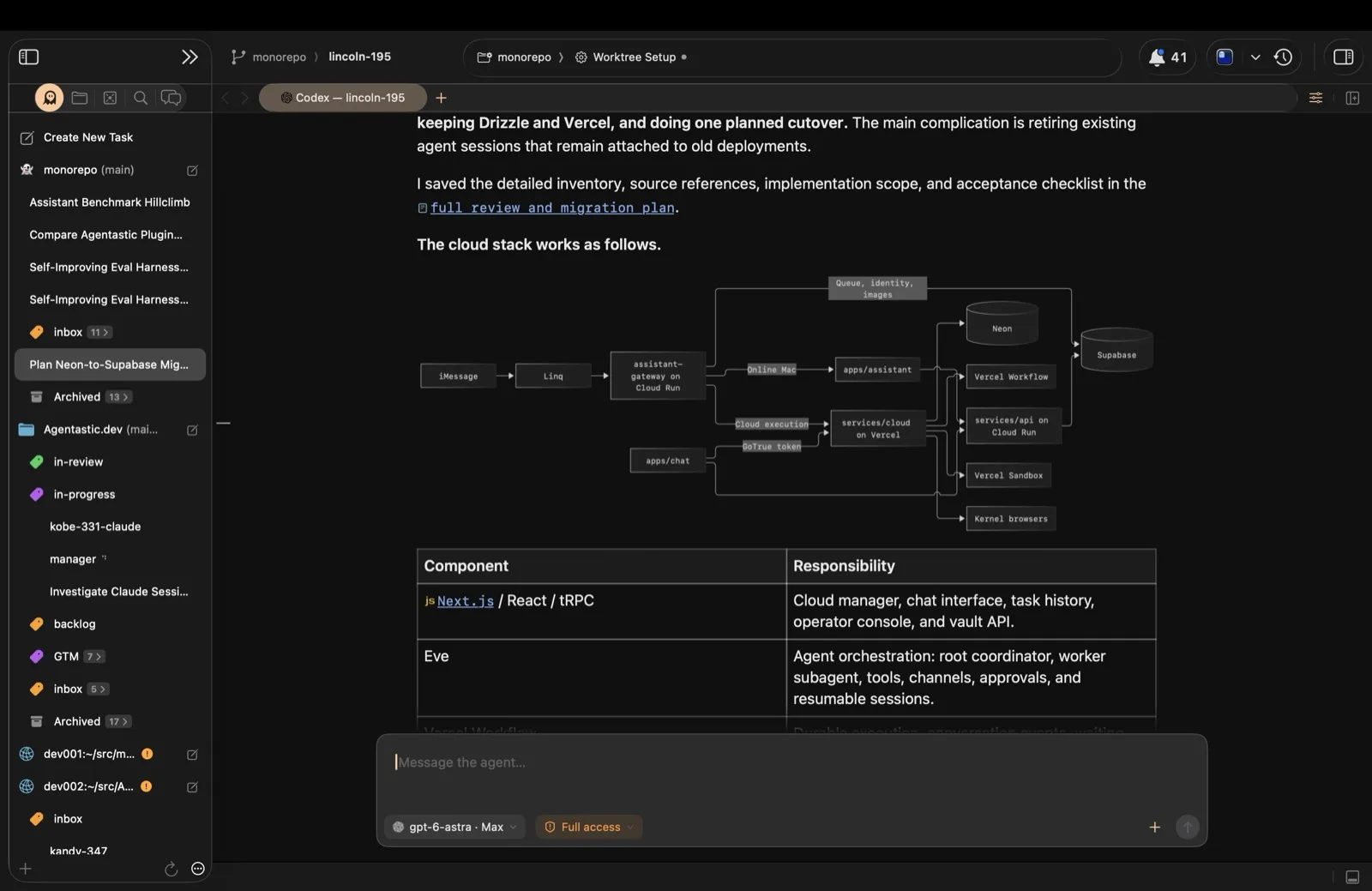
Diagrams render locally, work offline, and follow the app's light or dark appearance. They're drawn natively with Pele, a fast Mermaid renderer, so even long chats with many diagrams stay responsive. If Pele can't draw a diagram, the bundled Mermaid renderer draws it instead. When a diagram is wider than the chat column or document pane, it's laid out again to fit: a wide left-to-right flowchart turns top-to-bottom or wraps its labels instead of shrinking its text. A diagram that still doesn't fit shrinks to a readable size, and then scrolls sideways in documents. Right-click a diagram and choose Open Diagram to see it in its own window, where you can zoom from 25% to 800% with a pinch or ⌘+ and ⌘−; in chat, double-clicking a diagram opens it too. The same menu has Copy Image, Copy SVG, Save Image… (PNG, SVG, or PDF), and Copy Mermaid Source. Copying a selection that includes a diagram also includes its source. Choose Edit source in a Markdown document to change a diagram, then Show diagram to preview it. The iPhone companion draws them in agent transcripts too; tap one there to zoom in.
Unlabelled code fences are recognized when they start with a Mermaid diagram type, such as flowchart TB, sequenceDiagram, or pie title Sales. Use text as the fence language to display the source as code. While an agent is still writing a diagram, chat shows its source and draws the diagram once the fence closes. If a diagram can't be drawn, its source stays visible; Markdown documents also show the renderer's explanation of the problem.
Related#
- Editor — tabs, splits, the jump bar, and line operations
- Chat — where agents render Mermaid and edited-file cards
- Code Review — the same comment-then-dispatch idea, applied to diffs
- Settings Reference — Markdown View, spell checking, and font settings