Agent Home
Launch and manage AI coding agents from one panel — Quick Agent, chat panels, the prompt card, agent selection, and per-run configuration.
Overview#
Agent Home is your command center for launching AI coding agents. From a single interface, you can:
- Write prompts for AI agents
- Select which agents to run
- Configure worktrees or containers
- Launch multiple agents in parallel
Opening Agent Home#
Open Agent Home by:
- Clicking the Home icon in the Navigator sidebar
- Pressing Cmd+N (File > Create New Task)
- Using the Command Palette (Cmd+Shift+P) and typing "Agent Home"
Quick Agent#
Quick Agent is a lightweight version of Agent Home for when you already know which branch you want to work in. Instead of opening the full tab, a small floating panel appears right in the editor area with a single prompt field: "What should we do in branch-name?"
Quick Agent appears:
- When you press Cmd+K or choose View > Show Quick Agent
- When you click the Quick Agent tile on an empty editor pane
- Automatically after you create a new worktree, so you can hand off a task the moment the worktree is ready
It's skipped for container worktrees — a quick launch runs locally on your Mac, and silently bypassing the container's isolation would be surprising, so those worktrees open straight into a terminal instead.
Type your task and press Enter to launch, or click More options… to expand into the full Agent Home with repository, branch, and mode controls.
Sessions: Agents Without a Project#
Not every question is about a repository. Sessions are agent conversations that belong to no project — ask an agent to research an API, draft a migration plan, or scratch out a script, without opening a codebase first and without leaving anything behind in one.
Start one from the Sessions group at the bottom of the navigator sidebar — the compose button in its header, or right-click → New Session. You can also open the full Agent Home composer, click the repository picker, and choose Just Chat Sessions (No Repo); the prompt, agents, attachments, and plugins all work exactly as they do for a worktree launch. Pressing Enter drops you straight into the new session rather than leaving you on the composer.
Each session is its own git repository#
A session is not a branch and not a worktree. It is a standalone git repository created inside ~/Library/Application Support/Agentastic/Sessions/, so:
- Files the agent writes are real files, with real diffs and real history, reviewable in Source Control like any other repo.
- Nothing touches your projects. A session can't accidentally commit to a work repo, and it never appears in the repository picker, the repo sections of the navigator, or the Kanban board.
- No file-access prompt. The container lives in the app's own storage, so creating a session never asks macOS for permission to a folder.
Managing sessions#
| Action | How |
|---|---|
| Rename | Right-click → Rename. Sessions name themselves from the conversation; a manual rename wins from then on |
| Archive | Right-click → Archive — tucks it into the collapsed part of the list. The repository on disk is untouched |
| Reveal in Finder | Right-click → Reveal in Finder |
| Delete | Right-click → Delete Session… |
A session owns its own layout — tabs, terminals, and chat panels — so it reopens identically no matter which project window you open it from, and it survives restarts.
The Sessions group also holds your Manager Agents: each manager's home is a session repository, and the Agent Dashboard button appears in the group's header once you have one. Slack requests land in a new session by default, which is why a task you send from your phone never needs a repo chosen first. Right-click the group's header → Change Icon… to give it an SF Symbol or emoji of your own (see Repository Icons).
Agent Chat Panels#
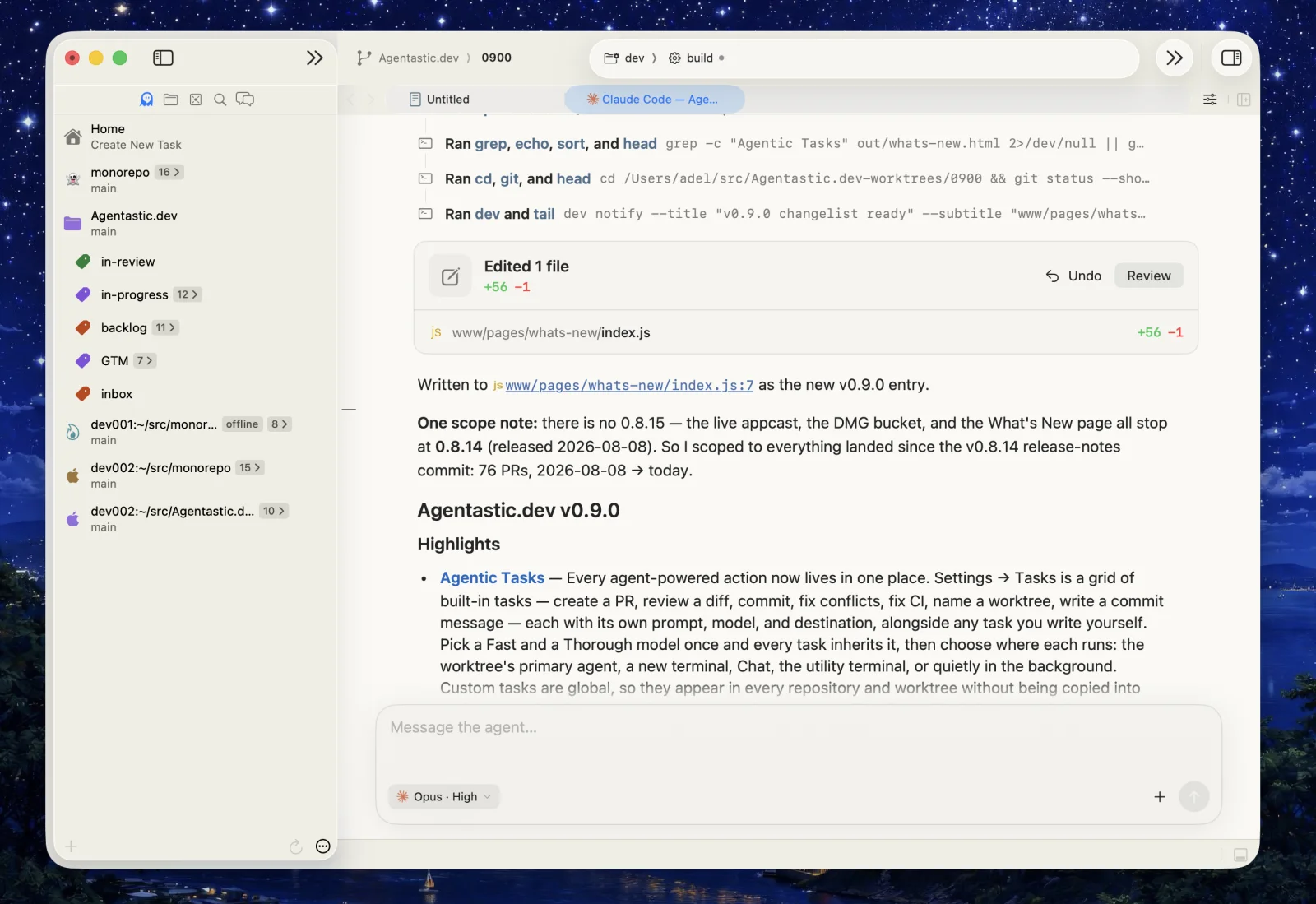
Agents can run as Chat — a structured transcript of what the agent actually did — instead of a terminal. Open the Agent Chat panel in the navigator with Cmd+5, or use the matching chat surface in the Utility Area at the bottom of the window. Each panel keeps its own independent tabs, so several agent sessions run in parallel in the active worktree.
- Pick your setup per chat — provider, model, thinking level, and any run mode every selected provider can enforce. Unsupported auto-approve and plan choices are hidden.
- Terminal or transcript — flip any chat between the raw Terminal and the Chat transcript at any time without interrupting the agent.
- Answer in place — permission requests arrive as approval cards, and an agent's questions as selectable choices.
- Steer or queue follow-ups — send to queue, or hold Option to deliver a message into the live turn on agents that support it.
- Promote to the editor — drag a running chat into the editor to give it a full tab. The live session, model choice, and terminal move with it; nothing restarts.
- Counted like any other agent — a chat registers with its worktree the same way a terminal agent does, and it can serve as the worktree's primary agent.
See Chat for the full guide: the transcript, permission cards, steering and queueing, the pinned plan and sub-agent sidebars, attachments, and the Chat Options menu.
Launch Interface#
Every agent has a Launch Interface preference under Settings > Agents that decides which surface a new launch opens in:
| Preference | Behavior |
|---|---|
| Terminal (default) | The agent runs in a real terminal; convert it to Chat at any time |
| Chat | The agent opens directly as a structured Chat transcript from the first prompt, in the surface you launched from — a sidebar or utility-panel launch stays in that panel |
Chat is available for agents Agentastic can drive over a structured protocol — 30 of the 55 catalog definitions today:
| Transport | Agents |
|---|---|
| Native | Agentastic, Claude Code, Codex |
| Agent Client Protocol (ACP) | Prime Agent, Poolside, Cursor, Grok Build, Muse Code, Qwen Code, Droid, Amp, OpenCode, GitHub Copilot, Auggie, Goose, Kimi, Kilocode, Devin, fx, Jcode, Yolop, Kiro, Cline, Mistral Vibe, Hermes Agent, Junie, MiMo Code, Qoder CLI, Oh My Pi, CodeBuddy Code |
Custom connections that resolve to one of these commands get Chat too. Agents launched with a command override, and agents started by a scheduled task, always open in Terminal.
You can also start or continue these chats from the command line with dev agent task (and its dev agent submit alias), so scripts and automations can queue work into the right worktree's chat. See the System-wide dev CLI for details.
The Prompt Card#
The central prompt card is where you describe your task.
Writing Prompts#
Type your instructions in the text area:
Add a REST API for user management:
- GET /users - list all users
- POST /users - create user
- GET /users/:id - get user by ID
- PUT /users/:id - update user
- DELETE /users/:id - delete user

Use Express.js and follow our existing patterns in src/api/
Tips for effective prompts:
- Be specific about what you want
- Mention technologies and patterns
- Reference existing code for context
- Break complex tasks into steps
File Mentions#
Reference specific files by typing @:
- Type
@in the prompt - Start typing a filename
- Select from the autocomplete list
- The file path is inserted as a mention
Mentioned files give the agent context about your codebase.
Image Attachments#
Attach images (screenshots, diagrams, mockups) to your prompt:
- Drag and drop images onto the prompt card
- Click the photo icon to browse for images
- Paste images from clipboard (Cmd+V)
Images are saved to the agent's prompt file for vision-capable agents.
Attachment Previews#
Everything you attach to a prompt appears as a compact chip in a single row above the agent and mode controls — mentioned files, images, skills, and linked Linear or Sentry issues. Hover any chip to preview its contents inline, without opening another picker or losing your place in the prompt:
- Images show a thumbnail.
- Files show a snippet of their text.
- Skills render their
SKILL.mdas formatted Markdown in a scrollable reading area. - Linear and Sentry issues show the ticket or error details.
The preview stays open long enough to move your pointer into it and scroll, while each chip's detach (✕) button stays outside the preview target so it keeps working.
Selecting Agents#
Auto-Discovered Agents#
Agentastic's public catalog includes 55 built-in agent definitions and automatically detects the installed CLIs, including:
- Prime Agent - If
prime-agentis in your PATH - Claude Code - If
claudeis in your PATH - Codex - If
codexis in your PATH - Poolside - If
poolis in your PATH - Command Code - If
command-code,commandcode, orcmdcis in your PATH - Gemini - If
geminiis in your PATH - Cursor - If
cursor-agentis in your PATH - GitHub Copilot - If
copilotis in your PATH - Junie - If
junieis in your PATH - OpenHands - If
openhandsis in your PATH - Letta Code - If
lettais in your PATH - Cortex Code - If
cortexis in your PATH - Aider - If
aideris in your PATH - MiMo Code - If
mimois in your PATH - Qoder CLI - If
qodercliis in your PATH - OpenClaude - If
openclaudeis in your PATH - Ante - If
anteis in your PATH - Oh My Pi - If
ompis in your PATH - OpenClaw - If
openclawis in your PATH - Warp Agent CLI - If
warpis in your PATH - CodeBuddy Code - If
codebuddyorcbcis in your PATH - Zero - If
zerois in your PATH - And 30+ more (see Supported Agents)
Configured Agents#
Add custom agents in Settings > Connections.
Multiple Agents#
Run multiple agents simultaneously:
- Click the agent selector
- Check multiple agents
- Adjust instance counts (1x, 2x, 3x)
- Each gets its own worktree
For example: Run 2 Claude agents and 1 Codex agent on different aspects of your task.
Configuration Options#
Repository Selection#
If multiple repositories are open, select which one the agent should work in.
Base Branch#
Choose the branch to create the new worktree from:
- Usually
mainormaster - Can be any existing branch
Branch Name#
Enter a name for the new branch:
- A random city name is suggested (e.g.,
tokyo-847) - Or type your own descriptive name
Mode: Worktree vs Container#
Choose the agent's environment:
Worktree Mode (default)
- Agent runs directly on your machine
- Faster to start
- Full access to your tools
Container Mode
- Agent runs in Docker
- Maximum isolation
- Reproducible environment
Container Image#
When using Container mode, select a Docker image:
agentastic/cloud-base- Pre-installed AI toolsnode:22-bookworm- Node.js environment- Custom images you've added
Launching#
Click Send (or press Enter) to launch.
Agentastic will:
- Create a git worktree with the provisional name shown in Agent Home
- Run setup scripts and start the container when configured
- Start the Worktree Display Name action inside that new worktree
- Open the new environment and launch the AI agent without waiting for naming
- Apply the display name when the background action finishes; the original branch and worktree path remain unchanged
The naming action runs separately from the main coding agent. Its default Headless target invokes local Codex or Claude noninteractively in an isolated temporary directory and captures a schema-constrained JSON result. Custom provider model settings are preserved. Other providers and remote or container-backed tasks use hidden structured Chat, which closes after a valid result. You can choose Utility Chat to reveal and retain the task conversation. Worktree creation and agent launch do not wait for that response. The task only updates presentation metadata: it never renames the Git branch or worktree directory. Customize its target, model, and prompt in Settings > Tasks. Its built-in prompt uses {userPrompt}, and the full shared placeholder dictionary is available. See Actions.
Activity Indicators#
Waiting has a shape in Agentastic. Instead of a generic spinner, an animated orb tells you which kind of work is in flight:
| Orb | Where | Means |
|---|---|---|
| Large, above the composer | Agent Home, Quick Agent | Connecting to the agent |
| Small, beside the status text | Chat | Thinking, streaming a response, or running a tool group |
| Small, slow | Agent Home status rows | Creating a worktree, or provisioning and syncing a cloud container |
The orbs are drawn natively for both light and dark appearance. With Reduce Motion enabled in System Settings > Accessibility > Display, they render as a still image instead of animating.
After Launch#
Monitoring Progress#
- The terminal shows the agent's output
- Switch to the agent's worktree to see file changes
- Use Cmd+Option+Down/Up to navigate worktrees
Multiple Tasks#
Agent Home supports queuing multiple tasks:
- Each launch creates a new worktree
- Agents work in parallel
- Track progress in the Agents navigator tab
Validation Warnings#
Agent Home shows warnings if:
- The branch name already exists
- The base branch is not up to date
- Docker is not running (for container mode)
Persistence#
Agent Home remembers your selections:
- Last used repository
- Base branch preference
- Selected agents
- Mode (worktree/container)
Settings persist across sessions.
Keyboard Shortcuts#
The send shortcut is one rule everywhere a prompt is typed — the Agent Home prompt, the Quick Agent panel, and chat composers all follow it. The chord you choose submits, that chord plus Option submits with the surface's variant, and every other Return chord opens a new line.
| Action | Send Shortcut = Return | Send Shortcut = ⌘ Return |
|---|---|---|
| Submit | Return | Cmd+Return |
| New line | Cmd+Return, Shift+Return | Return, Shift+Return |
| Submit + variant | Option+Return | Cmd+Option+Return |
The variant depends on where you are typing: the Agent Home prompt also switches to the launched task's workspace, while a chat composer flips that one message between queueing and steering.
Change the shortcut under Composer settings. Open Agent Home itself from the Command Palette.
Tips#
Start with One Agent#
Get familiar with the workflow using a single agent before running multiple.
Use Descriptive Branch Names#
Makes it easier to identify what each agent is working on.
Attach Context#
Use @ mentions and image attachments to give agents the context they need.
Check Validation Warnings#
Address any warnings before launching to avoid issues.
Troubleshooting#
Agent Not Showing#
Ensure the agent CLI is:
- Installed globally
- In your PATH
- Executable
Check with which agent-name.
Container Mode Unavailable#
- Install Docker Desktop
- Start Docker
- Refresh Agent Home
Worktree Creation Failed#
- Branch name might already exist
- Check git status for conflicts
- Ensure write permissions