Companion for iPhone
Pair your iPhone with your Mac over an end-to-end-encrypted connection to watch agents, answer their questions, review diffs, merge PRs, and start tasks from anywhere.
On this page
- Turn it on and pair
- 1. Download
- 2. Enable
- 3. Pair
- Control several Macs
- What you can do from the phone
- Watch the fleet
- Pin, rename, and mark as read
- Answer, steer, interrupt
- Open files, images, and links
- Open artifacts
- Share a conversation
- The Inbox
- A real terminal, not a screenshot of one
- Review the diff
- Ask an agent to review it
- Check a pull request
- Merge a pull request
- Hand a fix to an agent
- Start a task
- What the phone deliberately cannot do
- Notifications that don't leak
- Answer from the notification
- Catching up after being away
- Reach your Mac from anywhere
- Connecting and reconnecting
- Keep your Mac awake
- Related
Agents work for a long time and then stop, waiting on one word from you. Companion is the iPhone app that closes that loop: it pairs with your Mac, shows you every agent, and lets you answer without going back to your desk.
The phone connects to your Mac. Choose Direct on your local network or a VPN like Tailscale, Through Agentastic Servers from anywhere on the internet, or both. Both options are end-to-end encrypted and off until you enable them. Agentastic has to be open on your Mac, and the Mac awake: while it's plugged in, it stays awake while your phone needs it.
Turn it on and pair#
Open Settings → Mobile App on your Mac and follow Download → Enable → Pair.
1. Download#
The mobile app is on TestFlight for testing and needs iOS 18 or later. Join the TestFlight beta, or scan the install QR code below with your iPhone's camera. The same invitation and screenshots are at the top of the Mac's settings page, even before you enable a connection.
 Join the TestFlight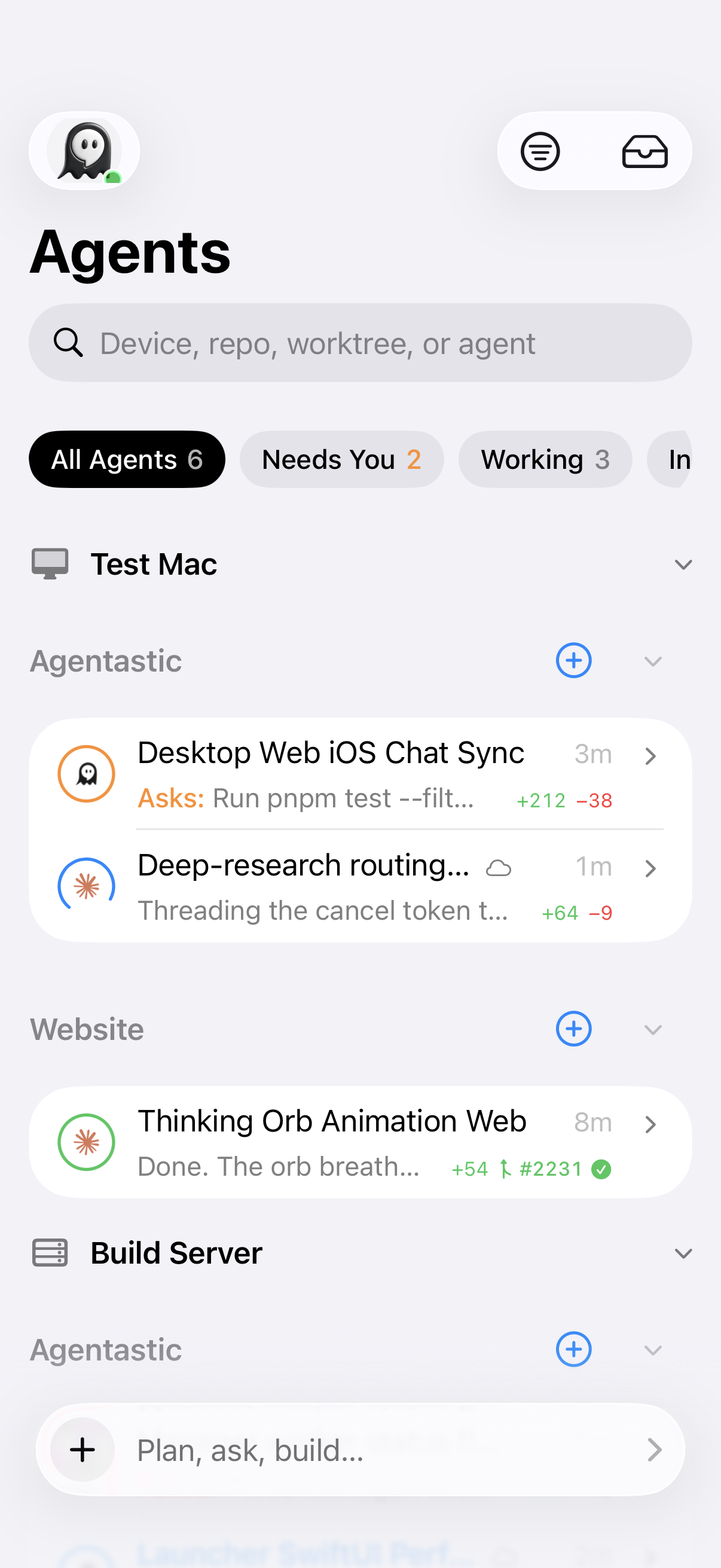
2. Enable#
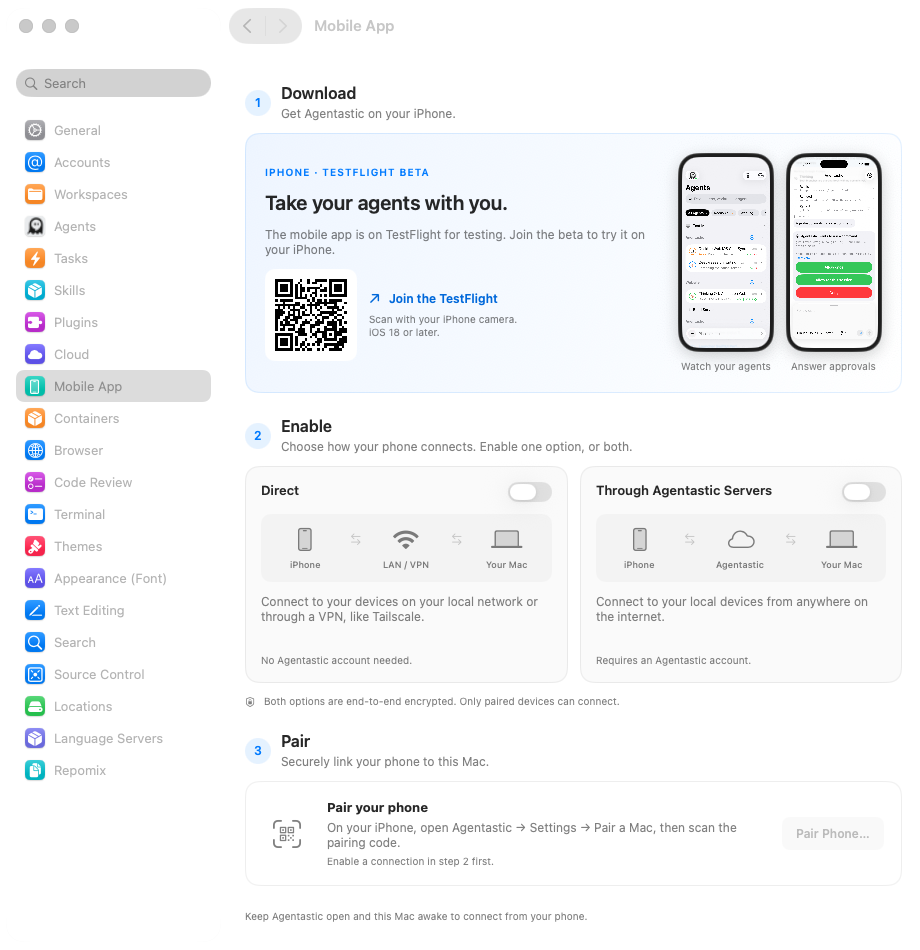
Choose how your phone reaches this Mac. Enable one option, or both; each has its own switch and a diagram that turns gray when disabled.
| Connection | When to use it | Account |
|---|---|---|
| Direct | Connect to your devices on your local network or through a VPN, like Tailscale. | No Agentastic account needed. |
| Through Agentastic Servers | Connect to your local devices from anywhere on the internet, including cellular and other Wi-Fi networks. | Sign in to Agentastic on the Mac in Settings → Accounts. |
With both enabled, your phone prefers Direct when it can reach the Mac. Server access also works on its own: turning Direct off closes the local listener. Agentastic Servers forward encrypted traffic and cannot read your sessions. Wait for the server option to show Connected before pairing with only that option enabled.
See the settings page with both connection options off
3. Pair#
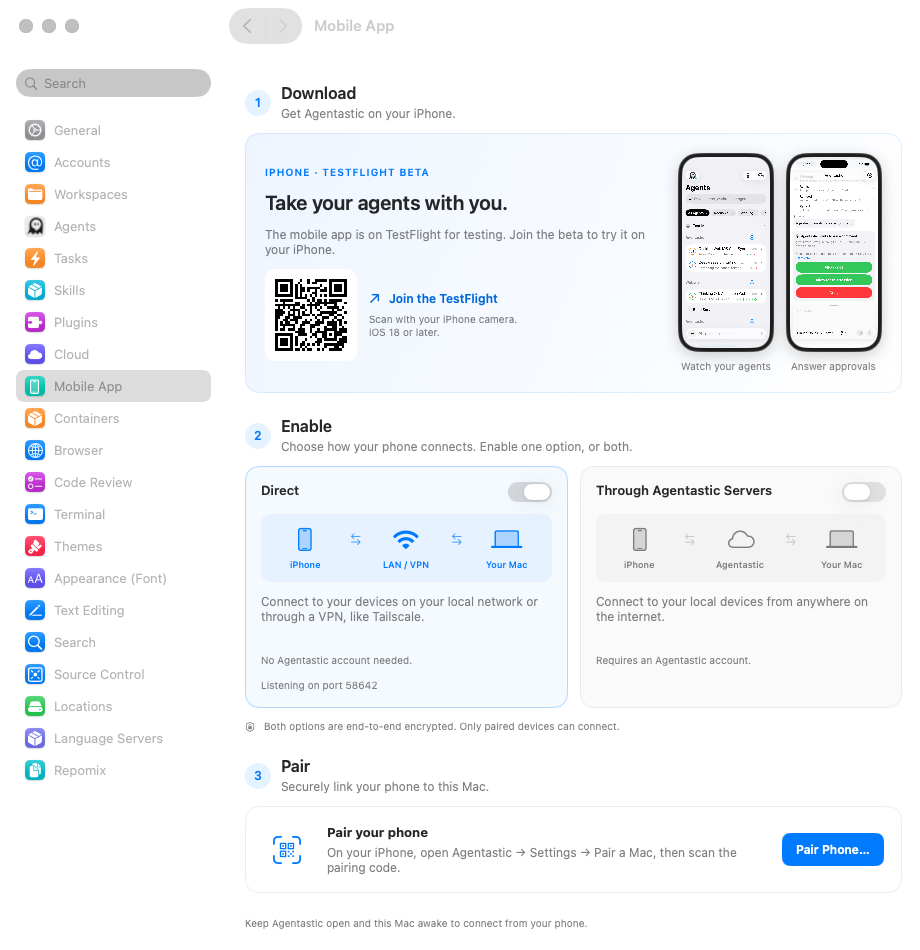
- Click Pair Phone… in step 3 on the Mac. This shows a pairing QR code, separate from the TestFlight install code above.
- On your iPhone, open Agentastic → Settings → Pair an Instance, then scan the pairing code.
- The Mac appears in the iPhone app, and the phone appears under Paired devices on the Mac. You can now watch your agents, answer approvals, and start tasks.
Copy Link in the pairing sheet and Paste Link on the phone also work when you cannot use the camera. The Pair Phone button becomes available once a connection from step 2 is ready.
The QR code carries the Mac's name, its reachable addresses, and its public key — never an access token. A payload that tries to smuggle one is rejected outright. It also carries a single-use invite, so a phone without an Agentastic account can pair; the invite lasts ten minutes, and the sheet shows when it expires. When the Mac is signed in to an Agentastic account, the code offers that identity too, and the phone picks.
From a device's tile you can Revoke Access — it keeps the entry but cuts it off — or Remove it entirely, after which it has to pair again before it can connect.
Control several Macs#
Repeat the pairing steps for each Mac running Agentastic.dev. All paired instances connect while the phone app is open; adding one leaves the others connected.
Use Instance at the top of Agents to show All Instances or one Mac. Each instance has its own agents and connection status. An offline instance keeps its last loaded rows, marked as offline, while the others stay usable. Tap Retry to reconnect it.
An open agent, terminal, diff, or pull request stays attached to the instance you opened it from. Starting a task from a repository uses that repository's instance. The global task composer lets you choose an instance first and remembers your last choice; the task sheet shows where it will run.
Open Settings → Instances to rename a Mac on this phone, inspect its connection, retry, or forget it. A local name helps distinguish machines that report the same name. Forgetting removes only that instance's pairing and unsent work. Signing out disconnects account pairings; Macs paired with invites keep working.
The Inbox labels entries with their instance, and tapping a notification opens the instance that sent it. Older links without an instance ask which one to open when several are paired.
What you can do from the phone#
Agents shows the fleet. Open Inbox or Settings from its toolbar to answer waiting requests or manage your pairings.
Watch the fleet#
Every agent across every workspace — terminal agents and Chat sessions alike — grouped by owning instance, device, repository, and worktree. The chips above the list filter by what an agent needs from you, each with its live count:
| Filter | Shows |
|---|---|
| All Agents | Everything the Mac is running |
| Needs You | Agents blocked on a question or a permission request |
| Working | Agents currently running |
| In Review | Agents finished with changes waiting |
Each worktree is one compact row, led by the agents inside it: one agent's icon, or several stacked as in the Mac's sidebar, with the one that most needs you in front. Then come its name, its branch, lines added and removed, and its pull request's number and CI result. Tap the row to open it and see its agents and terminals, plus shortcuts to its Changes, its Pull Request, a new Task, a code Review, and a new Terminal; long-press it for the same actions without opening it. While you search or filter, the worktrees that match open by themselves, so the agent that matched is in view. Tap a heading — a device, repository, server, or project — to fold it away; the group keeps its agent and terminal counts visible.
By default, rows are sorted by urgency — errors first, then agents waiting on you, then review-ready, then running — so the top of the list is always the thing to look at.
The menu at the top of Agents has the same two choices as the Mac's sidebar, Group By and Sort By, each a submenu that shows the current choice. They are independent, so any grouping works with any order.
| Group By | Shows |
|---|---|
| Repository (default) | Repository cards under the paired Mac and its remote hosts |
| Server | One section per machine the agents run on: your Mac, each SSH server, and Cloud |
| Project | One section per project. Checkouts of the same repository on different servers share a section, matched by folder name |
| Flat | One list across all repositories. Sorted by a date, it is divided into Pinned, Today, Last 7 Days, Last 30 Days, and Backlog |
| Sort By | Order |
|---|---|
| Status (default) | Urgency, as above. The phone's own sort |
| Name | A to Z by worktree folder name |
| Creation Date | Newest first. Activity never moves a row |
| Recent Activity | Agents waiting on you first, then the most recent activity |
Under Name, Creation Date, and Recent Activity, pinned worktrees lead their section, as on the Mac. Wherever a list mixes repositories, each row names its repository on the second line; under Project, a row on an SSH server names the server instead. The date sorts need a recent Agentastic.dev on the Mac; with an older one, the phone sorts by Status or Name.
To open an agent straight from a folded row, tap its icon. When a row holds several agents, a tap opens the one in front of the stack. Tapping anywhere else on the row unfolds it.
The list shows worktrees with something going on; Show → All Worktrees lists every one. Chats started without a project are grouped under a single Chats row, titled as they are in the Mac's sidebar. The list stays live: an agent started on the Mac, or from the phone, shows up within a couple of seconds.
After the Mac app restarts, the terminal agents in worktrees you haven't opened on the Mac yet still show up, as idle. That includes agents on a remote machine, which keep running there while the Mac app is closed. Open one of those worktrees from its row and all of its agents resume, the way clicking the worktree on the Mac would, without changing what the Mac shows: an agent on your Mac starts again where it left off, and the Mac reconnects to an agent on a remote machine. The phone opens the agent in front, and when several come back, the row unfolds to list the rest for when you go back. Opening a single agent from an unfolded row, or sending one a message, resumes just that one. For agents on your Mac, this follows the repository's Auto-resume agent on reopen setting; with it off, open the worktree on the Mac to resume them. Agents on a remote machine always reconnect, as they do on the Mac. Resuming a whole worktree needs the latest Agentastic.dev on the Mac; with an older Mac, only the agent you open resumes, and only if it runs on the Mac itself.
Pin, rename, and mark as read#
Long-press a worktree in Agents and choose Pin, Rename…, or Mark as Read. They do what the Mac sidebar's Pin, Rename, and Mark All as Seen do, so the change shows on both your phone and your Mac. The row changes right away; if your Mac can't make the change, it goes back and an alert says why.
A pinned worktree has a pin next to its name, and stays at the top of its section under the sorts that keep pins first, as on the Mac. Rename changes only the name shown: the branch and folder keep theirs, and an empty name goes back to the folder's name.
A worktree is unread when something happened in it that you haven't looked at on your Mac: an agent finished, hit an error, or asked you something. Unread worktrees have a blue dot. Mark as Read clears that on both devices. Mark as Unread is a reminder for later: the worktree shows a 👋 in the Mac's sidebar until you open it there, or until Agentastic quits. Reading an agent on your phone doesn't mark it read.
A repository's main checkout offers none of these, and a session offers only Rename, as on the Mac. They need the latest Agentastic.dev on the Mac; with an older Mac, the menu doesn't show them.
Answer, steer, interrupt#
Open an agent to read its transcript. An agent that runs in a terminal opens on its terminal instead; a button in the toolbar switches between the terminal and the transcript. To archive or delete an agent, swipe its row left in Agents; a full swipe archives. You can send a message, answer a question, respond to a permission request, or interrupt the current turn, whether the agent runs in a terminal or in Chat. It is the same live session the Mac is driving; there's no separate phone copy to reconcile.
The ••• in the top right corner of an open agent, on its transcript or its terminal, gathers what its work has produced. Share Chat… comes first. Then the branch's change, as lines added in green and removed in red — +12 −3 — which opens the diff. Once the branch has a pull request, its number follows on a colored tile, which opens its page. While the PR is open, the tile is orange as long as its checks are running and red if one failed. Otherwise it shows the PR's state: green while open, gray as a draft, purple once merged, red if closed. Each appears once there is something behind it, and the PR an agent opens while you watch shows up without leaving the screen. Back returns you to the agent. Last come Create Pull Request and Commit & Push, when they apply.
While an agent is working, or waiting on you partway through a turn, a stop button sits beside where you type: in a terminal, between the field and •••; in a transcript, just before the microphone. Tap it to stop the turn, exactly as the Mac's own stop would. It spins briefly while the stop takes effect, and if your Mac can't stop the agent, an alert says why.
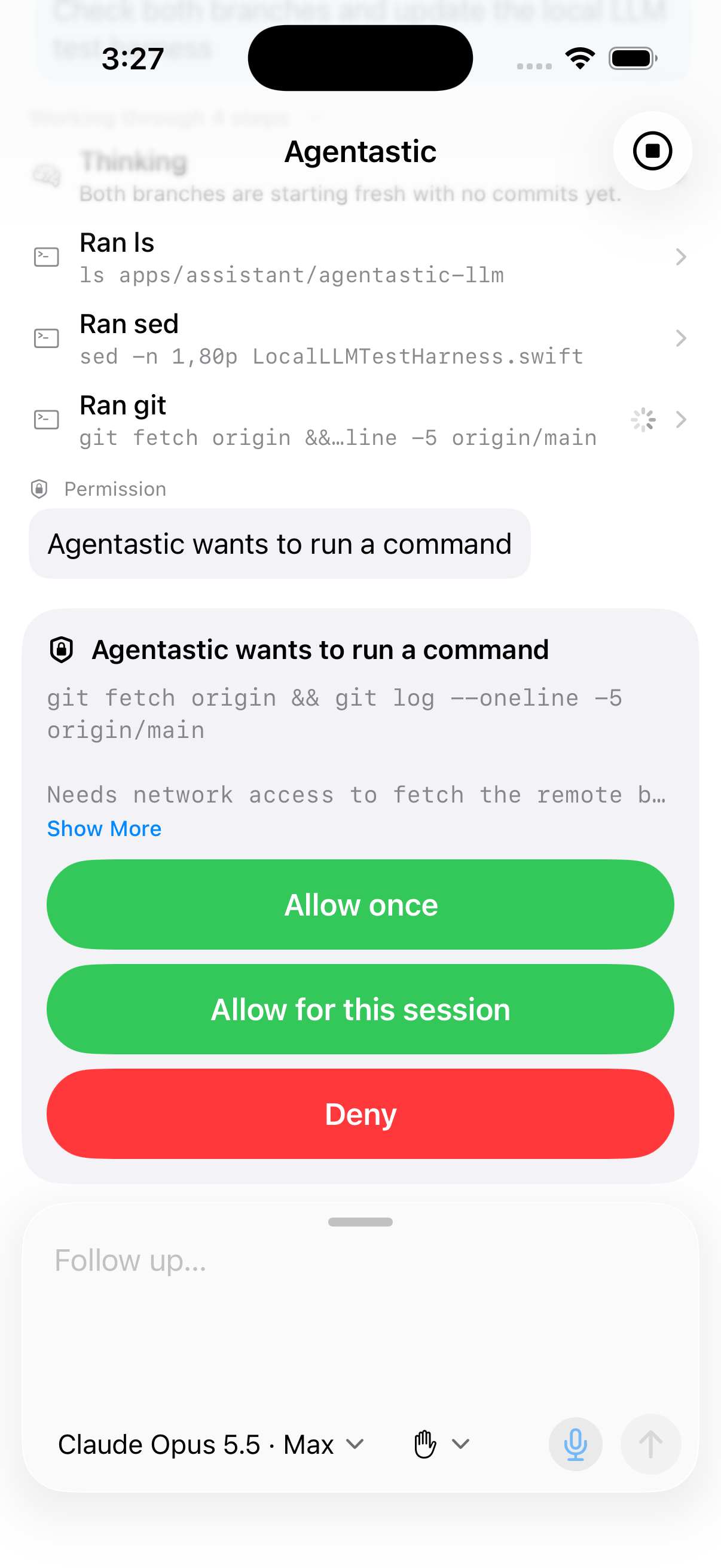
When an agent in Chat stops to ask before running a command, changing files, or anything else it needs your OK for, a card above the composer shows what it asked, with the same choices the Mac shows, in the agent's own words: Allow once, Allow for this session, and Deny for Codex, for instance, or Always Allow, Allow, and Reject for some other agents. Every way to allow is green and every way to refuse is red. The card is there even if your phone was locked when the agent asked and you opened the app from the notification — or skip the app and answer from the notification itself. A question shows the answers the agent suggested and a field for your own; several questions come one at a time. If the agent opened on its terminal, a bar above the terminal says what it's waiting on, and Answer takes you to the card.
Follow-ups go in a roomy card at the bottom of the transcript, with the send button inside it. Drag the handle on top of the card up for more room to write, and back down when you're done. To say a follow-up instead of typing it, tap the microphone beside the send button, talk, and tap the red stop button. It works the way it does in New Task: what you said goes where the cursor is, a level meter shows the phone is listening, and the send button waits until you stop. For an agent in Chat, the button in the card's corner shows the model and thinking level the next turn runs on. Tap it to pick another, from the same list the Mac's Chat composer offers. The pick goes out with your next message and sticks for the turns after it, exactly as if you had changed it on the Mac. An agent the Mac shows as a terminal keeps the model its terminal picked.
Beside the model, a second button sets how the agent's actions are approved, with the presets the Mac's Chat composer offers for it: for Claude, Plan, Ask every time, Auto, and Full access. Unlike a model, a preset applies the moment you pick it, and switching to Full access also approves a request the agent is already waiting on, as it does on the Mac.
To show an agent in Chat what you mean — a whiteboard sketch, or a bug on another device — tap + at the bottom left of the card and choose Attach an Image, or Take Photo to use the camera. A message takes up to eight pictures. Each one is shrunk on the phone and uploads while you finish typing; a failed upload stays on its thumbnail, so tap it to try again, or tap × to take it out. The send button waits until every picture has uploaded, and a message of only pictures is fine too. Once sent, the pictures show above your message on the phone and on the Mac, and reach the agent just as if you had attached them in the Mac's Chat. The first time you take a photo, iOS asks for the camera.
The + appears wherever the Mac's own composer can attach files. An agent your Mac shows as a terminal doesn't get one: its composer there is the agent's own interface, where a picture could only arrive as a file path. Neither does an agent in a container, or one in Chat whose terminal runs on a remote machine. Pictures in follow-ups need the latest Agentastic.dev on the Mac; with an older Mac the + doesn't appear.
A message you send gets there even if you leave the app right after, or the phone is between connections: it shows as Sending… until the Mac takes it, goes out again when the phone reconnects, and reaches the agent once, with its pictures. If the Mac refuses it, the words and pictures come back to the card to send again.
A follow-up you send while the agent is working waits in your Mac's queue until the agent finishes its turn. It stays at the bottom of the transcript, marked Queued, with three buttons under it, which a long press offers too. Send Now sends it right away: an agent that can take a message mid-turn gets it in the turn it's working on, as Claude Code, Codex, and Agentastic chats on your Mac can, and any other agent stops its turn so your message goes first. Claude takes only words mid-turn, so a message with pictures stops its turn too. When it can tell, the long press says which will happen. Edit puts the words back where you type; change them and tap send, and the message keeps its place in line. Cancel takes it out of the queue. Each new follow-up joins the end of the line. Messages queued on your Mac show up too, and a change on either device appears on the other right away. A message with attachments can be sent now or cancelled from the phone, and edited on the Mac. Queued messages need the latest Agentastic.dev on the Mac; with an older Mac, a queued follow-up shows as Sent. An agent your Mac shows as a terminal has no queue: what you send is typed into its terminal at once.
An agent you've opened before, or one that posted while the app was connected, opens straight away with what the phone already has and catches up from the Mac in the background. Any other agent shows a spinner until its messages arrive, labeled Connecting… while the phone is still reaching your Mac. If they can't be loaded, the transcript says so, with a Retry button. If the connection drops, an open transcript or terminal picks up again on its own once the phone reconnects. A single very large tool result is shortened on the phone; the full output stays on the Mac.
Replies are formatted as they are on the Mac — headings, lists, tables, and code blocks with syntax highlighting and a copy button. To copy a whole reply, tap the copy button under it, which appears once the agent finishes its turn. To copy anything else, including your own messages, long-press it and choose Copy.
Mermaid diagrams in a reply are drawn in place and laid out for the screen's width, so a wide flowchart turns or wraps instead of shrinking past reading. Tap one to see it full screen, where you can zoom into its smallest labels or share it as a picture. The buttons above a diagram show its source and copy it. Diagrams are drawn on the phone, offline, with the same renderers the Mac uses. One that can't be read, or one the agent is still writing, shows its source instead.
Screenshots and other images an agent puts in a reply appear where it puts them, and pictures attached to a message appear above it, as on the Mac. They come from your Mac over the same encrypted connection, and only images the conversation shows can be sent. Tap one to see it full screen, zoom into it, or share it. An image from a web address shows as its name instead, so a reply can't make your phone contact a server. An image also shows as its name when your Mac can't send it: the Mac is offline or needs an update, the remote machine the agent runs on isn't connected, or the file is gone.
Open files, images, and links#
Tap a file an agent links to and the phone fetches it from your Mac. Code opens with line numbers and syntax highlighting, scrolled to the line the link points at; Markdown files are rendered, with the source a toggle away; images pinch to zoom; PDFs scroll page by page. A step that read or changed a file has an Open button in its details. An image shown by its name opens when you tap it: one from a web address in Safari, a file from your Mac in the same viewer. Web links open in Safari too, without leaving the app. Share a file, or Quick Look it, from the ⋯ menu.
The Mac reads only inside worktrees open in Agentastic, the same limit Files changed has, so a link to anything else on your Mac, like ~/.ssh, says it can't be opened. A large image arrives as a smaller copy, a long text file shows its first 512 KB, and other files over 512 KB stay on the Mac. Opening files needs the update on the Mac too; until then, the phone says so.
Open artifacts#
When an agent publishes an artifact, such as a report, a plan, a diagram, or a page of screenshots, its reply links to it. Tap the link and the artifact opens on your phone as it does in the Mac's Artifacts tab: the same page, in your phone's light or dark appearance. Links inside it work as on the Mac. Another page of the artifact opens in place, a web page opens in Safari without leaving the app, and a link to another artifact opens that one. ••• switches versions; Latest moves to a new version as soon as the agent publishes it. Pull down to reload.
Forms and buttons on the page work too. A decision you send from the phone reaches the agent just as one sent from the Mac does, and a page's shared data, like the votes on a board, stays live. Comments stay on the Mac. Opening artifacts needs the update on the Mac too; until then, the phone says so.
Share a conversation#
To send someone an agent's conversation, tap ••• in the top right corner of the agent and choose Share Chat…. You get the same two choices as the Mac's chat tab menu. Tunnel is a page served from your Mac through a temporary Cloudflare tunnel. Agentastic is a link at agentastic.com that lasts until you delete it. You also get the same options for what to include, and the same credential warning before anything goes out. Once the link is ready, copy it, send it with the share sheet, or open the page. Sharing Conversations explains what a share includes.
The share is made on your Mac: the tunnel runs there, and an upload uses the Agentastic account your Mac is signed in to under Settings → Accounts. A share started on either device shows on the other, so you can copy or stop it from wherever you are. As on the Mac, only a conversation shown as Chat can be shared. An agent your Mac shows as a terminal offers Share Chat… only while it still has a live link, so you can take that link down.
The Inbox#
Approvals, questions, and finished runs collect in the Inbox tab, and its badge counts what's waiting. Swipe a row to Dismiss it, or tap Clear to empty the Inbox.
A real terminal, not a screenshot of one#
Terminal output is rendered through an actual VT parser on the phone — cursor positioning, colors, redraws. A TUI agent that repaints its screen looks right, instead of degrading into thousands of lines of escape-code soup the way a plain text tail does.
Type into the field under the terminal and press Return to send the line; the keyboard stays up for the next one, and Return in an empty field sends a bare Return. Tap ••• for a tray of keys the keyboard lacks: show or hide the keyboard, esc, tab, ^C, ^D, ^Z, the arrow keys, and ⏎. With the tray, you can answer an agent's menu with the keyboard hidden — ↓ ↓ ⏎. The tray stays open until you tap ••• again, and the phone remembers how you left it.
To work in a shell of your own, open a worktree and tap Terminal, or long-press it and choose New Terminal Here. The Mac adds a terminal tab to that worktree in the background, running the Startup Command from Settings → Terminal if you set one, and the phone opens it ready for typing. The phone chooses only where the terminal opens, never what it starts with. If the Mac can't open one, Couldn't Open Terminal says why.
Review the diff#
See what a worktree changed, so "In Review" is something you can actually act on from a phone rather than a status you note for later. Files changed is one scrolling page: every file under a header that stays pinned while you read it, with line numbers, syntax highlighting, and a marker where unchanged lines are skipped.
All Changes shows everything the branch did against its base — committed work included, matching the counts on the worktree's row — and Uncommitted narrows it to what isn't committed yet. Remote worktrees show their uncommitted changes. Tick a file's circle to mark it viewed and fold it away; the mark sticks until the file changes again. The list button jumps straight to a file, and the ⋯ menu wraps long lines, folds or unfolds every file, and refreshes.
Ask an agent to review it#
To have agents review a worktree's changes, open the worktree and tap Review, or long-press it and choose Review Changes…. This is the Mac's Code Review button, from the phone, and the sheet lists the same choices:
- Review Diff runs what a click on the button runs: the Review Diff task from Settings → Tasks, plus the additional reviewers checked in Settings → Code Review. The line under it says who reviews — by default the agent already working in the worktree — and who joins.
- One Reviewer runs a single reviewer from the button's menu on its own, in a new terminal in the worktree: a coding agent such as Claude Code or Codex, or a review tool such as CodeRabbit or Greptile, marked Specialized as on the Mac.
Reviewers read everything the branch changed against its base, uncommitted work included, with the prompt and review commands set up on the Mac; the phone only says which worktree and which reviewer. The sheet opens on the reviewer you last started from the phone. Like a task, the review waits under Starting until the Mac has every reviewer running, keeps going if you leave the app, and starts only once. The reviewers then join the worktree's row like any agent — open one to read its review. If the Mac can't start one, Couldn't Start Review says why.
A review started from the phone never changes what the Mac's window shows. A Review Diff set to open in the Utility Area or the sidebar's Chat, which only show the worktree on screen, opens in a new terminal tab of the reviewed worktree instead. Review needs the latest Agentastic.dev on the Mac; with an older Mac it doesn't appear. Chats have no branch to review, so they don't offer it.
Check a pull request#
When a worktree's branch has a pull request, its row shows the PR's number and CI result. Open it for the PR page: its state, title, and size; whether it is approved, waiting for review, or has changes requested; its checks, with each failing one listed; who is reviewing; merge conflicts; and the description, rendered. Files changed opens the PR's own diff, and the link button opens it in the browser.
Full detail comes from GitHub, through the account connected on the Mac. For other hosts the page shows the state and check results the Mac already tracks.
While the page is on screen it keeps itself current: every 15 seconds while checks run, every few seconds while GitHub works out whether the branch can merge after a push, and once a minute after that. The status card says when it last reached GitHub, and each refresh also updates the worktree's row and the Mac's sidebar badge. Tap a check to open its page on GitHub, logs included.
Merge a pull request#
An open GitHub pull request shows Slide to merge whenever GitHub would accept the merge, colored by CI: green when every check passed, orange while checks run, red when some failed, and blue when none are reported. The line under it says which, so you know what you're agreeing to. Drag the arrow to the right and release to merge; a drag you don't finish springs back, and VoiceOver offers a Merge or Cancel confirmation that names the CI state too. When the repository allows more than one merge method, choose one from the menu above the slider.
When GitHub or the Mac would refuse — merge conflicts, a branch that is behind, branch rules, a draft, requested changes, or no push access — the slider locks and says why. Checking mergeability… means GitHub is still testing the merge after a push; the page checks again within seconds.
Before it merges, the Mac reads the pull request again. If new commits have landed, or CI got worse since the page showed it — a check that failed after you slid on orange, say — the Mac refuses, and the page refreshes so you can look again. Merging needs Agentastic.dev 0.13.2 or later on the Mac; with an older Mac the slider doesn't appear.
Hand a fix to an agent#
When something is in the way, the phone offers the Mac's built-in agent action for it, as the Mac's pull request panel does, in one tap:
- Fix CI, under a pull request's checks once one has failed.
- Fix Review Comments, under its reviewers while a reviewer has asked for changes or left comments.
- Resolve Conflicts, under a locked Slide to merge while the branch conflicts with its base, or Fix Blocked Merge when it's behind its base or held by branch rules.
- Create Pull Request, when a worktree's branch has changes and no pull request, and Commit & Push, when it has uncommitted changes. These are in the worktree's long-press menu, under its other buttons when you open it, and in an open agent's •••.
The phone only says which action and where. Everything else is the Mac's: the prompt is the one in Settings → Tasks, filled in the way the pull request panel fills it — the failing checks and their logs, the review comments, the merge status, the files in conflict — and the action goes where it's set up to run, by default to the agent already working in the worktree. With no agent running there, the Mac starts one in a new terminal tab of the worktree. Like a review from the phone, it never changes what the Mac's window shows.
There's no sheet: a tap starts it. It waits under Starting until the Mac has an agent on it, keeps going if you leave the app, and runs once, and its button shows a checkmark. The Mac checks again before it runs anything, so an action that no longer applies — the checks were re-run, or the branch got its pull request in the meantime — is refused and waits under Couldn't Start with the reason and Retry.
The phone asks the Mac which actions apply to the worktrees on screen that have changes, and again when you open one, so a button appears a moment after the rest. Agent actions need the latest Agentastic.dev on the Mac; with an older Mac they don't appear. Sessions don't offer them.
Start a task#
Tap + in the toolbar, or the Plan, ask, build… bar at the bottom of the list, to open New Task; choose + → New Task beside a repository's name to open it with that repository chosen. Describe the task, optionally name it, and pick the repository, the agent, and a Mode: Agent, Agent (Auto-Approve), or Plan.
The sheet opens on the choices the Mac last sent for that repository, so the agent list is there at once, and checks the Mac for changes while you type — a small spinner beside Agent shows the check running. Anything you pick in the meantime is kept.
The sheet remembers what you started your last task with, so a routine task is a description and Start. Opened from the bottom bar, it picks the repository you last started a task in. The agent defaults to the one already working in the worktree, then to the one you last started from the phone in that repository, with the model, thinking level, mode, placement, base branch, and label you used. In a repository you haven't started a task in yet, it uses the agent, model, thinking level, mode, and placement from your last task on that Mac. Base branches and labels belong to one repository, so they don't carry over. Otherwise it uses the Mac's own choice. A remembered choice the Mac no longer offers falls back to the Mac's default, and nothing is remembered until you tap Start. Start doesn't wait for the check: the Mac checks every choice when the task starts and says if one is no longer available.
To show the agent a screenshot or photo, tap + at the bottom left of the task description and choose Attach an Image, or Take Photo to use the camera. A task takes up to eight images. Each one is shrunk on the phone to fit, uploads while you finish the sheet, and reaches the agent the same way as an image pasted into a task on the Mac. A failed upload stays on its thumbnail; tap it to try again. Start waits until every image has uploaded. The + appears only when the Mac supports attachments.
The same + attaches skills and plugins, as + does in Agent Home on the Mac. Attach a Skill… lists the skills installed on your Mac under Settings → Skills; search it, tap the ones the task needs, and tap Done. Under Plugins, the + lists the plugins connected on your Mac. The ones your Mac gives every task are already on, and you can switch any plugin on or off for this task. What the task carries shows as chips under its description: one for its plugins, which opens the same switches, and one for each skill, whose × takes it off. Your plugin choices carry over to your next task on that Mac, as they do in Agent Home, while skills belong to one task. If a skill you attached is removed from your Mac before you tap Start, the sheet takes it off and says so. Skills and plugins appear once your Mac is updated.
To say the task instead of typing it, tap the microphone at the bottom right of the task description, talk, and tap the red stop button. What you said goes where the cursor is, ready to edit — or delete — before Start; nothing is written while you talk, and a level meter between + and the stop button shows the phone is listening. A spinner takes its place while dictation starts and while it transcribes. Start waits until you stop. The phone does the transcribing, in the keyboard's language, and on iOS 26 the audio never leaves it. The first time, iOS asks for the microphone — and, before iOS 26, for speech recognition — and may download its speech model once, showing the progress in the same place.
The name also names the new workspace and its branch, so spaces and other characters a branch can't contain become dashes: Fix login bug! becomes Fix-login-bug. Without a name, or with nothing usable in it, the Mac picks one.
After choosing an agent, tap Model to search the choices available on the Mac. Mac Default uses the model that agent would choose there. Agentastic also shows each model's provider, so models with the same name remain distinct.
Run In chooses a new Workspace with its own branch, This Workspace, or a container or cloud machine where the repository offers one. A new workspace also takes a Base Branch, which defaults to the one you last used in that repository and otherwise to its main branch, and an optional Label. Whether the branch starts from origin follows the Mac's Start from origin setting under Settings → Workspaces, and the sheet's footer says which way it points.
The branch picker honors the repository and global default branch preferences configured on the Mac. If the Mac doesn't provide an available default, including when connected to an older host, Companion prefers main, then master, before the current branch. You can choose another branch before starting.
To put another agent to work in a worktree you already have, open the worktree and tap Task, or long-press it and choose New Task Here. The agent runs there, and no new branch is created.
To set a task aside, swipe the sheet down. Opening New Task again brings it back as you left it: the description, name, images, and everything you picked, including words you were still dictating. Another repository's + → New Task takes what you wrote to that repository, where the agent and placement choices start over. Each worktree's Task keeps a draft of its own. The description and choices survive iOS closing the app; images come back as long as the app stays open. Cancel throws the task away, and Start clears it once the task is on its way.
Starting a task, like starting a review, is gated behind an explicit confirmation step: nothing runs until you tap Start. The sheet then closes at once, and the task waits under Starting at the top of the list until the Mac confirms it. You don't have to wait with it. Switch apps or lock the phone and it keeps the connection open in the background until the Mac answers; if the connection drops first, or iOS closes the app, the task goes out again as soon as the phone reconnects, and the Mac starts it only once. If it can't start, Couldn't Start Task says why, and if the agent is waiting at a login or trust screen on the Mac, Task May Need Attention says so.
A task that can't start isn't lost with the alert. It moves to Couldn't Start at the top of the list, with the reason, and stays there, even if iOS closes the app, until you decide what to do with it. Tap Retry to send it again as it was. Tap the task to open it in the sheet with everything you wrote and picked, change what you need, and tap Start; Cancel there throws away only your changes. Swipe it, or long-press and choose Remove, to let it go. A task with images opens in the sheet to retry, which sends the images again; if the app has closed since, attach them again. A review that can't start waits there too, and a task the phone can't get to the Mac for a day is moved there, saying whether it ever reached the Mac.
With an older version of Agentastic.dev on the Mac, a launch whose answer was lost isn't sent again, because that Mac would start a second agent. Task May Need Attention says so instead: check the list before starting the task again, because the agent may already be running.
What the phone deliberately cannot do#
Every method a paired device may call is listed in a single authorization table, grouped into tiers — read, steer, run, merge, remove, and share. The Mac's request router denies anything not in that table, so a method nobody classified is refused by default rather than allowed by accident.
Destructive and exec-shaped operations are absent on purpose: removing a worktree, driving the browser, mutating scheduled tasks, packing a repository, importing a workspace. A stolen phone cannot delete your work. The only change the phone can make to a pull request is merging it, after the slide confirmation and the Mac's own checks; it can't comment on, close, or edit one. An agent action hands work to an agent with the Mac's own prompt: the phone names the action, never a prompt or a command.
Notifications that don't leak#
When an agent needs a permission, asks a question, finishes, errors, or posts a notification, the Mac forwards an encrypted push. It sends one too when it's about to sleep while agents are working or waiting on you. A permission request or a question says what the agent asked, in its own words — Codex wants to run a command, with the command beneath — and each agent's notifications stack together, so one busy agent doesn't bury the others.
The payload is sealed with a per-device key derived at pairing time, and decrypted by the app's notification extension on arrival. The push relay and Apple's servers see only an opaque envelope addressed to a device id — never the agent's question, the repository name, or anything else.
Forwarding is strictly best-effort: a relay outage never blocks or slows an agent interaction on the Mac.
Answer from the notification#
You don't have to open the app to answer. Touch and hold a permission request's notification — on the lock screen, in Notification Center, or as a banner — and choose Allow Once or Deny. A question's notification has Reply: type your answer and tap Send. On Apple Watch, the same buttons are under the notification. Allow Once and Reply need your iPhone unlocked; Deny works from the lock screen. A notification never offers Allow for this session or anything else that lasts beyond this one request; open the agent for those.
Your answer goes to the Mac that sent the notification and settles exactly the request you saw. If it was already answered on the Mac, or the agent has asked something else since, nothing is sent, and a quiet notification tells you. If your Mac can't be reached right away, a notification says so; your answer goes out as soon as the phone reaches the Mac again, or tap the notification to open the agent.
The buttons are there for agents in Chat. An agent your Mac shows as a terminal asks in its own interface, so its notification just opens the agent, as does a question with several parts. Answering from a notification needs the latest Agentastic.dev on the Mac; with an older one, notifications look as they did and open the agent.
Catching up after being away#
The Mac keeps a durable journal of everything that happened, with monotonic sequence numbers from its database rather than an in-memory counter. When your phone wakes up, it asks for what it missed since its last cursor and gets exactly that — not a full resync.
The journal is scoped to the Mac's current launch, so if the app restarted, the phone can tell its cursor is meaningless and start clean rather than silently skipping or replaying events. Events are retained for seven days.
Reach your Mac from anywhere#
In Settings → Mobile App → Enable, turn on Through Agentastic Servers to connect from anywhere on the internet. It works by itself or alongside Direct. The Mac keeps an outbound connection to Agentastic's relay, so server access needs no inbound port or VPN. When both options are enabled, the phone uses a working direct route first and falls back to the relay.
- The relay cannot read a session. Traffic passes through sealed to the key the phone pinned at pairing. The relay routes by the Mac's id and learns only that this Mac and this phone are talking.
- Direct is preferred when enabled. With both options on, the relay is last in the phone's dial order. With only server access on, the Mac opens no direct listener.
- It needs an Agentastic account. The Mac has to be signed in. Without an account, use Direct on your network or VPN.
- Phones you already paired pick it up the next time they connect on your network or tailnet. New pairing codes include the relay once it is connected.
- Reset Relay Access… revokes the relay credential in every pairing code this Mac has shown. Phones on your network or tailnet pick up the new one the next time they connect; a phone that only reaches this Mac through the relay has to pair again.
Connecting and reconnecting#
The app finds the paired Mac's current address on its own using the connection methods you enabled — local network and VPN addresses first when Direct is on, then Agentastic Servers when enabled — and copes with DHCP changes and Mac restarts. Of the direct addresses, it tries the one that answered last time first. The connection pins the Mac's public key at pairing, so a device that answers on the right address but presents the wrong key is rejected.
Each connection negotiates fresh session keys; there is nothing long-lived on the wire to steal. Authentication must complete within ten seconds of connecting or the socket closes.
Keep your Mac awake#
Your phone can only reach your Mac while the Mac is awake. While it's plugged in, Agentastic keeps it from going to sleep on its own while your phone is connected, and for 30 minutes after an agent needs you — when it asks for permission, asks a question, or posts a dev notify — so you can answer from your phone. That part needs a paired phone with notifications on. Another agent asking starts the 30 minutes over, and answering ends them. On battery, your Mac sleeps as usual. The display can still turn off, and closing a laptop's lid still puts it to sleep.
To turn this off, open Settings → Mobile App and switch off Keep this Mac awake while your phone needs it. Keep the Mac awake while agents work in Settings → General is a separate setting: it keeps the Mac awake while agents are working, on battery too.
If your Mac goes to sleep anyway while agents are working or waiting on you, it tells your phone first, with a notification such as "Your Mac is going to sleep. 2 agents are waiting on you." The notification is encrypted like the others. Until your Mac wakes and the phone reconnects, the app shows it as Asleep, with when it went to sleep. This needs the latest Agentastic.dev on your Mac; with an older one, the app shows the Mac as Offline.
Related#
- Notifications — how the Mac decides an agent needs you
- Slack — the other way to answer an agent from your phone
- Remote Machines — agents that run somewhere other than your Mac