Diff Viewer
Review changes in unified or side-by-side view, with guided review, line comments, and a hand-off into agent code review before you merge.
Overview#
The Diff Viewer shows code changes with syntax highlighting, helping you review modifications before committing or merging. Compare branches, view staged changes, or review pull requests directly in Agentastic.
Opening the Diff Viewer#
From Source Control#
- Open the Source Control Navigator (sidebar)
- Click on a modified file to see its diff
- Staged and unstaged changes are shown separately
From Command Palette#
- Open Command Palette (Cmd+Shift+P)
- Type "diff" or "compare"
- Select the comparison you want
View Modes#
The Diff Viewer supports two display modes. Toggle between them using the toolbar.
Unified View#
A single-column view similar to GitHub's diff display:
- Added lines highlighted in green
- Removed lines highlighted in red
- Context lines shown for reference
- Line numbers from both old and new files
Best for: Quick reviews, smaller changes, linear reading.
Side-by-Side View#
A two-column comparison of the old and new versions, running continuously through every changed file in the review — not one file at a time.
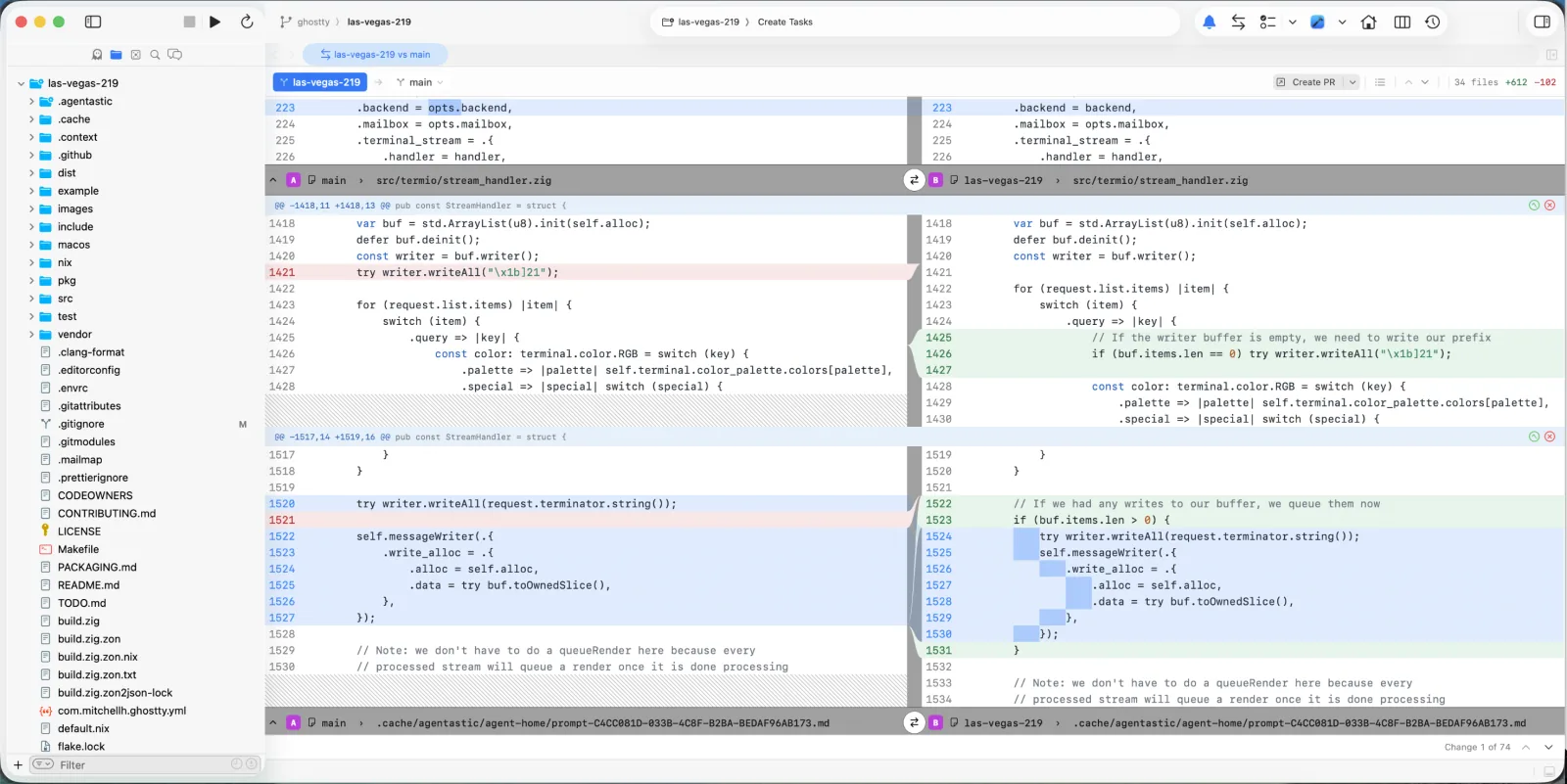
- Left column — the original file
- Right column — the modified file
- Semantic pairing — related lines are matched across the two sides, so unchanged context stays level even where one side is longer
- Independent wrapping — each side wraps to its own column width; a long line wrapping on the right never pushes the left side out of alignment
- Inline highlights — within a modified line, the exact changed spans are marked on both halves, so you can see what actually differs
- Center gutter — a slim gutter between the columns draws connectors between paired changes and marks hunk boundaries
- File banners — each file announces itself as you scroll into it, so you always know where you are in a long review
- Hatched empty side — where a line was purely added or deleted, the opposite side is hatched rather than left blank
The comparison header names both sides and carries a ⇄ button that swaps them when you want to read the change in the other direction. A footer under the canvas tracks your position — Change 3 of 17 — with chevrons that jump to the previous or next change without scrolling for it.
Comments, hunk actions, and VoiceOver descriptions work the same in both view modes.
Best for: Large refactors, complex changes, detailed comparison.
Color Coding#
| Color | Meaning |
|---|---|
| Green background | Added lines |
| Red background | Removed lines |
| No highlight | Unchanged context lines |
Line numbers in the gutter are tinted to match their row — green on additions, red on deletions, secondary gray on context — so you can read the shape of a change without tracking the background across the row.
The gutter itself is narrow: line numbers sit flush against the left edge, followed by the change indicator, and the whole gutter is the click target for adding a comment. Everything left of the content column anchors a comment to that line.
Navigating Diffs#
File List#
The left panel shows all changed files:
- Up/Down arrows - Navigate between files
- Enter - Open selected file in editor
- Click the toggle to show/hide the file list
Each file shows:
- File path
- Change count (+additions / -deletions)
- Status icon (modified, added, deleted, renamed)
Within a Diff#
- Scroll to navigate through changes
- Hunks are separated by context dividers
- Click line numbers to jump to that line in the editor
Guided Review#
A large diff, especially one an agent produced, is hard to read file by file. Create Guide asks the fast task agent to organize the diff into a short sequence of chapters, then walks you through them one at a time.
Creating a guide#
- Open a diff (branch comparison, uncommitted changes, or a commit range)
- Click Create Guide in the diff header
- The Guided Diff task runs headlessly on the Fast model configured in Settings > Tasks; the header shows Generating guide… until it finishes
The agent receives every changed file, the hunks (bounded for very large diffs), and the commit messages between the two sides. It groups files by causal relationship, orders the chapters foundation first and integration last, and writes a short narrative for each. Lockfiles, generated files, and assets land in a final Other changes chapter, as does any file the agent left out.
Reading a guide#
The viewer switches to the Guide layout:
- Guide panel (left) — the chapter title, its position (2 / 5), a risk badge, the narrative, What to review questions the agent thinks need a human judgment call, and the chapter's files. Drag the divider to resize it; the width is remembered
- Document (right) — only the chapter's files, in reading order, rendered with your usual Stacked or Split view. Comments, hunk actions, and file navigation work as they do elsewhere
- Outline rail (far left) — one tick per chapter and file; hover to expand the full outline, click to jump
Move between chapters with the Previous / Next buttons, the Left / Right arrow keys, or the chapter menu in the panel header. Up / Down still step through files within the chapter.
Tracking progress#
Each file has its own reviewed mark, and a chapter reads as reviewed once every file in it is. Reviewed, Next (Cmd+Return) marks the whole chapter and advances. The Reviewed checkbox in the header toggles a chapter in one click.
Guides and review progress are stored per worktree and comparison, so closing the tab or relaunching Agentastic brings the same guide back. When the diff changes after a guide was created, the panel says so and new files appear under Other changes until you choose Regenerate Guide from the guide menu.
Switch back to the plain file list at any time with the Guide / Files control in the header. Remove Guide discards the guide and its progress.
Configuration#
The chaptering prompt, model, and execution target live under Guided Diff in Settings > Tasks. The prompt uses {diff}, {commitHistory}, {currentBranch}, and {targetBranch}; see the Actions placeholder reference. Choose Utility Chat as the target to watch the agent work instead of running it hidden.
Line Comments#
Click a line's gutter to open a compact composer anchored to that line. Drag across several lines first to anchor the comment to the whole range.
The composer sends to one of two destinations:
| Destination | What happens |
|---|---|
| Comment | Saves a local review comment on that line, shown as a bubble in the gutter |
| Agent | Sends the line, its file, and your note straight to the agent running in this worktree |
Use the paperclip to attach files or images — screenshots, logs, a reference file. Attachments ride along in the prompt when you send to an agent, and stay with the comment when you save it.
Agent is available when this worktree has a live agent terminal; otherwise the composer saves the comment.
Integration with Code Review#
The Diff Viewer works seamlessly with Code Review:
- Review your changes in the Diff Viewer
- Click the Code Review button in the toolbar
- AI agents analyze the visible diff
- Review feedback appears in the terminal
Comparing Branches#
When comparing branches, the Diff Viewer shows:
- Base branch - The target branch (e.g.,
main) - Head branch - Your feature branch
- All commits between the two branches
- Complete unified diff
The title bar shows the comparison: feature-x vs main
File Status Icons#
| Icon | Status | Description |
|---|---|---|
| M | Modified | File has changes |
| A | Added | New file |
| D | Deleted | File removed |
| R | Renamed | File moved/renamed |
Performance & Large Diffs#
The Diff Viewer is built to stay responsive no matter how big the change is — reviewing what your agents did is something you do constantly, so it should never make the app wait.
- Large diffs open and scroll smoothly. Row layout, highlighting, and character-level diffing happen off the main thread, so even very large diffs don't freeze the app.
- Streaming load. Big diffs stream in incrementally instead of blocking until everything is ready.
- Syntax highlighting on bigger files. Highlighting now applies to much larger files than before.
- "Show remaining lines" expander. Enormous diffs (tens of thousands of lines) load a capped portion first and keep the rest behind a Show remaining lines button, so the view stays fast — click it to reveal the remainder.
Keyboard Shortcuts#
| Action | Shortcut |
|---|---|
| Open file in editor | Enter |
| Navigate files | Up / Down |
| Previous / next guide chapter | Left / Right |
| Mark chapter reviewed and advance | Cmd+Return |
| Toggle file list | Click sidebar toggle |
Tips#
- Review smaller chunks - Break large changes into smaller commits for easier review
- Use side-by-side for refactors - When moving code around, side-by-side view helps track relocations
- Check the summary - File list shows total additions/deletions at a glance
- Combine with AI review - Use Code Review agents for automated feedback on your diff