Parallel agents and isolation
Run several agents at once, each in its own Git worktree, so they can edit, test, and commit without colliding. Add container isolation when a task needs its own tools and dependencies.
Set up worktrees1 / 4


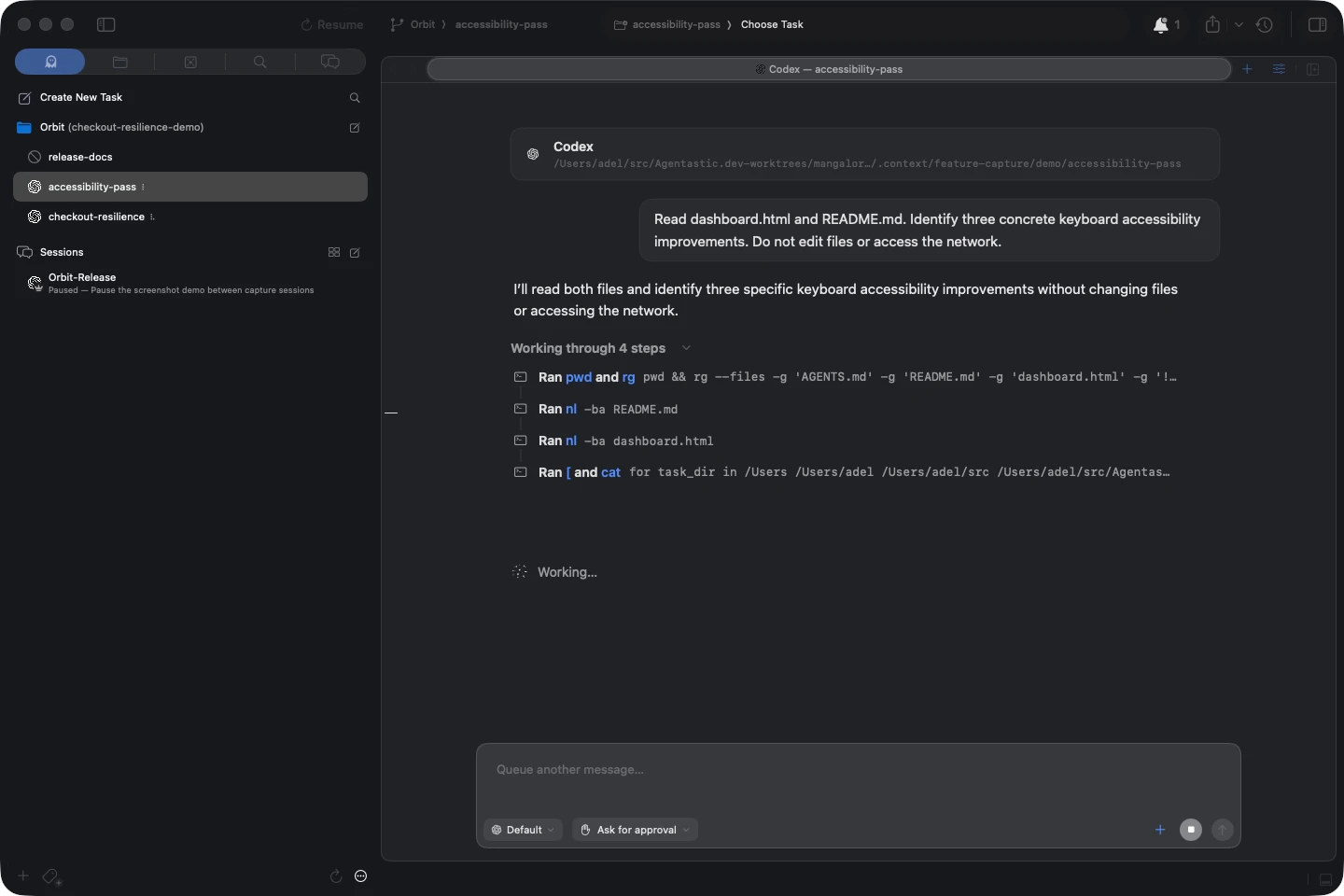
Run coding agents side by side in a native macOS workspace. Keep tasks isolated, arrange chats, terminals, files, and browsers in splits, and review the results where the work happens. Test what you build in browsers and devices, refine the design, and share a working website with colleagues.
Run agents in parallel, arrange the workspace around your task, and work in Chat or a fully featured terminal.
Run several agents at once, each in its own Git worktree, so they can edit, test, and commit without colliding. Add container isolation when a task needs its own tools and dependencies.
Set up worktreesArrange files, browsers, terminals, chats, diffs, and boards in horizontal or vertical splits, then drag tabs to the exact place the task needs.
Work with editor splits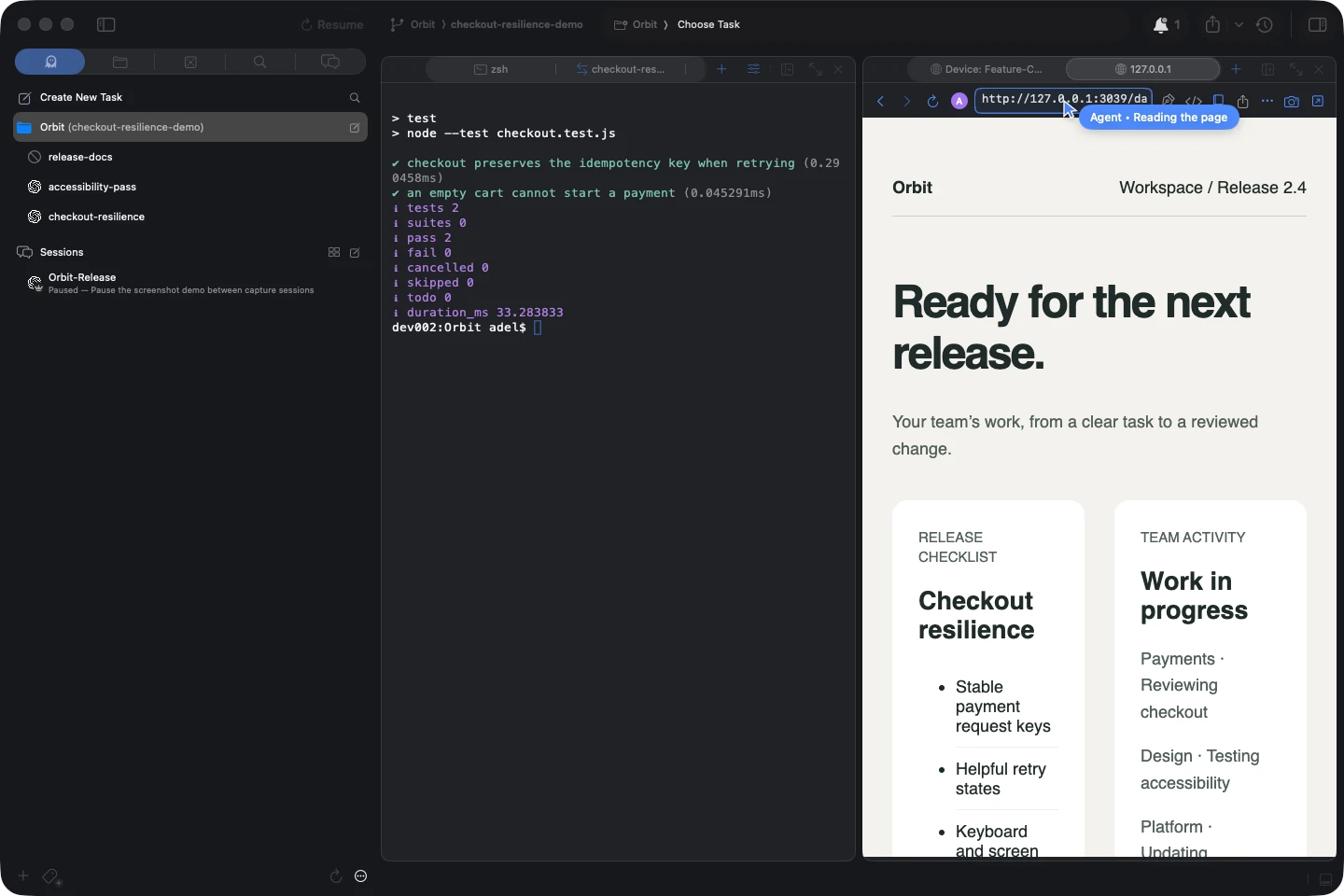
Bring Claude Code, Codex, Poolside, Gemini, Cursor, Copilot, OpenCode, or your own CLI. Use a real terminal for any agent, or structured Chat for supported agents, with native controls, tool calls, plans, and approvals.
Browse supported agents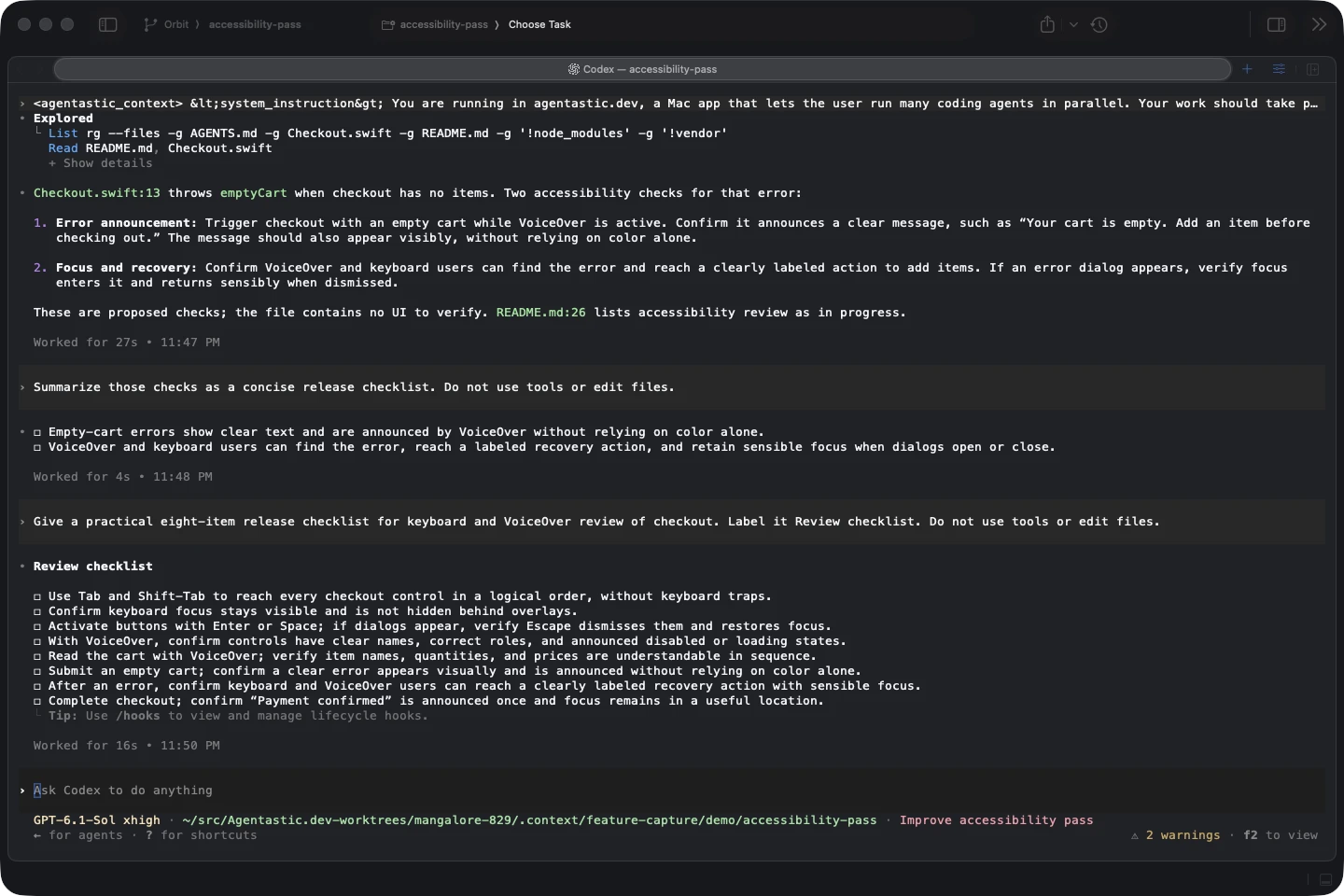
Preview images and syntax-highlighted files by hovering their paths, paste images into an agent's CLI, and open links without leaving your workspace. Choose Ghostty, WezTerm, xterm.js, or SwiftTerm, with your shell, shortcuts, and theme.
Explore the terminal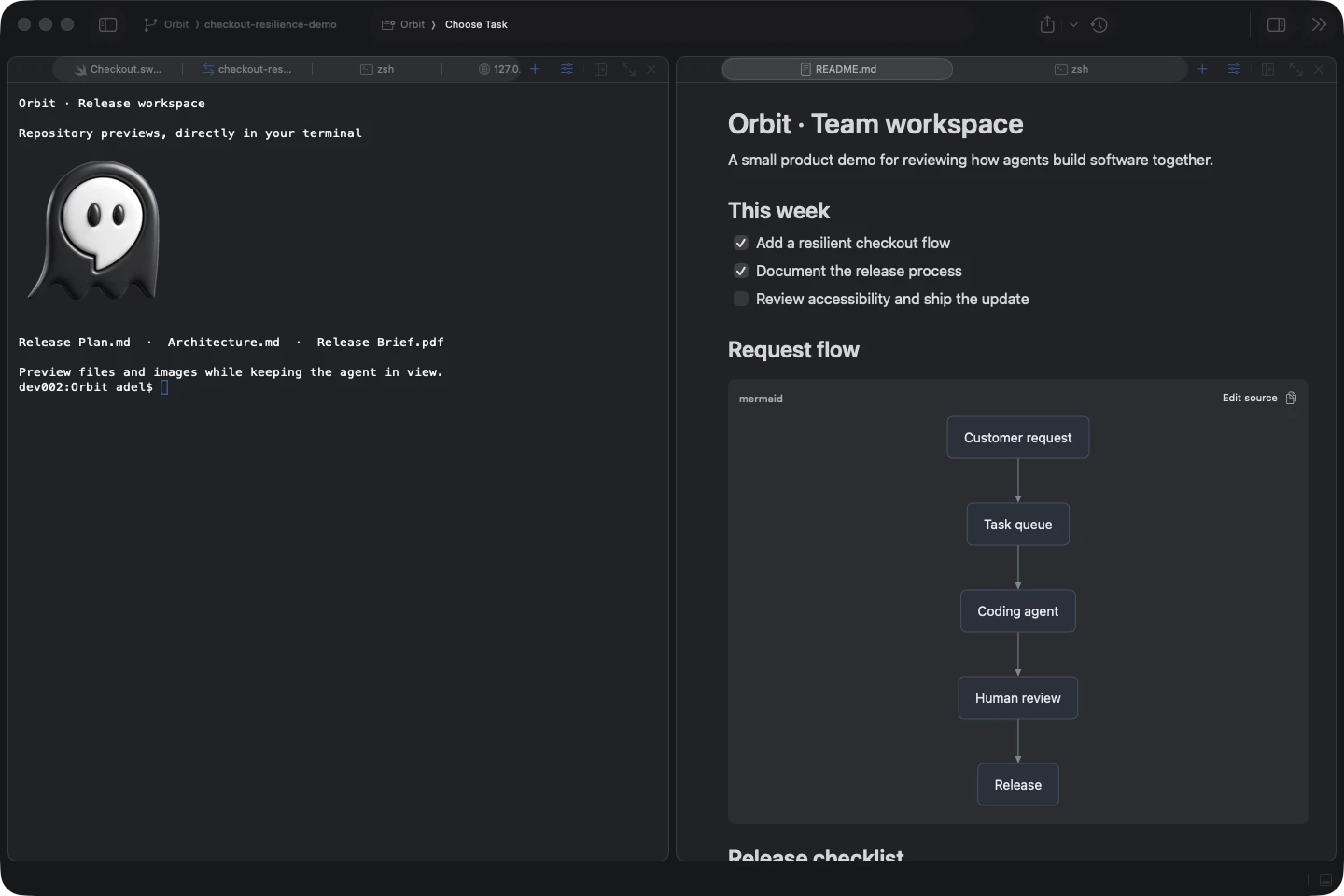
Let agents test what they build in browsers, on desktops, and on mobile devices. Refine a page with Design Mode, then share a live website with colleagues.
Agents navigate the built-in browser, inspect the page, click controls, fill forms, and capture screenshots through the browser-use skill and dev browser commands. Verify the running app in the same workspace.
Let agents use the browser

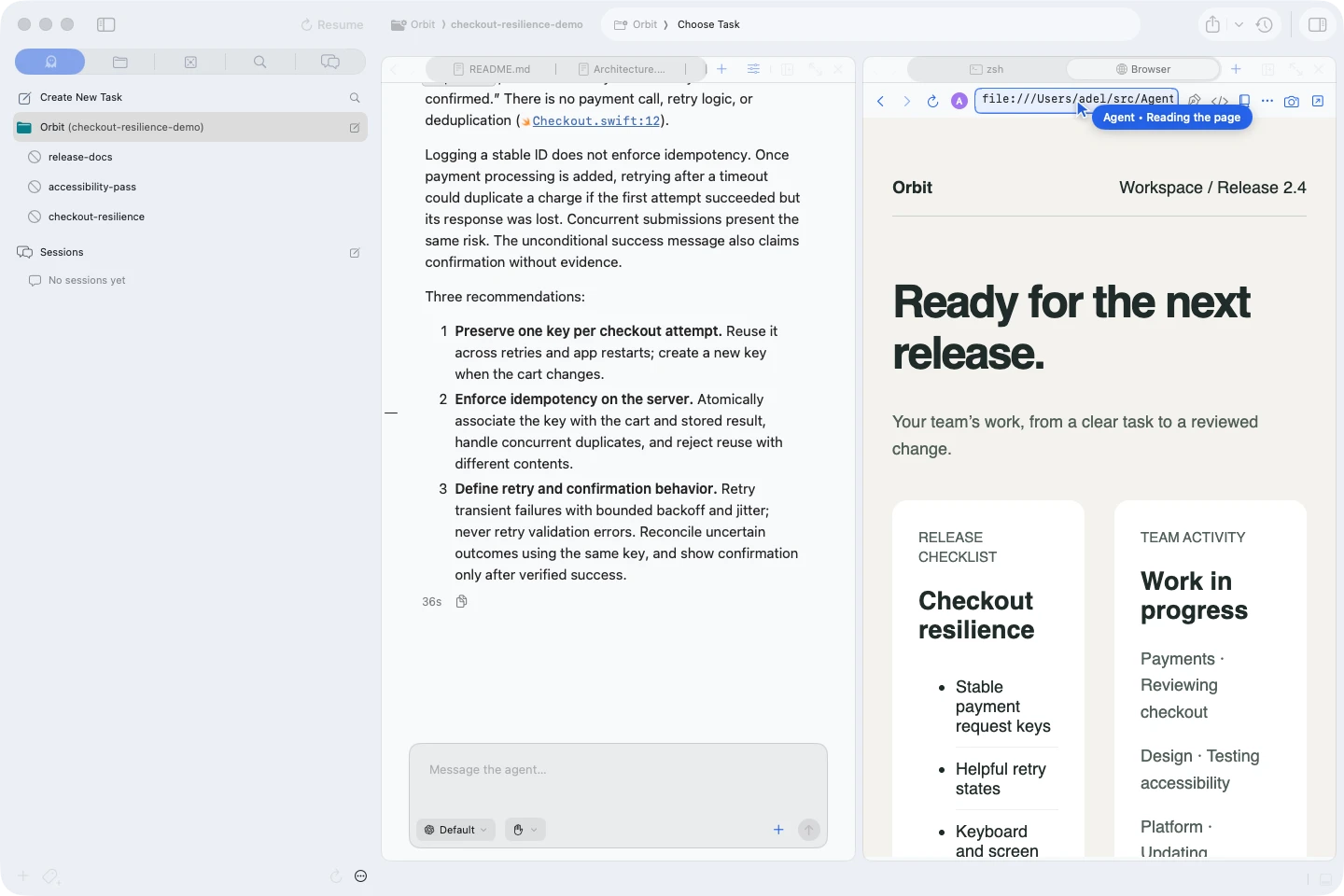
Preview your app in the embedded Chromium browser, click an element, and describe the change right there. The agent receives its tag, selector, classes, and source location when available.
Explore the built-in browser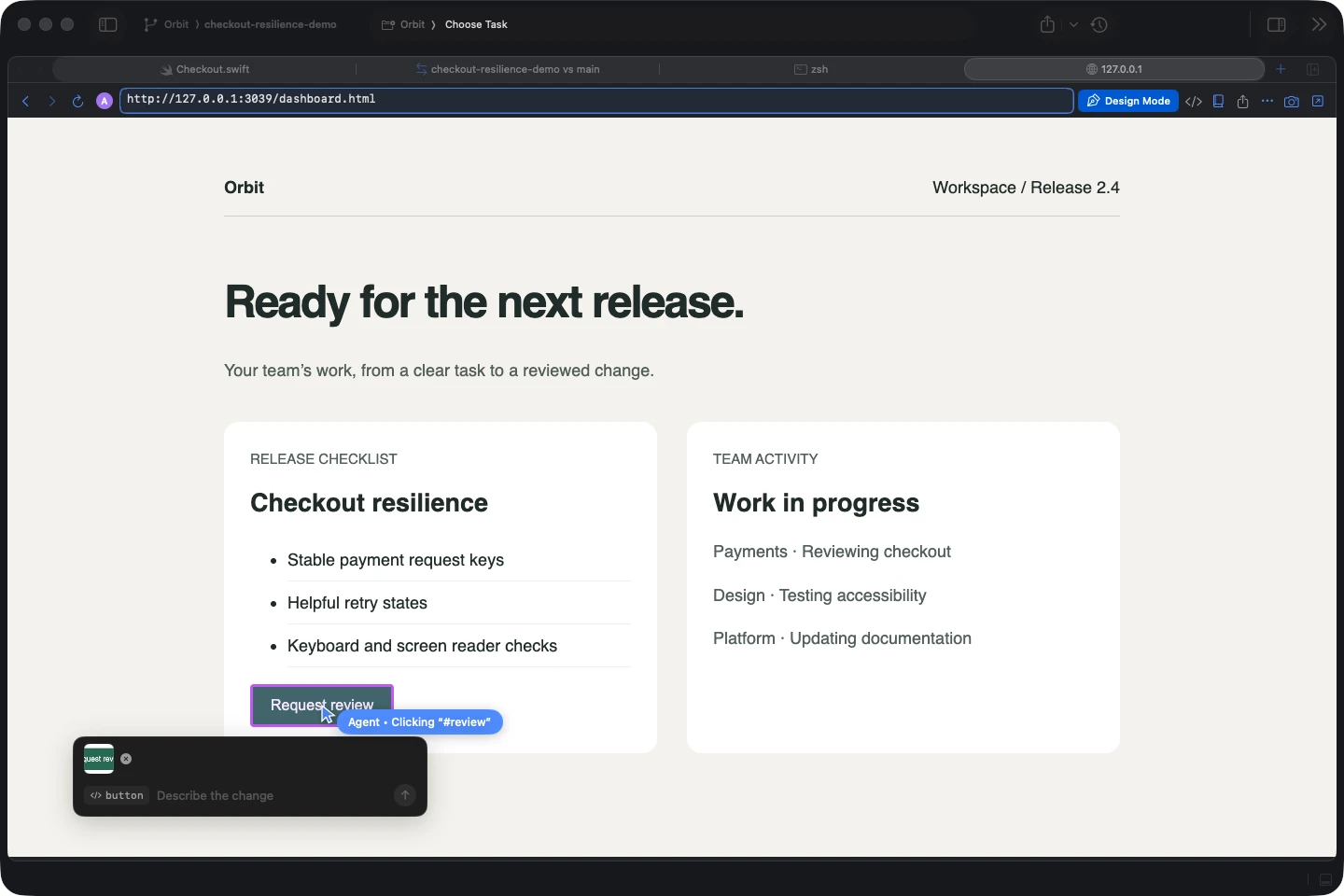
Build a website with your agent, open it in the built-in browser, and share a temporary public URL with colleagues. They can try the running site in their own browser and give you feedback. Stop sharing when the review is done.
Share your website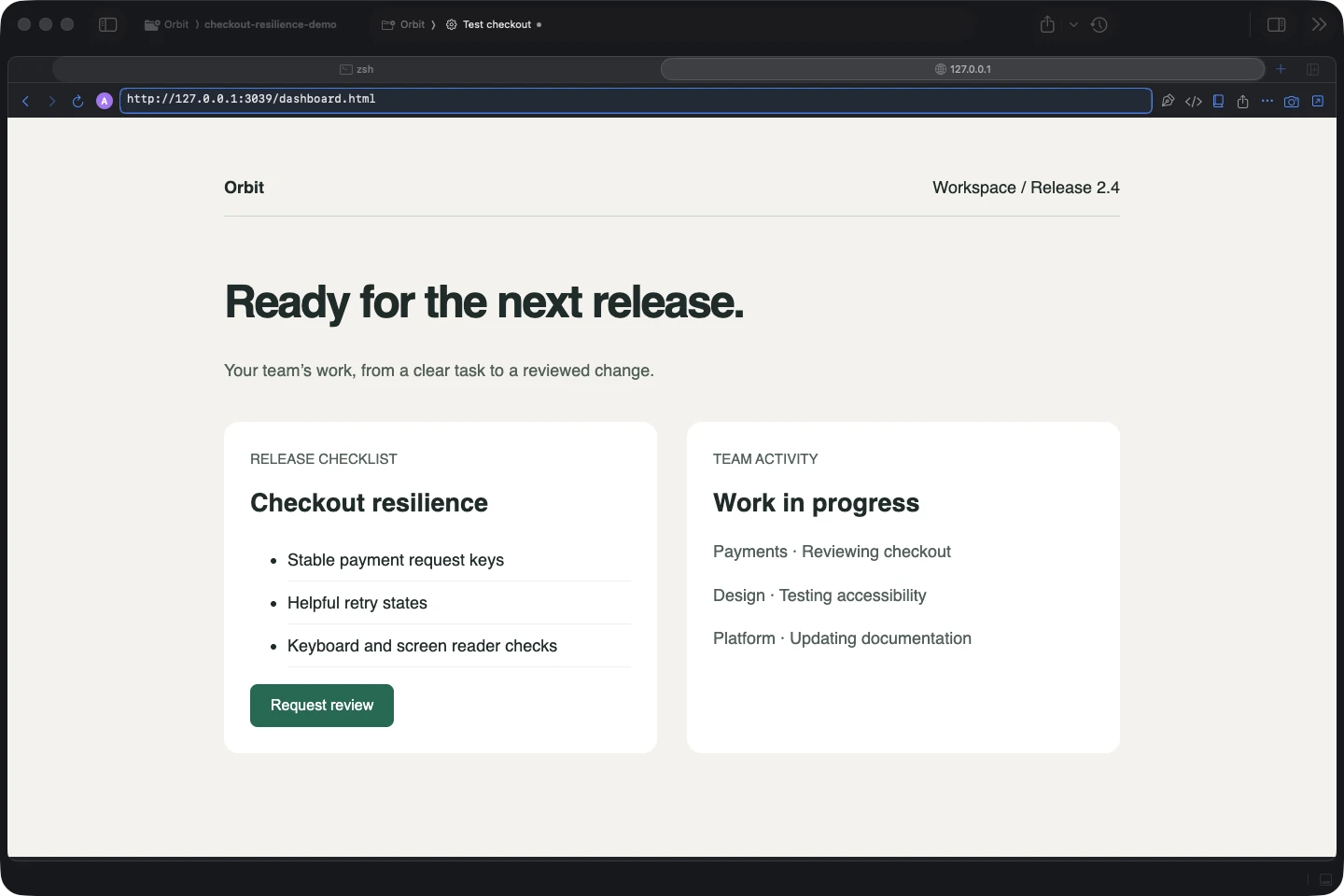
Open a Mac's desktop, a Linux virtual desktop, or a VNC-connected VM in a tab. You and your agents click and type in the same screen, and capture screenshots or video as test evidence.
Explore computer automation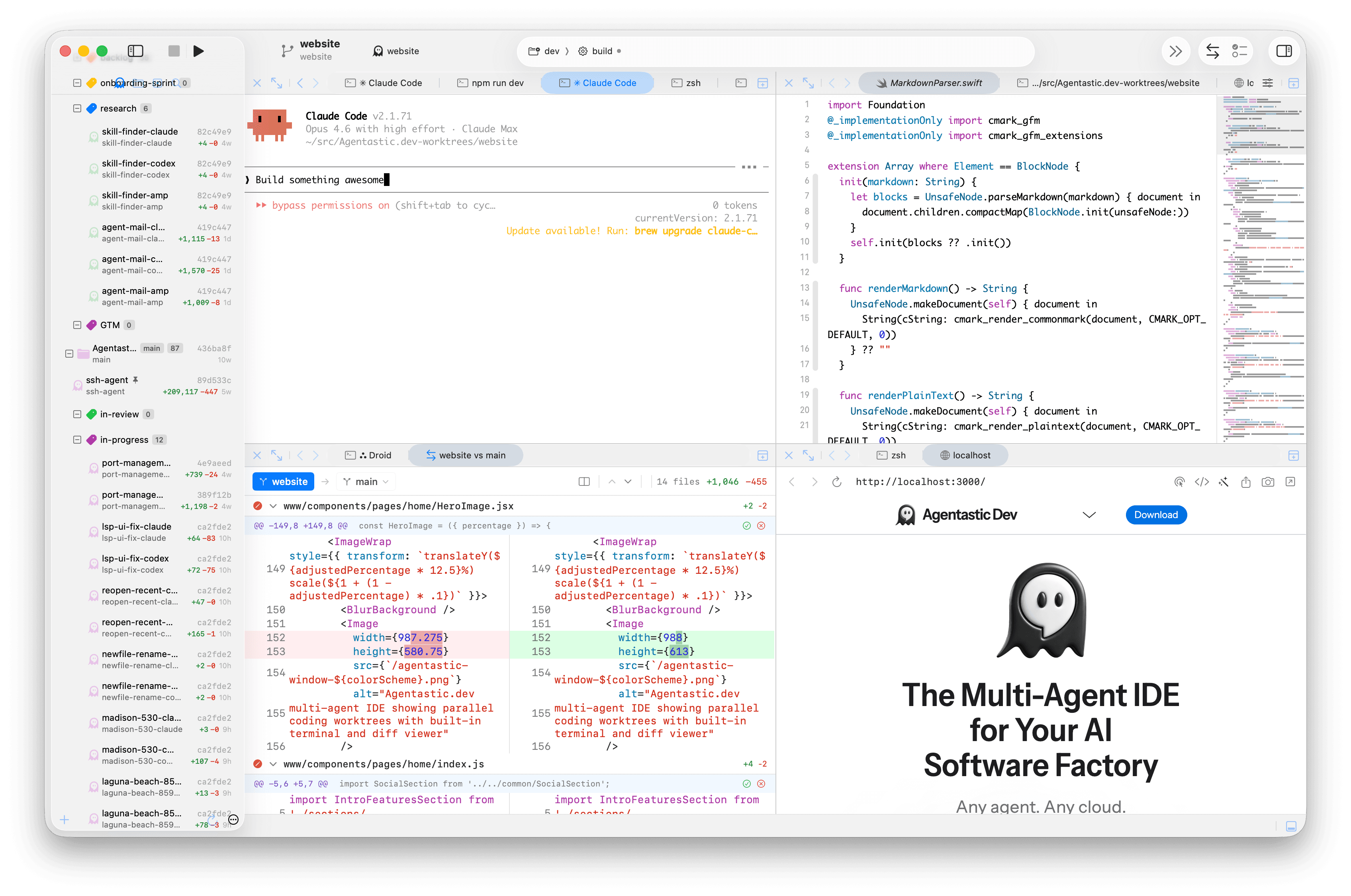
 Image placeholder
Test iOS apps in simulators and Android apps in emulators. Agents inspect accessibility state, tap, type, swipe, and capture screenshots while you watch the device viewer, locally or on a connected execution host.
Explore device automationImage placeholderUnderstand what changed, ask for another opinion, and send precise feedback to the agent before you merge.
Run Claude, Codex, CodeRabbit, Greptile, or your own reviewer against a branch. Launch several reviewers in parallel for different perspectives before you commit or merge.
Explore AI code review

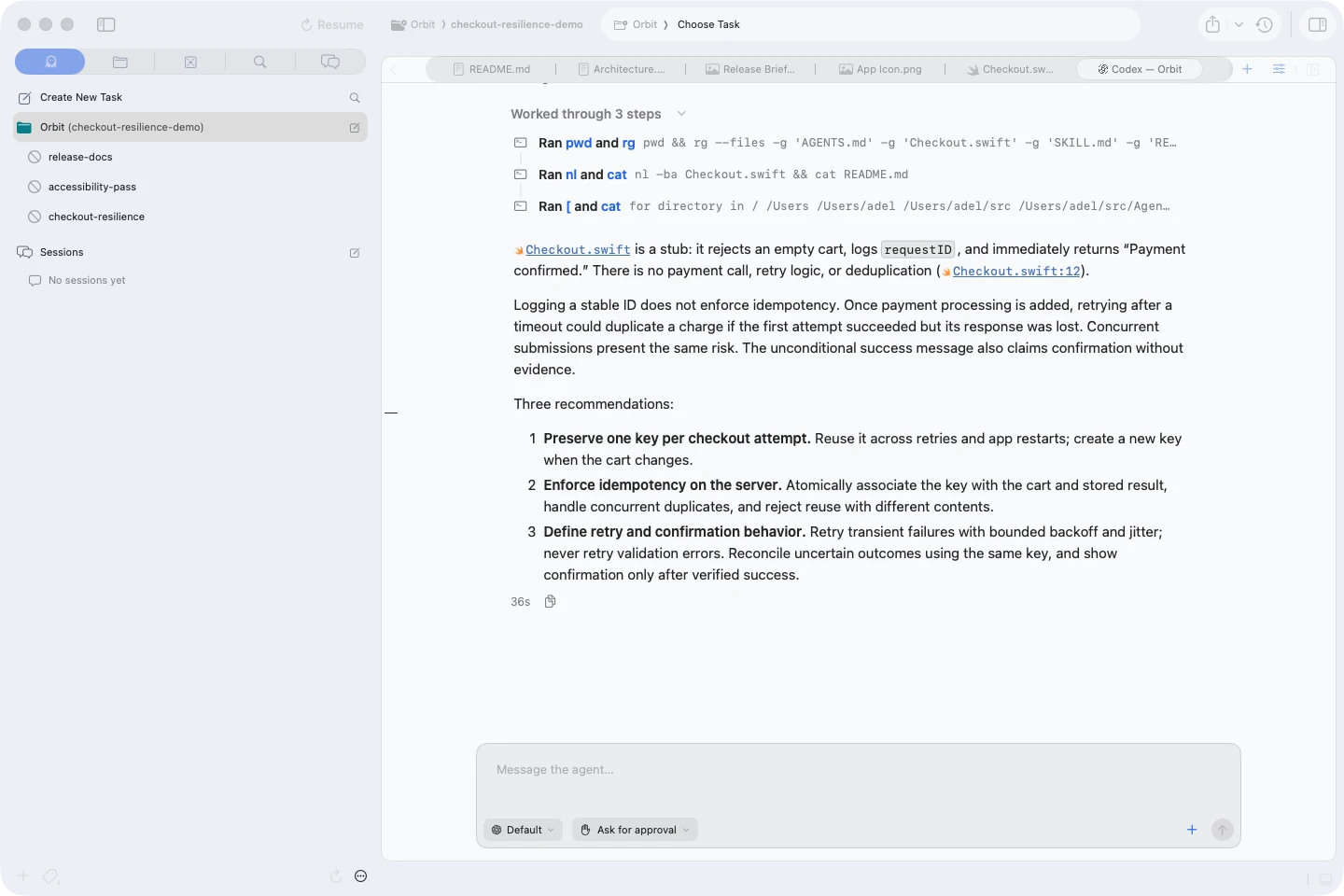
Read and edit the description, reply to review threads, watch checks, resolve conflicts with an agent, and merge without leaving the editor.
Work with pull requestsImage placeholderTurn a large diff into a short tour: an agent groups the changes into chapters, each with a narrative, a risk badge, and the questions that need your judgment.
Create a review guide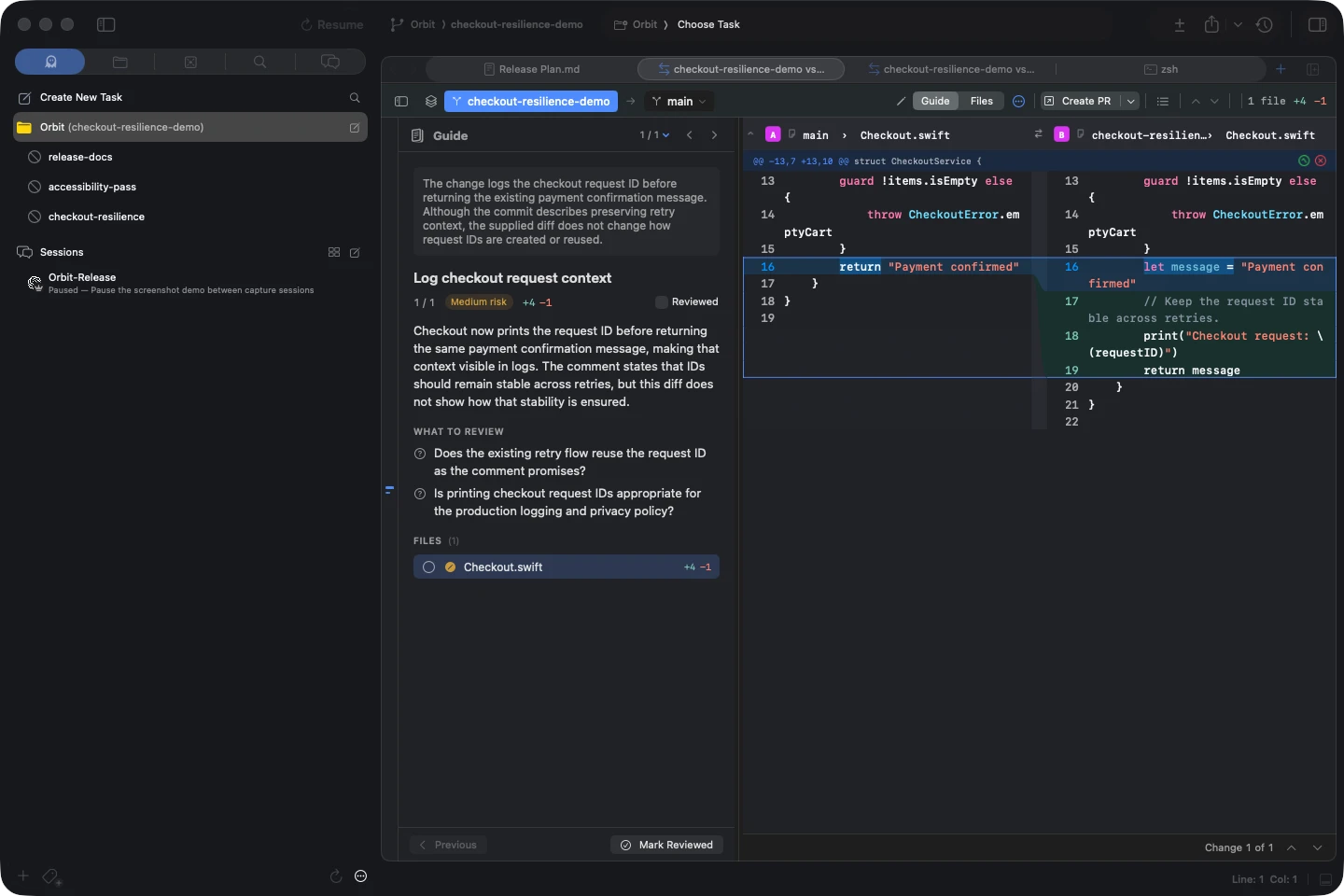
Inspect unified or side-by-side diffs, select a line or range, and leave a comment or send it straight to the worktree’s agent. Attach a screenshot, log, or reference file so the agent has the context to act.
Annotate a diff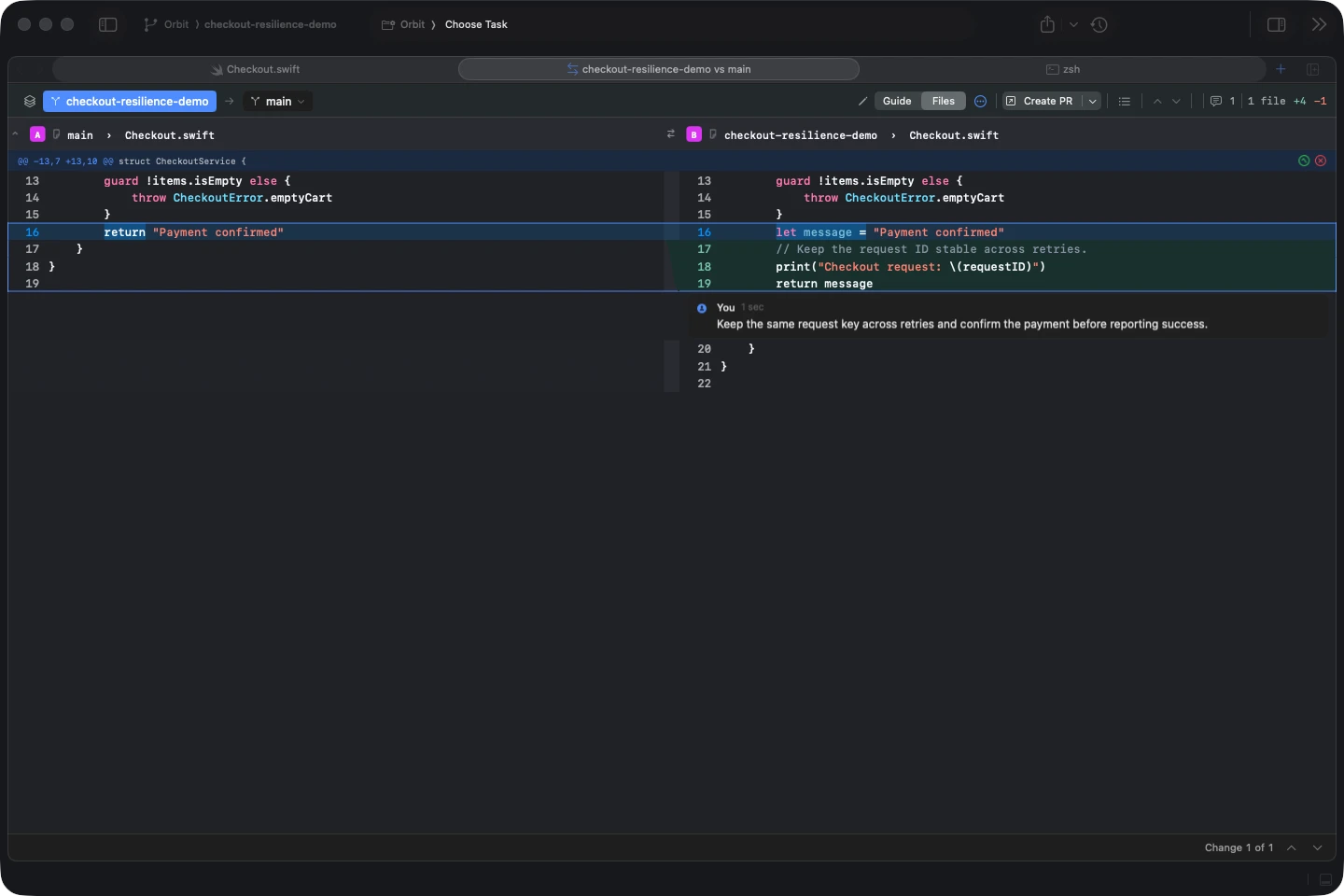
Read the files and results your agents work with, then turn what you see into specific feedback.
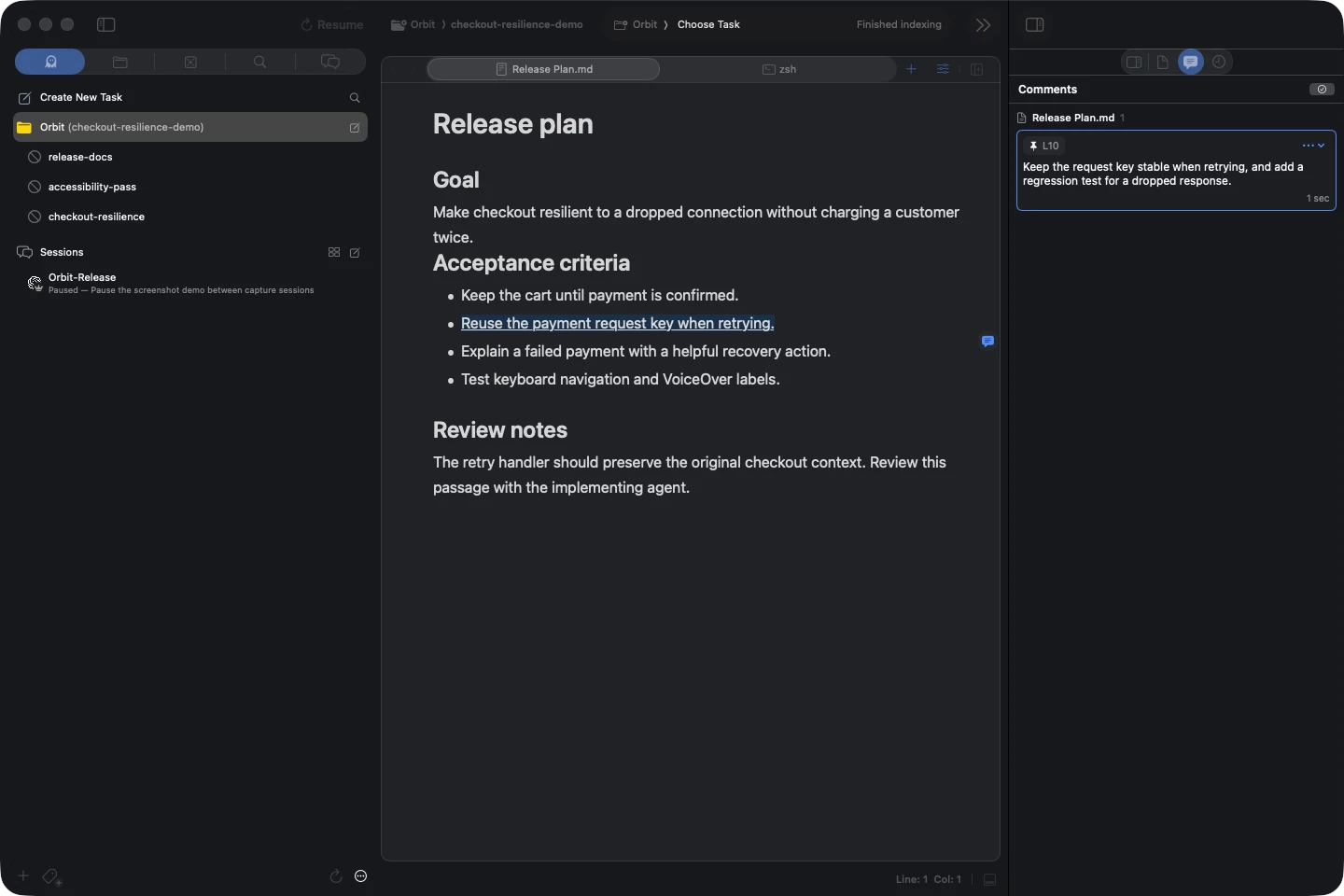
Read or edit Markdown as rich blocks, source, or a synchronized split. Select a passage to leave an annotation or send a request to an agent, with the file, quoted text, and surrounding context attached.
Edit Markdown documents

Render flowcharts, sequence diagrams, and other Mermaid diagrams in Markdown and agent Chat. Open a diagram to zoom in, edit its source, or export it as an image or SVG.
Preview Mermaid diagrams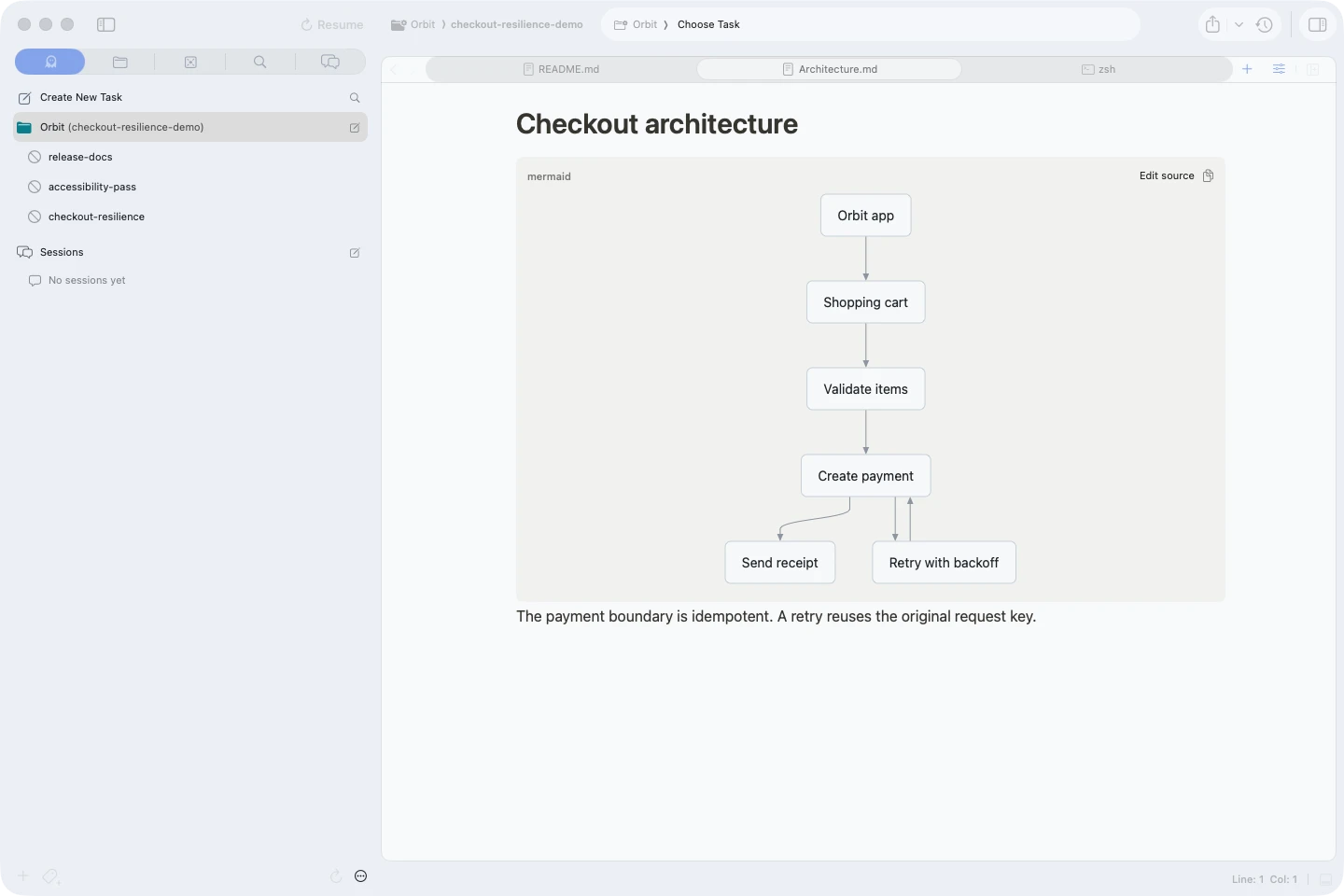
Open a PDF from your repository and read it in the workspace, beside the files, conversation, or diff it explains. The native Quick Look preview keeps the document in the editor.
Preview repository files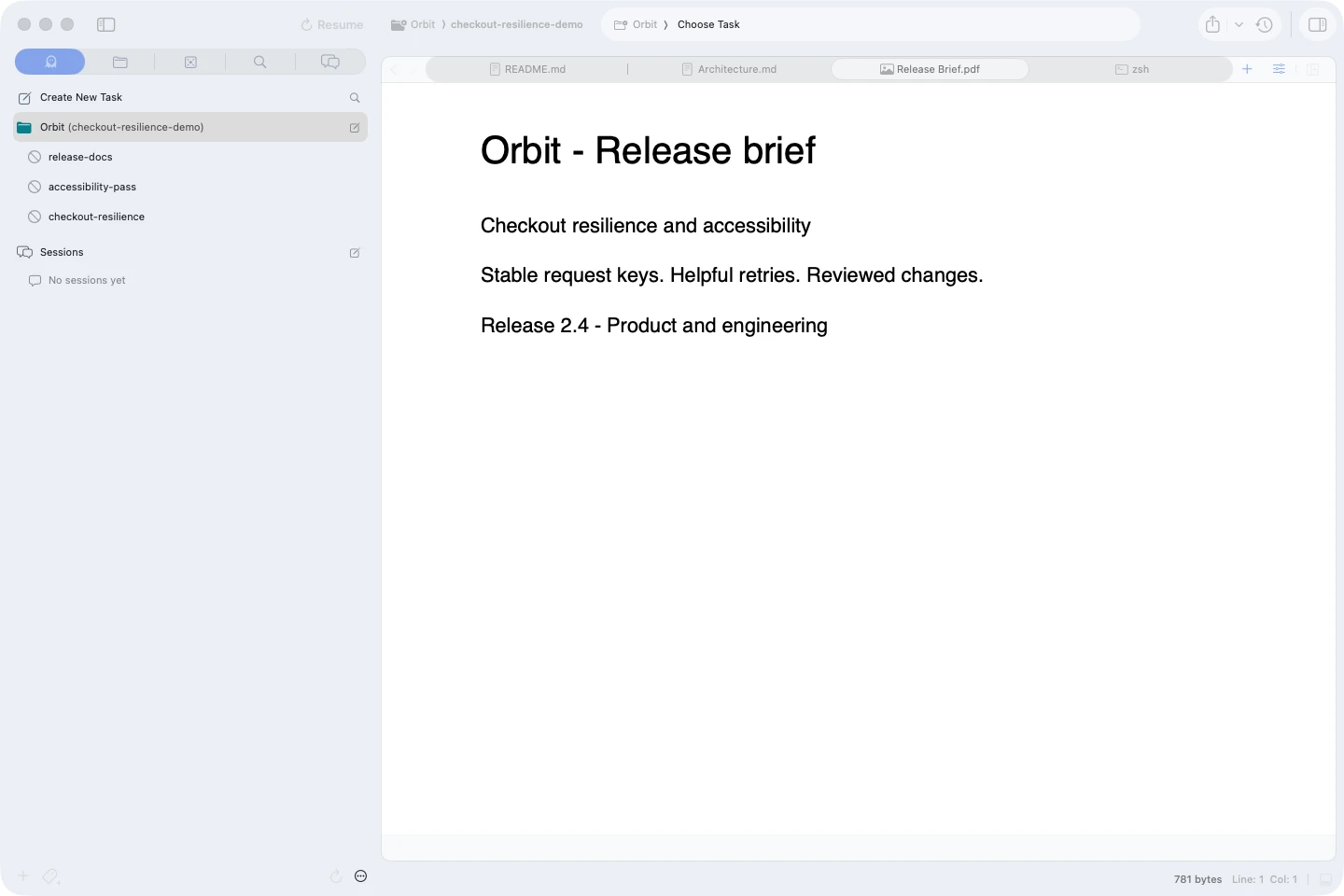
Agents publish reports, plans, diagrams, dashboards, and interactive pages beside the conversation. Keep every version, pin comments to the result, and send feedback back to the agent.
See what agents can show you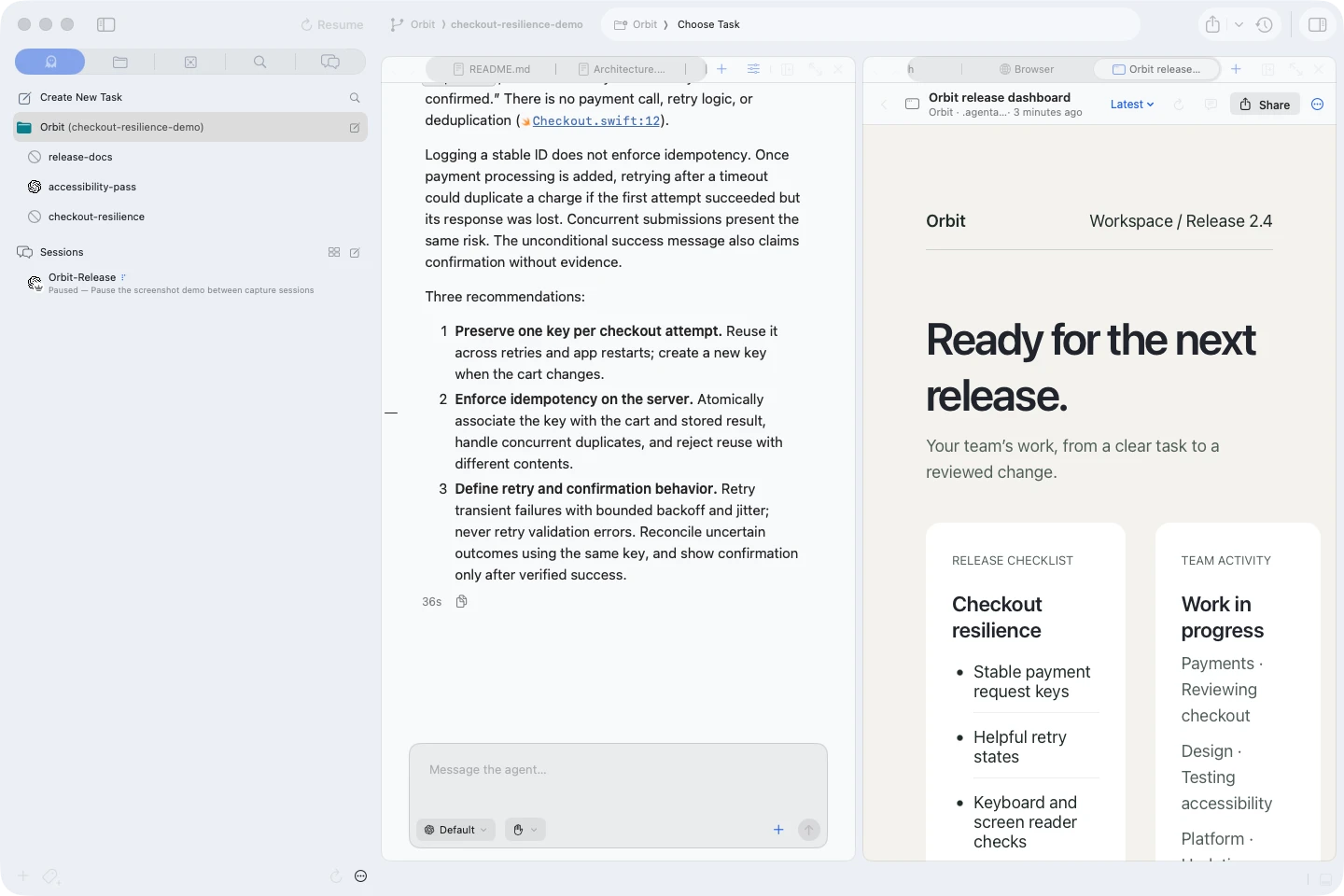
Share a versioned artifact with a person, a team, or the web. Choose who can view, comment, respond, or edit its data, and let feedback flow back to the agent that made it.
Share an artifactImage placeholderHover an image path to inspect a screenshot without opening another app. Hover a source reference to see syntax-highlighted code, or the working-tree diff at that line when it has uncommitted changes.
Preview terminal referencesKeep the editor, agent conversation, attachments, and project navigation together.
Run an agent as a structured chat with approval cards, a pinned plan, sub-agent conversations, and mid-turn steering, or switch it to a real terminal. The conversation carries over either way.
Use agent Chat
 Image placeholder
Turn any chat into a page a teammate can open: a live page served from your Mac, or a lasting link on agentastic.com. Local paths are rewritten, and anything shaped like a credential is flagged before you publish.
Share a conversationImage placeholderEdit directly with Tree-sitter highlighting, language servers, symbols, completion, diagnostics, project navigation, and support for 100+ languages.
Explore the IDE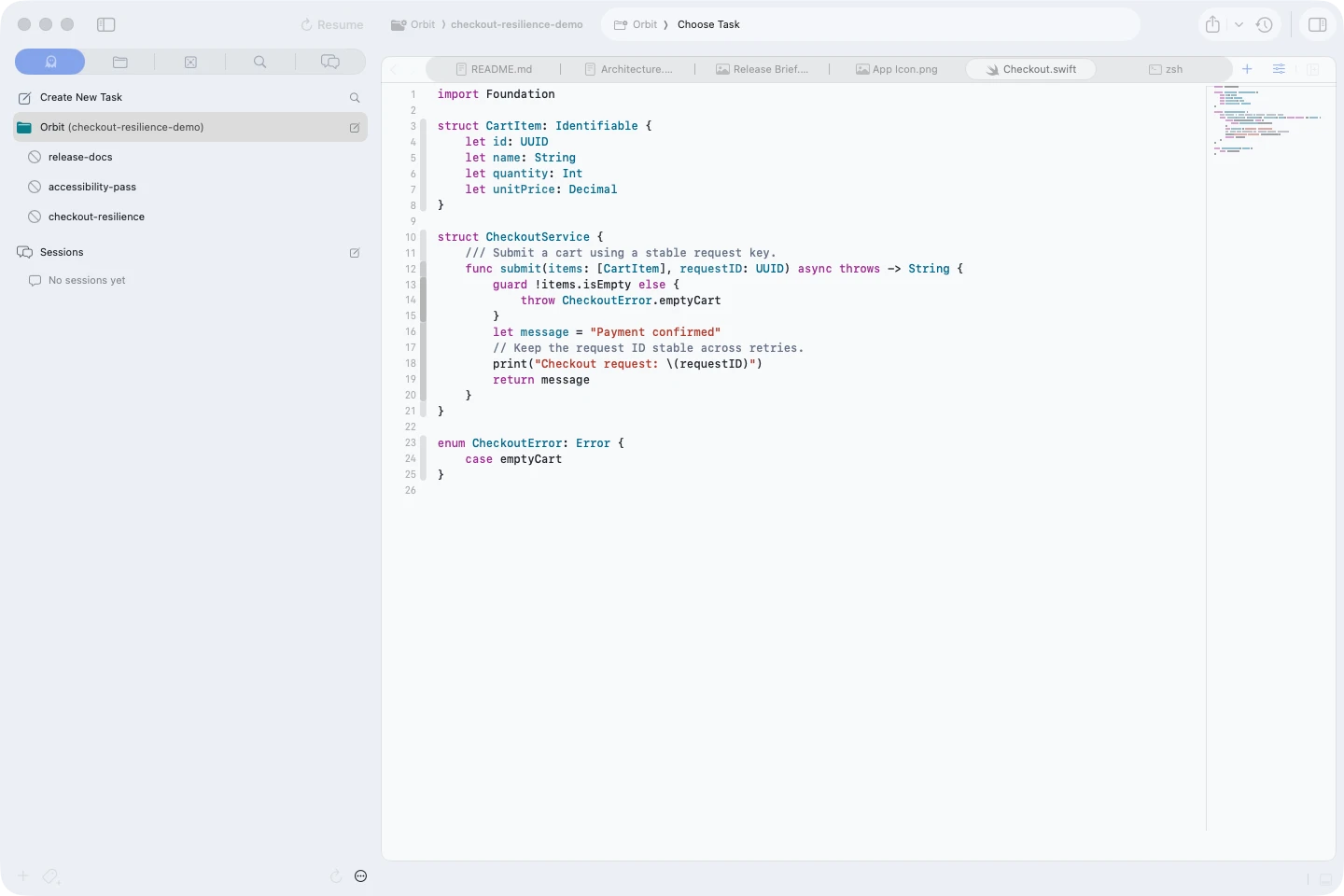
Search and replace within a file or across the project, filter by path and pattern, preview matches, and jump straight to symbols.
Search a project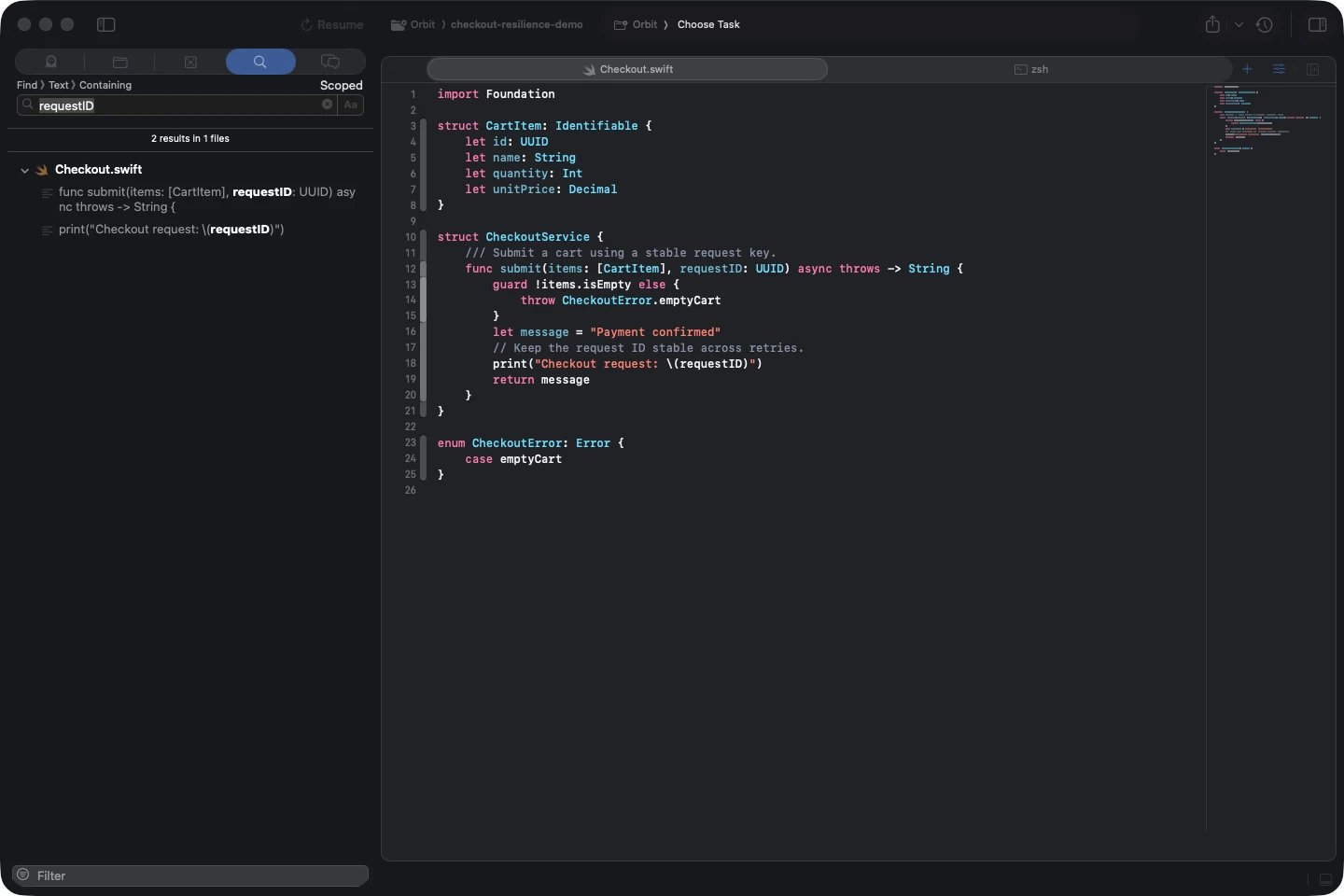
Drag, browse, or paste images into prompts, preview attachment chips before sending, and hover image paths printed in a terminal.
Attach images to a prompt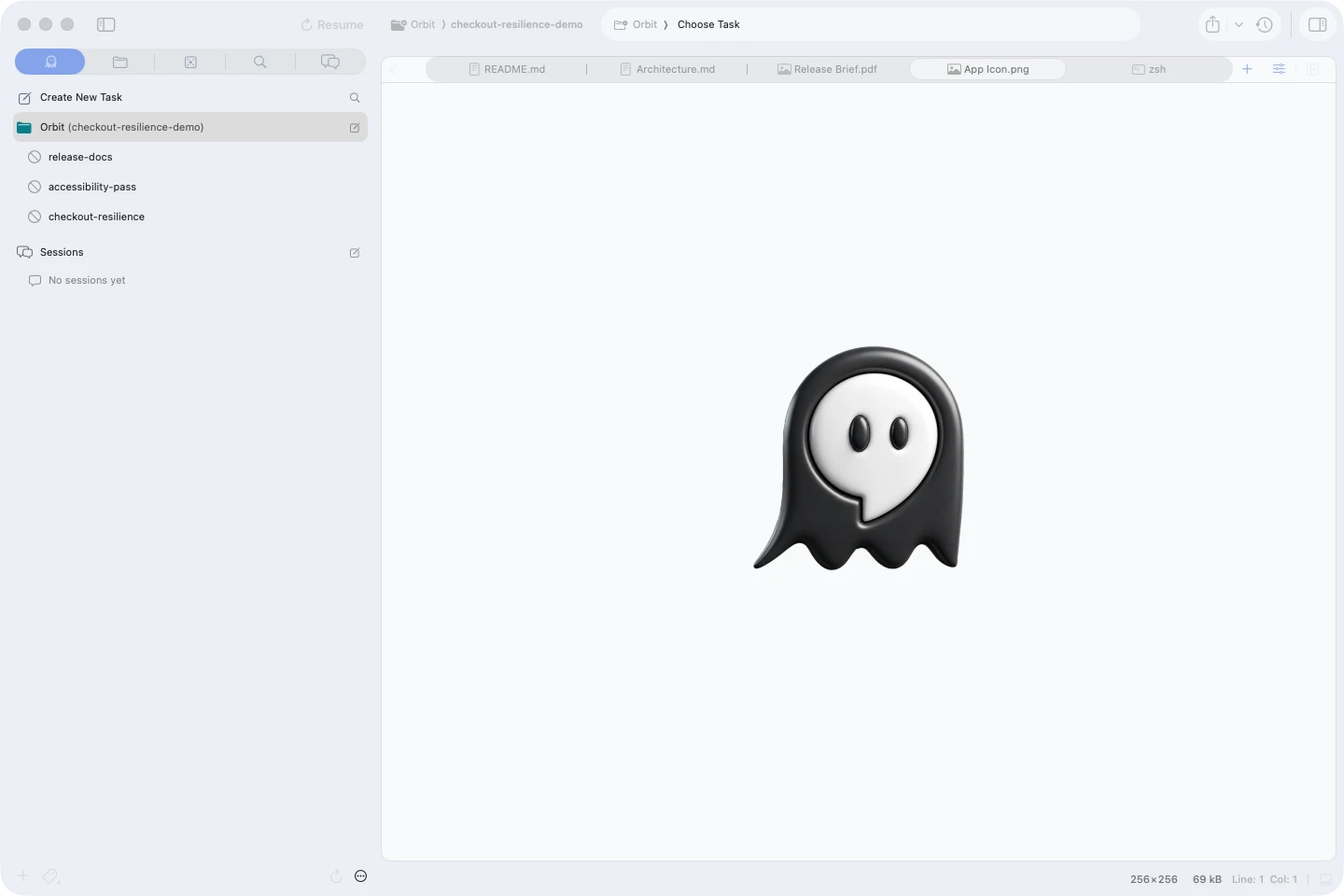
Keep orchestration in Agentastic, then open any worktree in Xcode, VS Code, Cursor, Zed, JetBrains, a terminal, or a Git client installed on your Mac.
Open a worktree elsewhereImage placeholderLaunch the right agent for each task and keep the whole queue visible and easy to steer.
Our own coding agent is ready on first launch, with nothing to install. Run it on Agentastic's backend or plug in OpenAI, Anthropic, xAI, OpenRouter, and more, then switch models mid-session or let Auto choose.
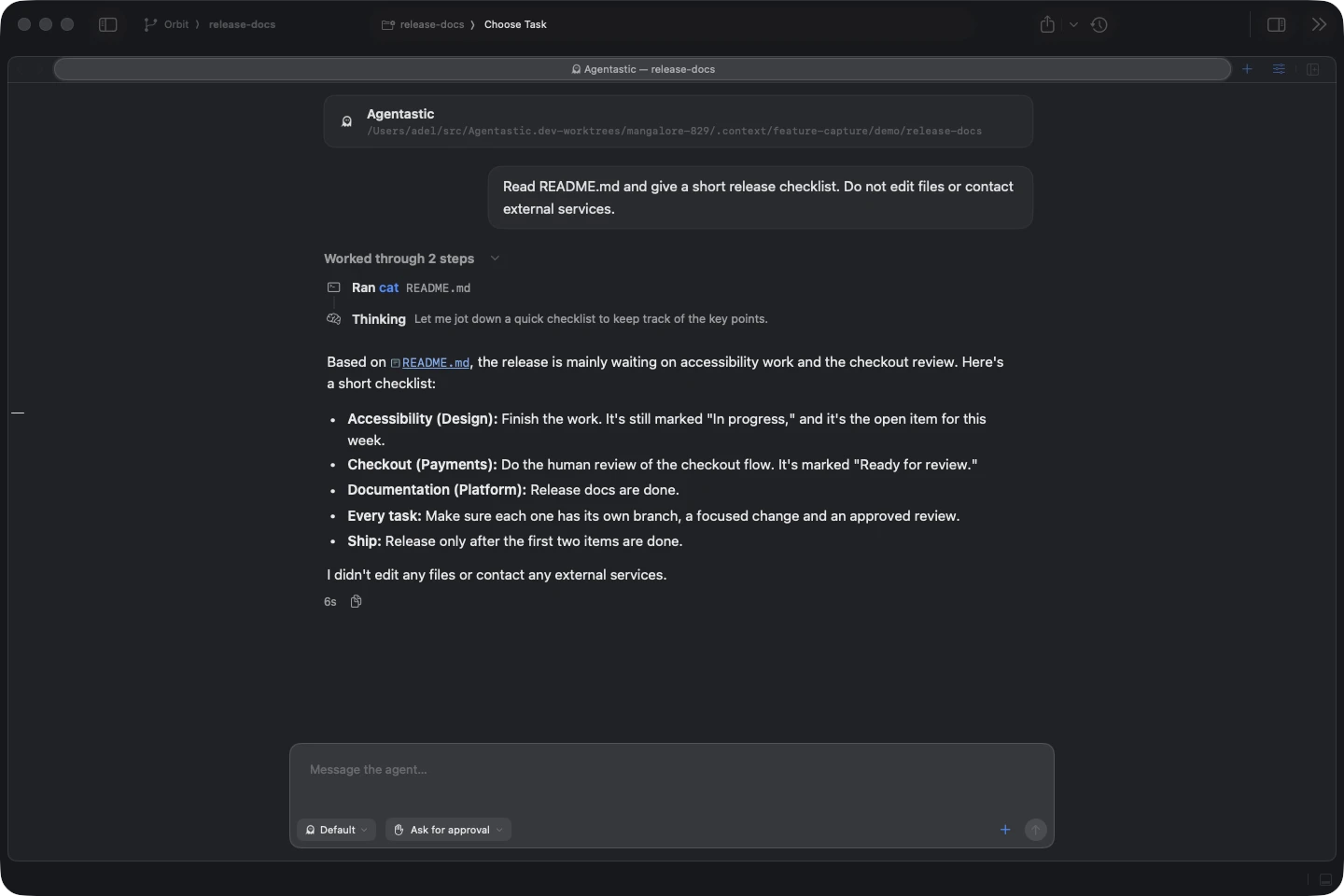
Meet the Agentastic agent
Create New Task (⌘N) turns a prompt into a configured agent, branch, worktree, run mode, model, and environment—or fans the same job out to several agents.
Launch from Agent Home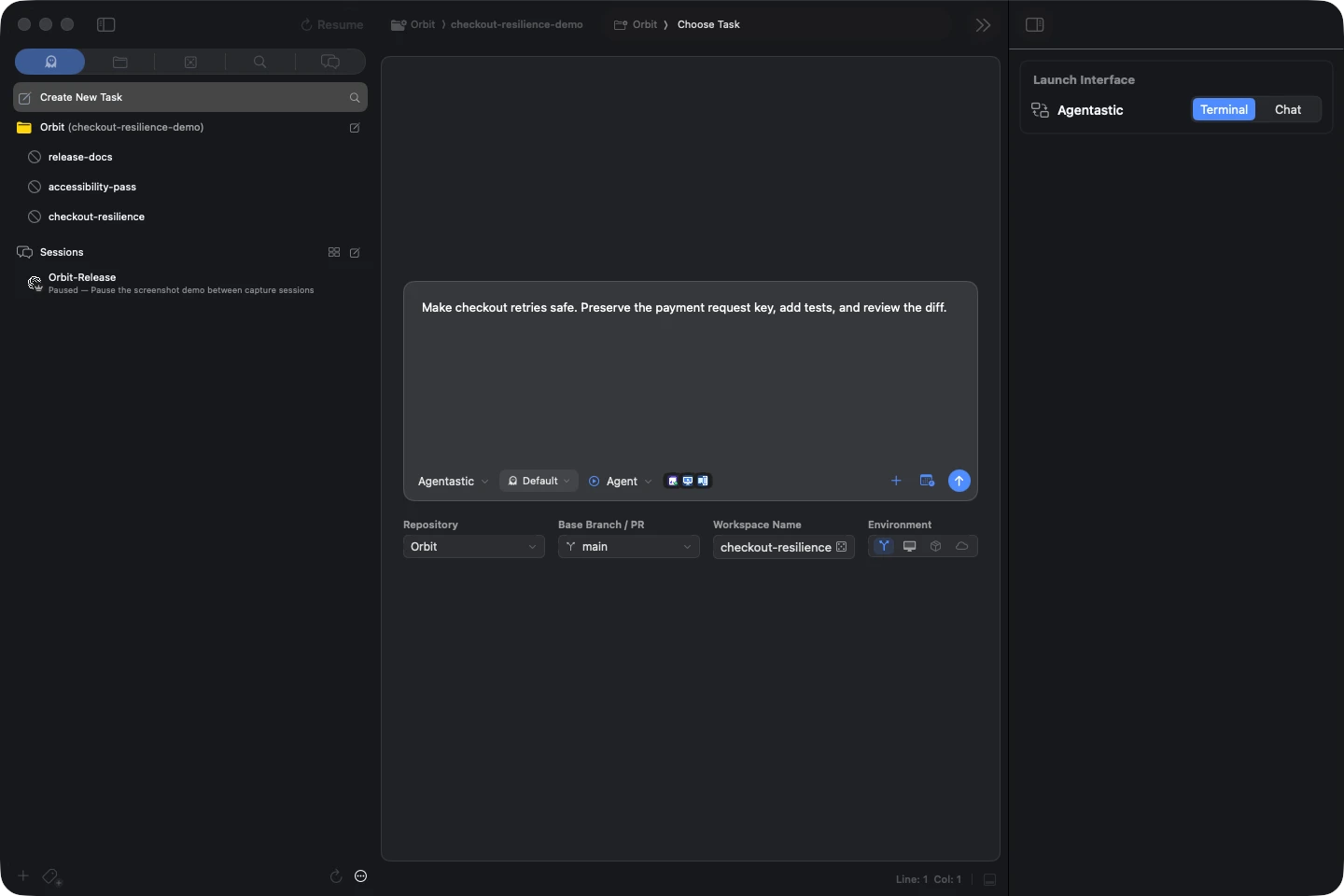
See worktrees as cards grouped by label, drag work between stages, preview live terminals, and jump into the agent that needs you.
Use the Kanban board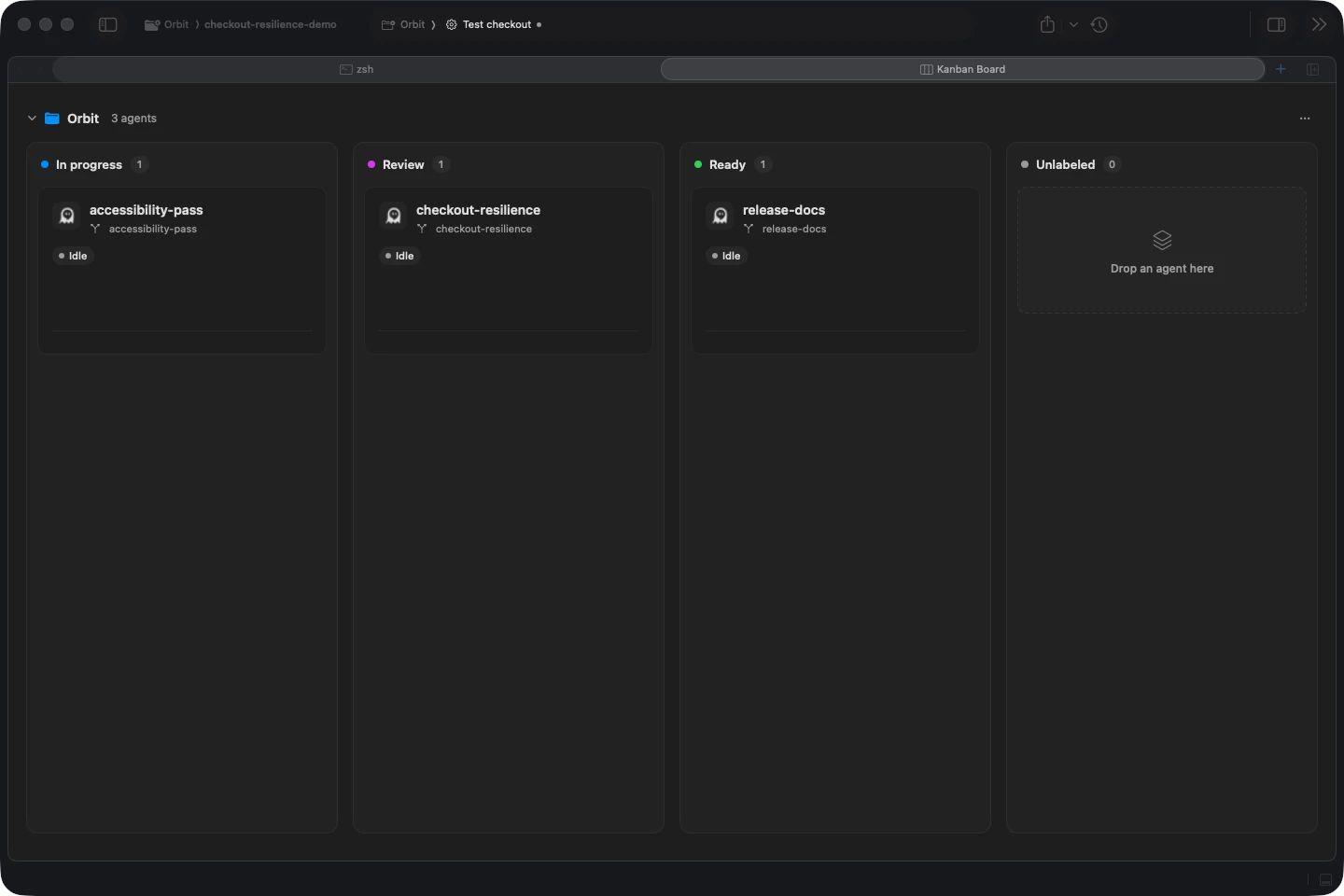
Cycle workspaces with Ctrl+Tab, jump straight to the next agent that needs you with ⌘⇧U, or sort the sidebar by recent activity to keep your latest sessions on top.
See navigation shortcutsImage placeholderLink a Linear or Sentry issue to a prompt, or @-mention one from Jira, GitHub, and other trackers, so the agent starts with the real problem and its worktree stays tied to the job.
Turn an issue into workImage placeholderLeave your desk, not your agents. Pair the iPhone app with your Mac to answer, review, merge, and start work from anywhere. It's in public beta on TestFlight.
Download the TestFlight beta, enable Direct for your local network or VPN like Tailscale, Through Agentastic Servers for internet access, or both, then pair your phone. Both options are end-to-end encrypted.
Pair your iPhone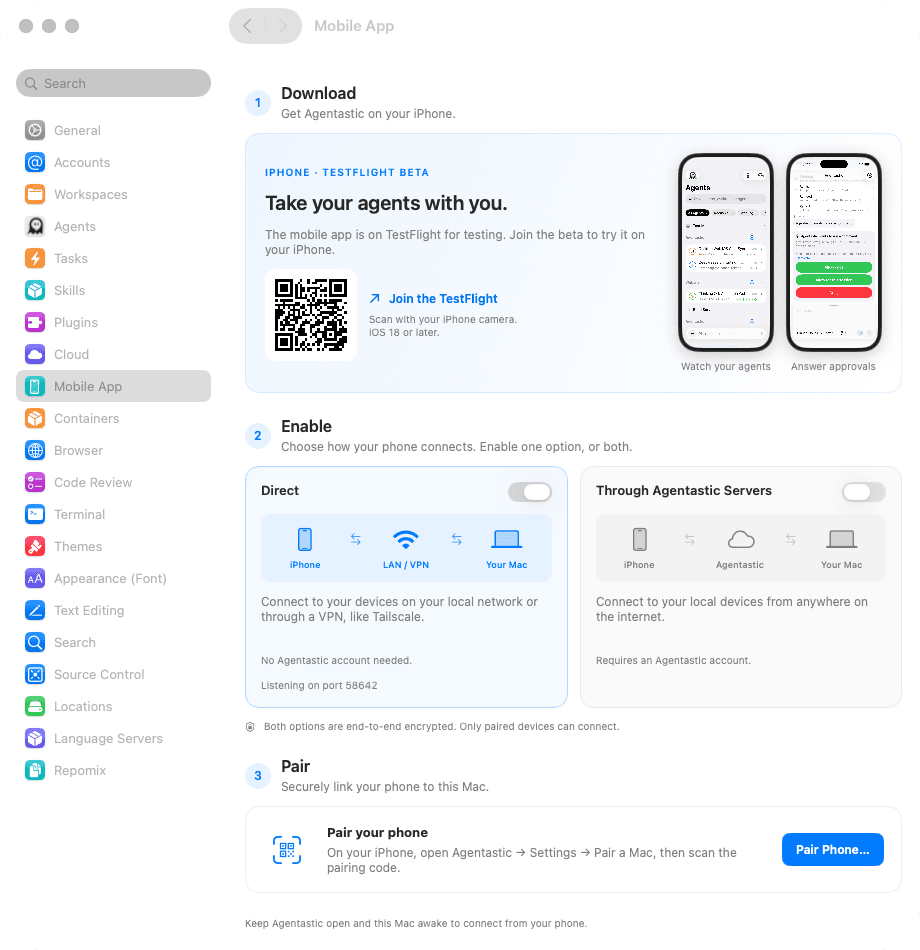
See every terminal agent and Chat session on your Mac, grouped by device, repository, and worktree, with errors and agents waiting on you at the top. Each row shows its branch, diff size, and pull request's CI result.
Watch the fleet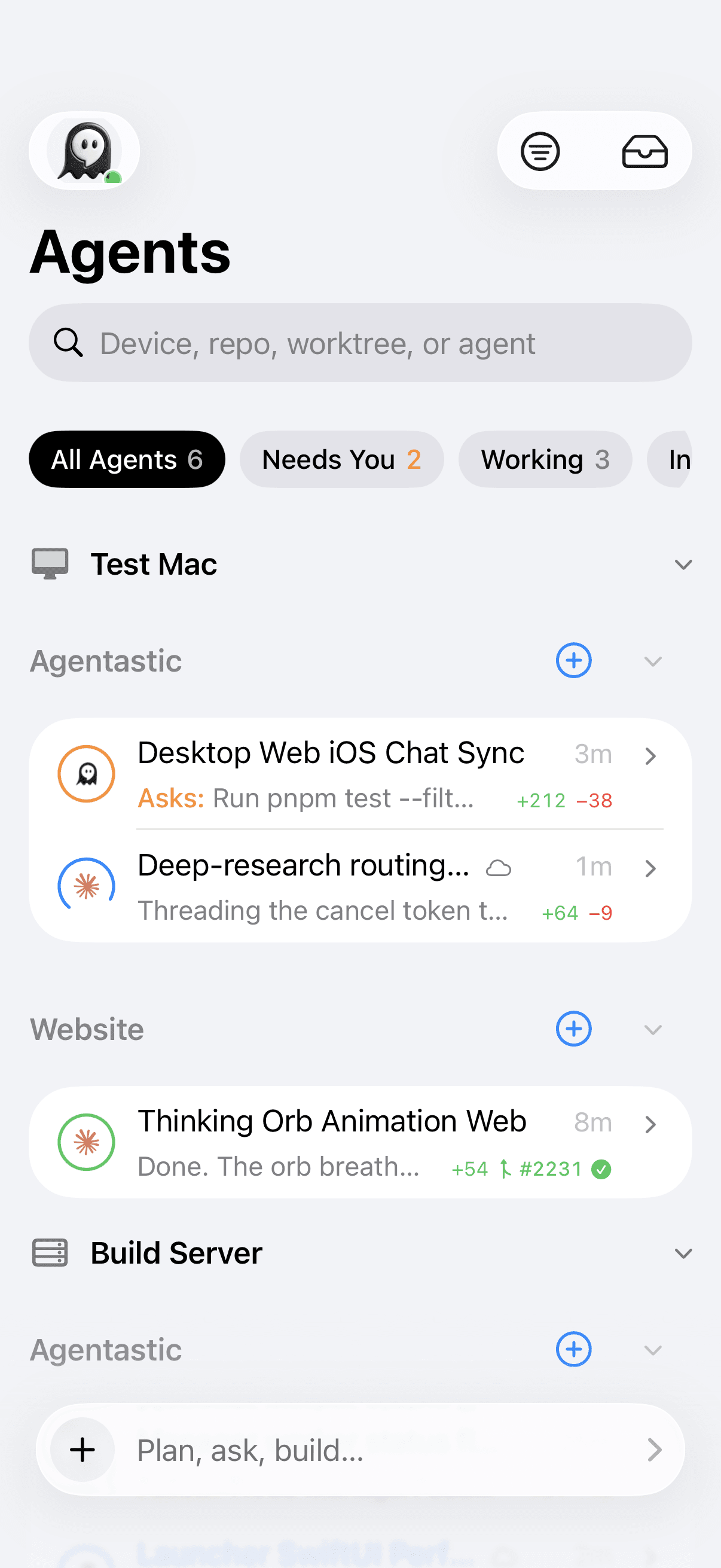
Get a push when an agent needs you, then reply, answer its question or permission request, or interrupt the turn—in Chat or in a real terminal that draws TUI agents correctly. Everything waiting on you collects in the Inbox.
Answer an agent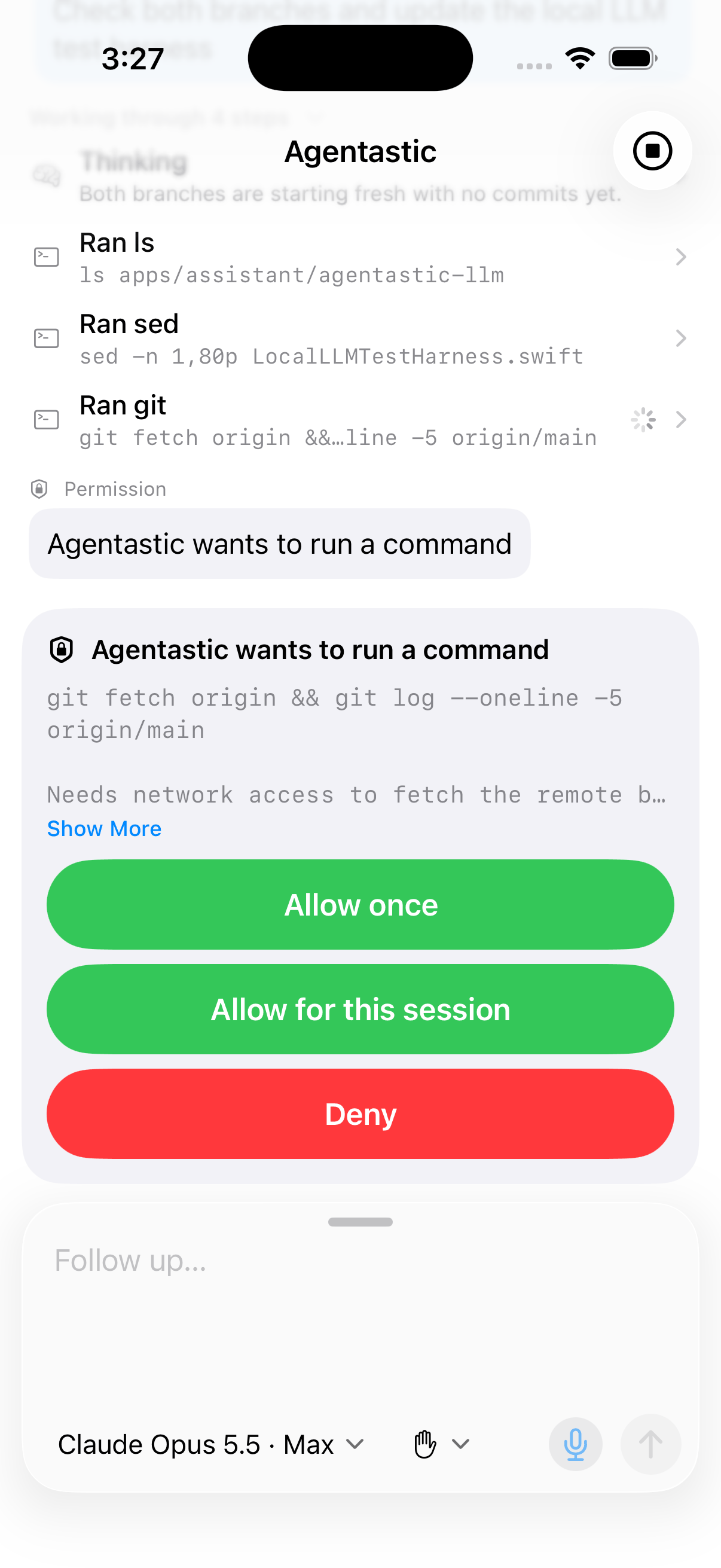
Read every changed file on one scrolling page with syntax highlighting, switch between the whole branch and uncommitted work, and mark files viewed as you go.
Review changes on your phone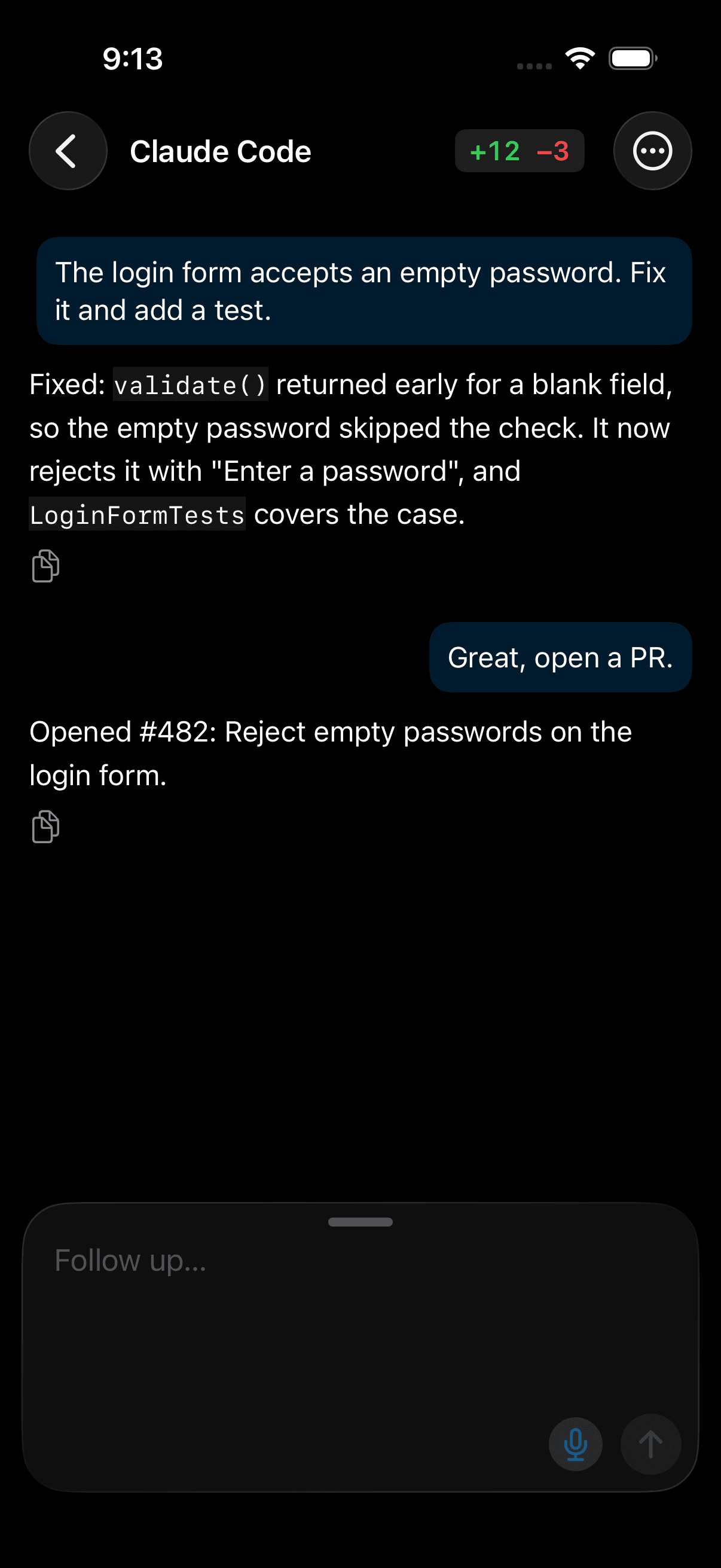
Open a GitHub pull request's checks, reviews, and conflicts on a page that keeps itself current, then slide to merge. The slider takes the color of CI, and the Mac checks again first, refusing if CI got worse since you looked.
Merge from your phone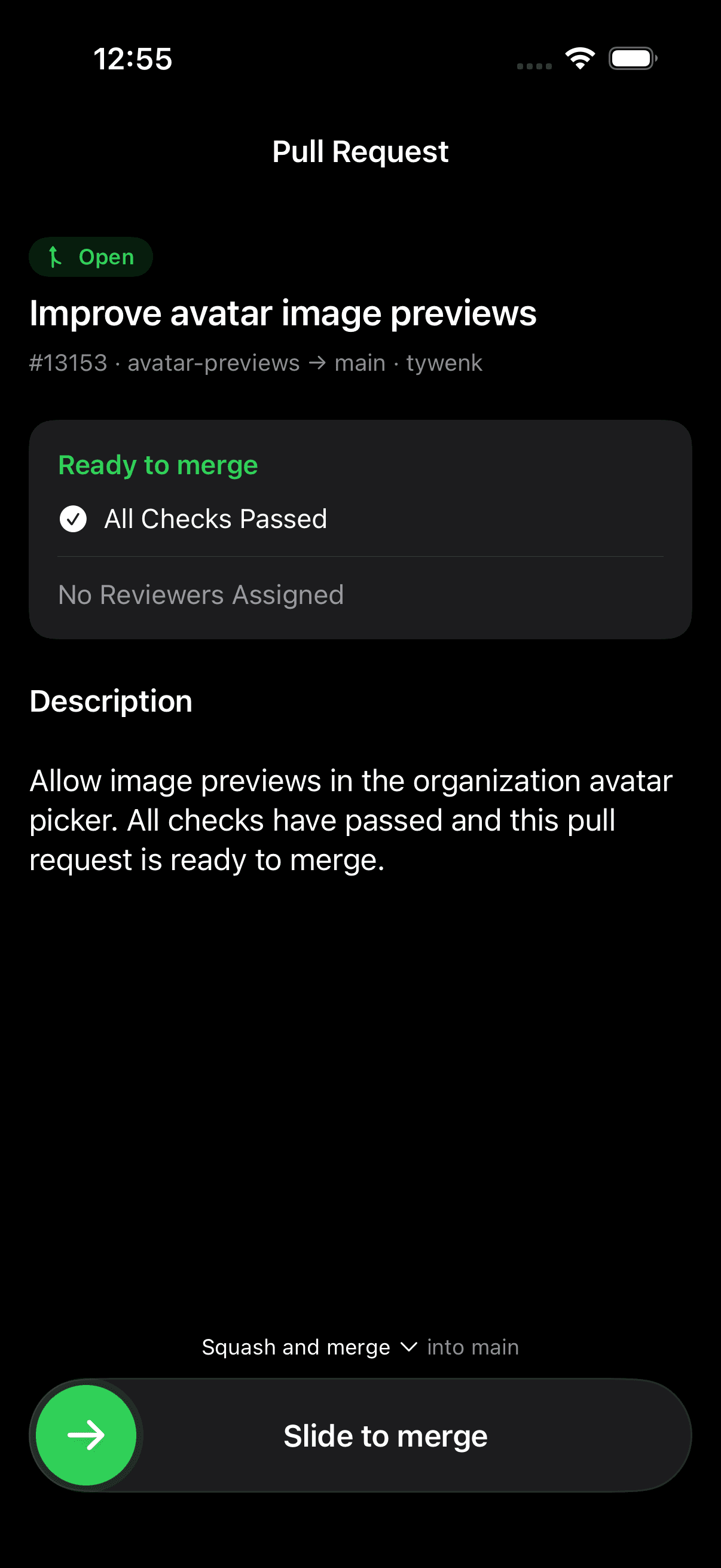
Describe the work, attach screenshots, and pick the repository, agent, model, and mode. Run it in a new worktree, one you already have, or a container or cloud machine; nothing starts until you tap Start.
Start a task from your phone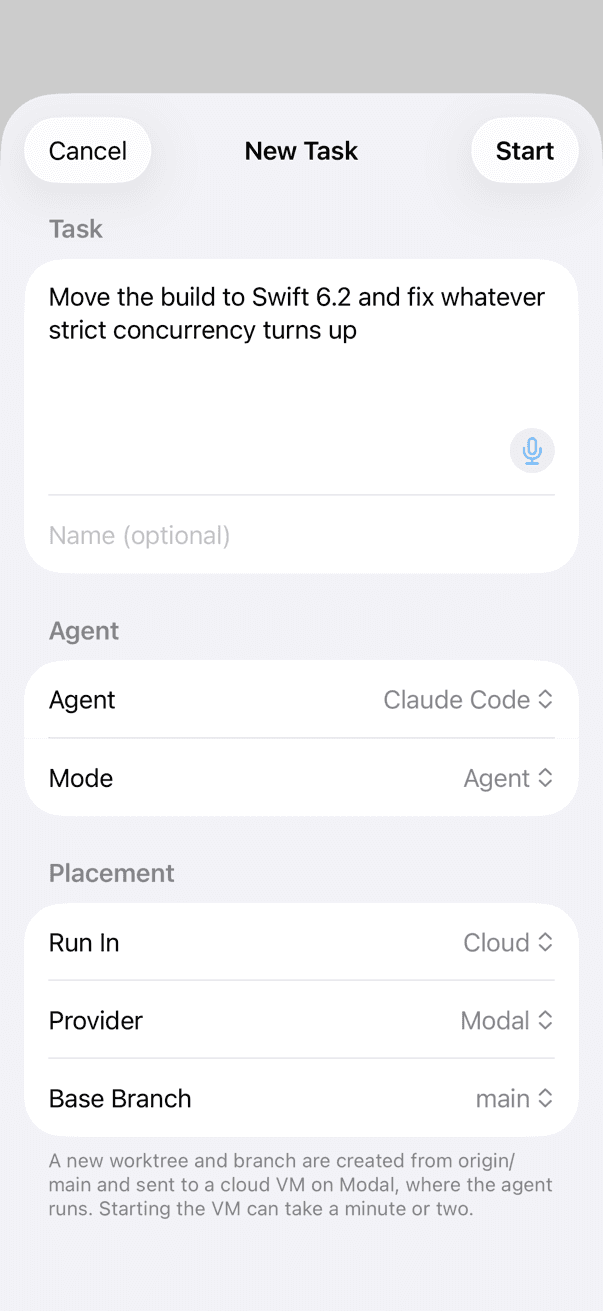
Choose where each task runs: your own development machine, a cloud VM, or an isolated container.
Edit files, run agents, use remote terminals, forward ports, and reconnect to saved sessions on your own development machines.
Connect a remote machineImage placeholderLaunch agents on Modal, Fly.io, Vercel Sandbox, Daytona, or E2B, let them keep working after your laptop closes, then sync the changes back down.
Configure cloud agentsImage placeholderRun an agent inside Docker or Apple Container with controlled mounts, networking, credentials, and a reproducible development image.
Choose a container modeImage placeholderConnect your stack, add reusable skills, and make repeated work a single action.
Connect one of 73 built-in plugins, including Notion and Slack—or add your own—to deliver MCP tools, issue pickers, and instructions to every compatible agent.
Connect a plugin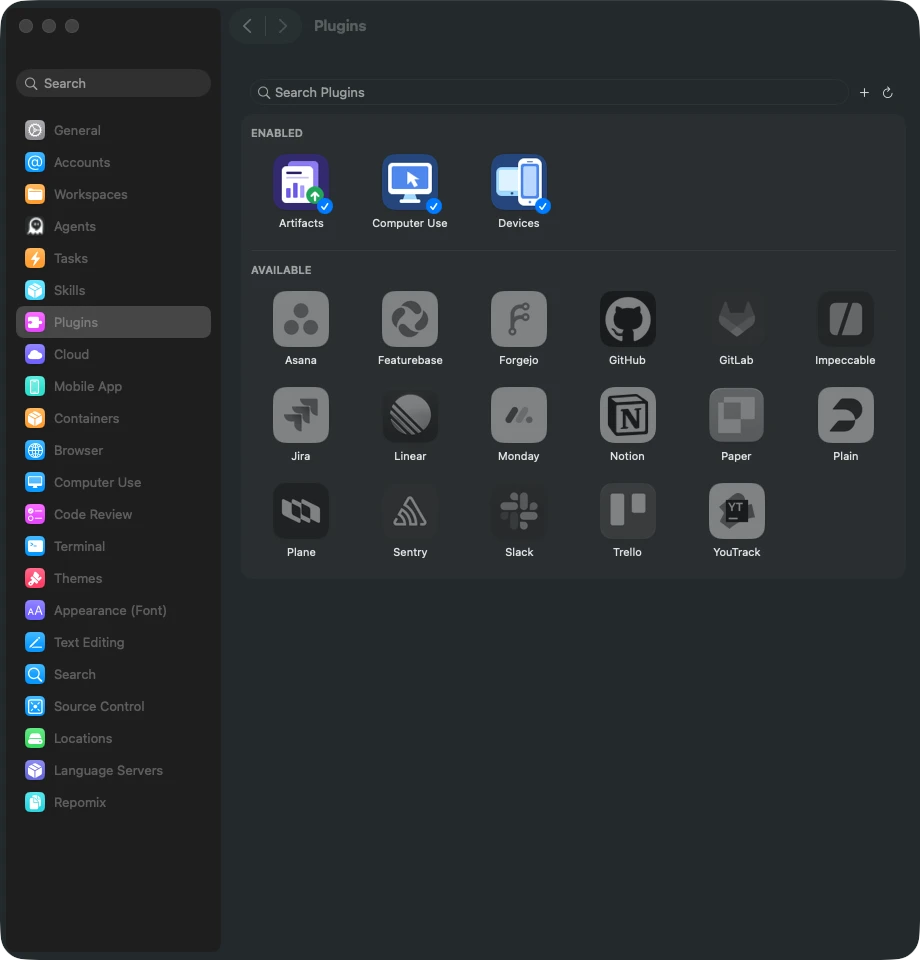
Install reusable agent capabilities once, discover more from Skillopedia, and attach the right skill to a launch with a slash command or picker.
Manage agent skills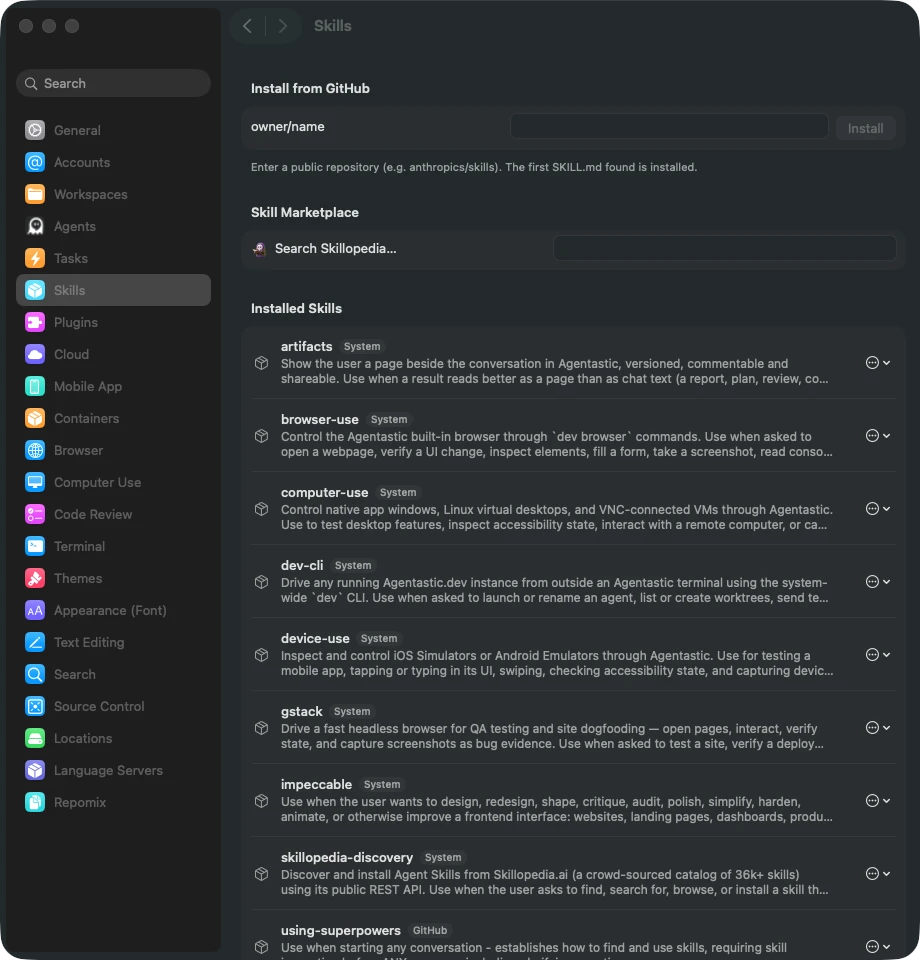
Give agents a design workflow for shaping, critiquing, auditing, and polishing interfaces. Enable Impeccable for a run to bring product context, design guidance, and interface checks into frontend work.
Use the bundled design skill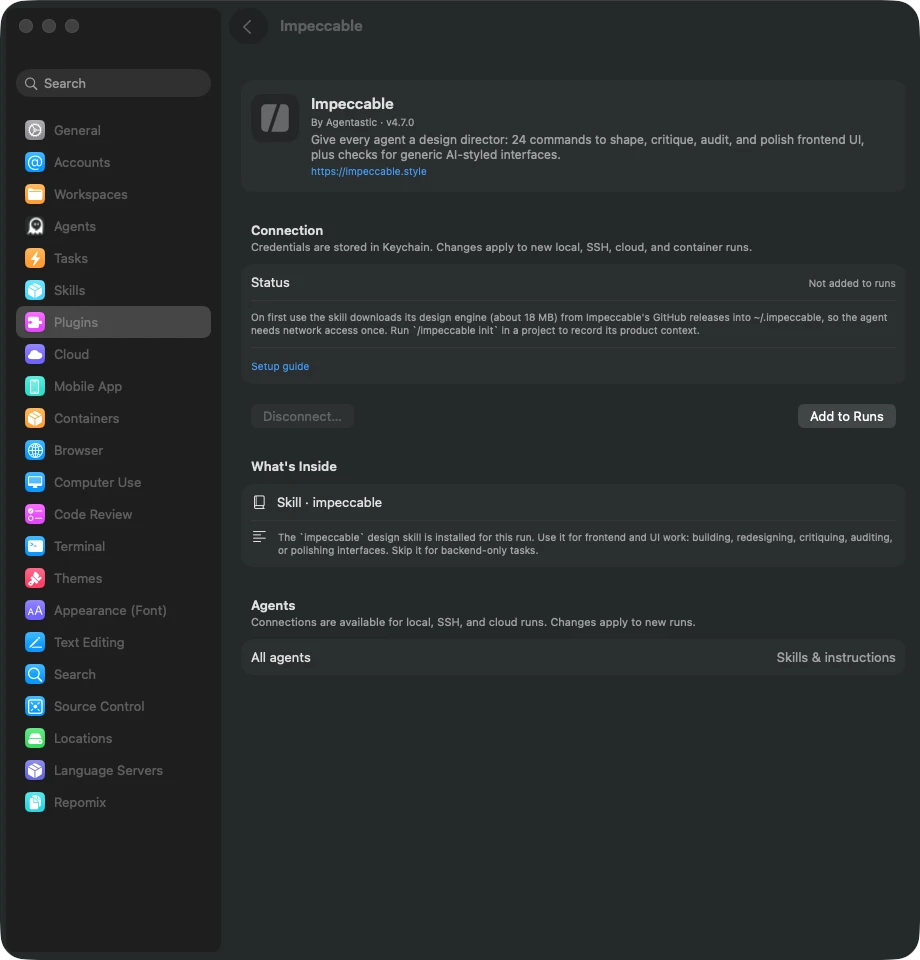
Let people, agents, scripts, dashboards, and bots create worktrees, submit tasks, inspect status, send follow-ups, drive the browser, and arrange panes.
Automate Agentastic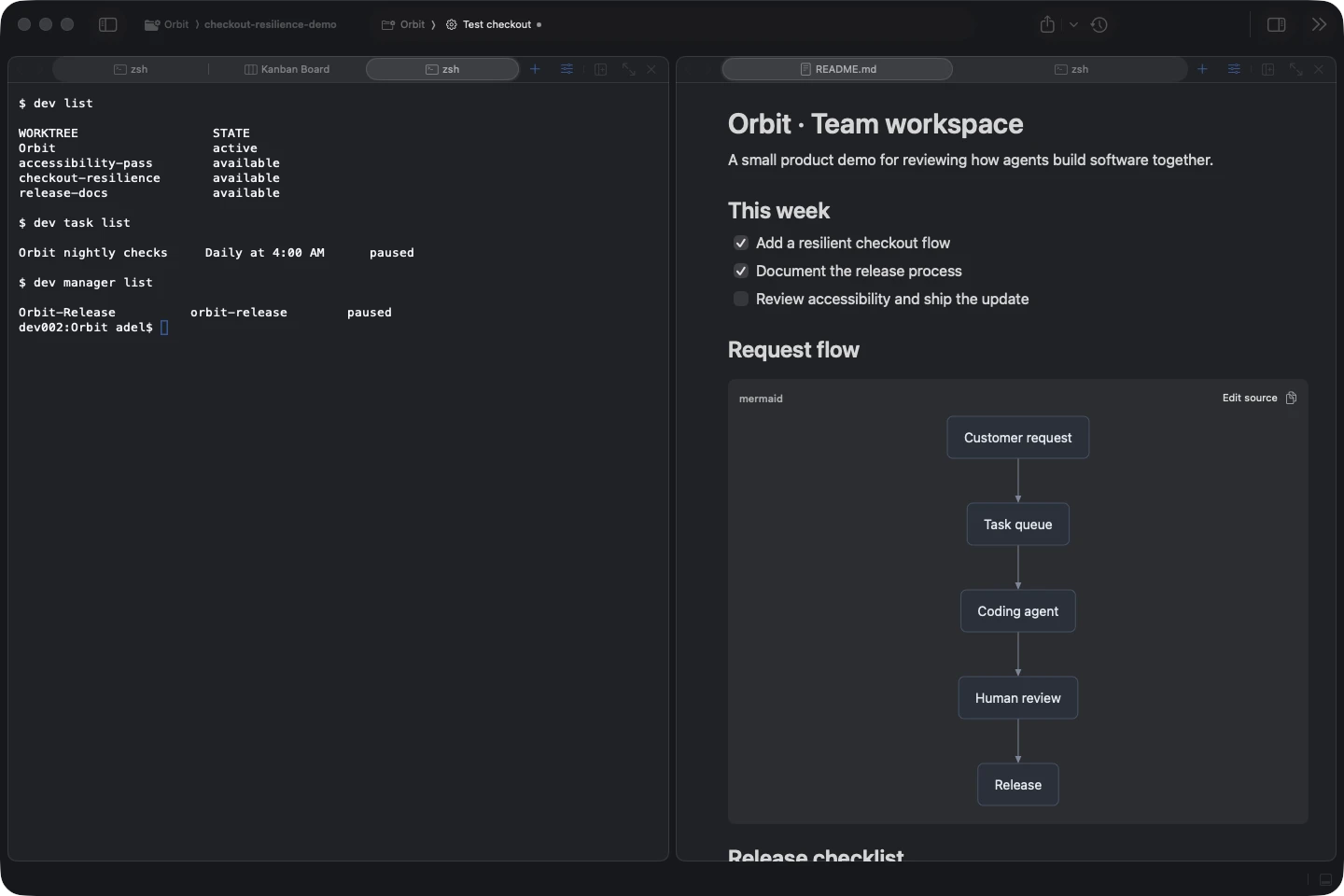
Create a PR, review a diff, write a commit message, fix CI or conflicts, and name worktrees with built-in agent tasks—each with its own prompt and model—or add your own.
Customize Actions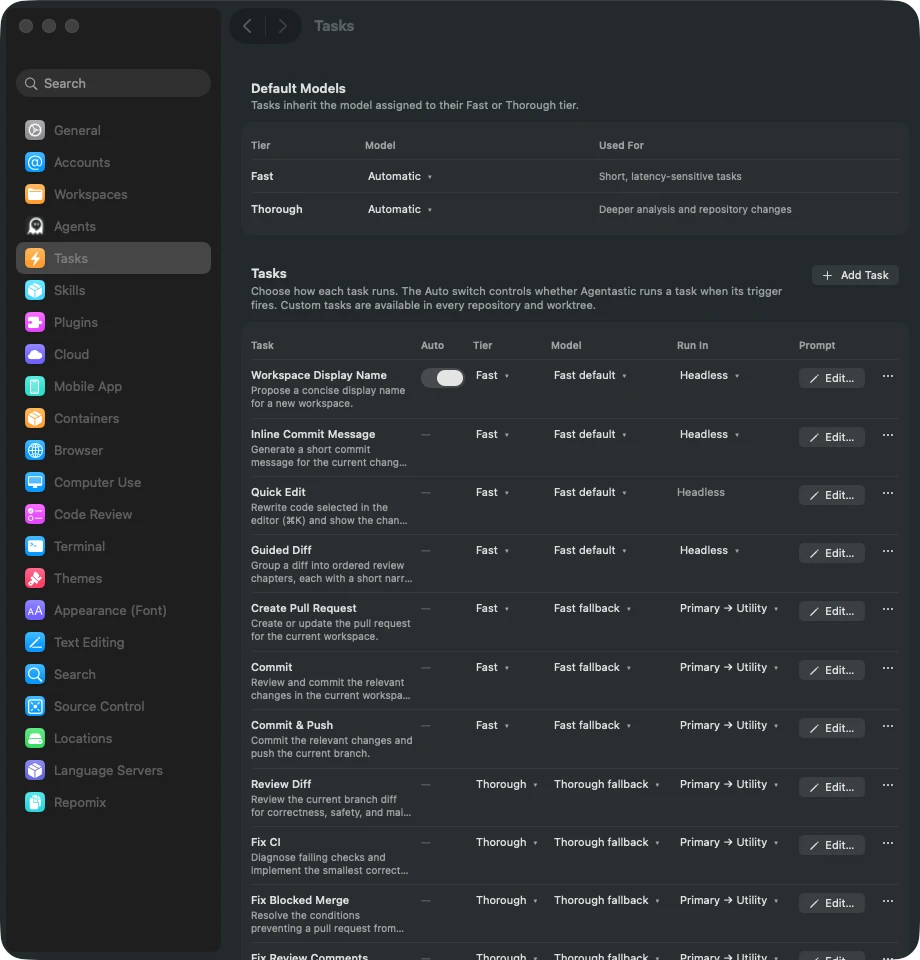
Define repeatable builds, tests, and dev servers, then bootstrap every new worktree with dependencies, environment files, and project-specific setup.
Configure workspace tasks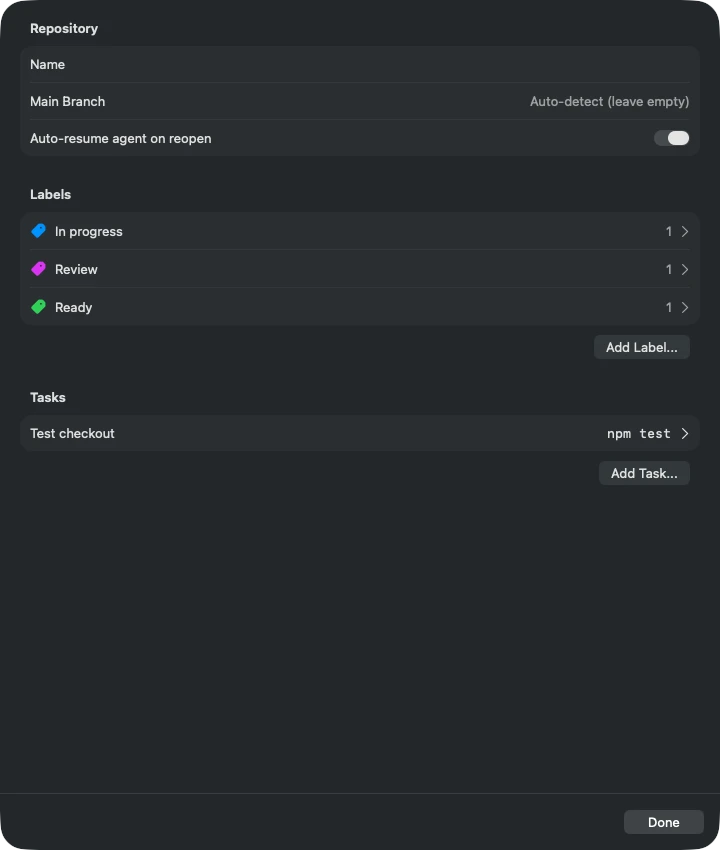
Reopen windows, tabs, splits, worktrees, chats, and remote or cloud sessions where you left them after a restart or recovery.
See restoration behaviorImage placeholderGive a long-horizon Manager Agent a metric, a spec, or a standing responsibility. It turns that into objectives it can check, then steers agents for days or weeks to meet them.
A project lead for a stream of work, running on Claude Code, Codex, or any agent you choose. It doesn't edit code itself: it wakes on a heartbeat, or when a worker finishes or a watched Sentry or Linear query turns up something new, and decides what to delegate next.
Set up a manager agent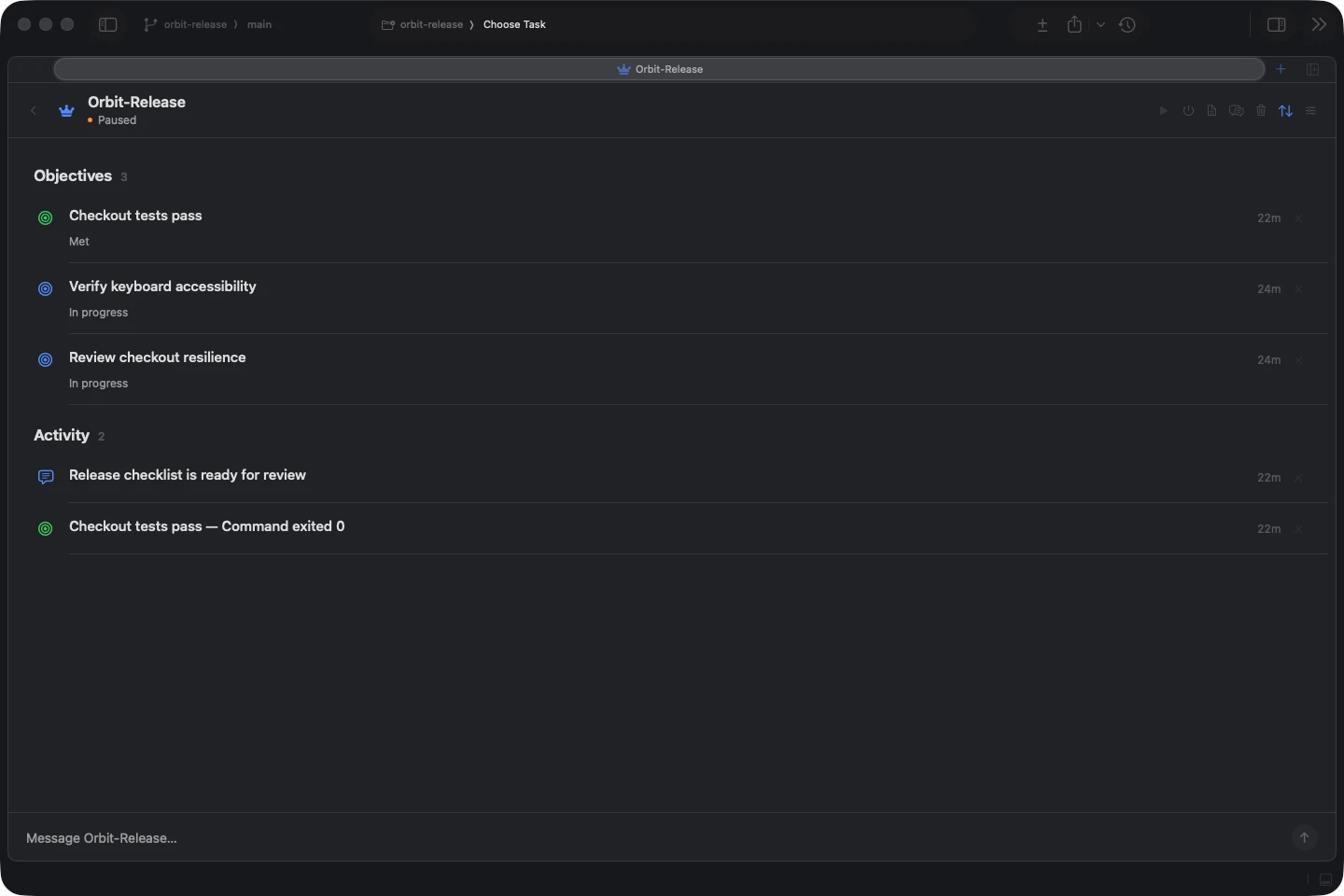
Every objective can carry a check: a shell command, a plugin query such as Sentry's unresolved issues, or a model's judgment. The manager's own claims stay proposals until a check or you confirm them.
See how objectives are verifiedManagers launch workers in worktrees, containers, or the cloud, or adopt agents you started. The feed shows each worker's progress and the pull requests it opened, with anything that needs your answer at the top.
Read a manager's feedEach manager keeps a git-backed Home with a wiki, mail threads, and every briefing and report, committed after each run. Everything it knows is a file you can open, edit, and diff.
See what a manager keeps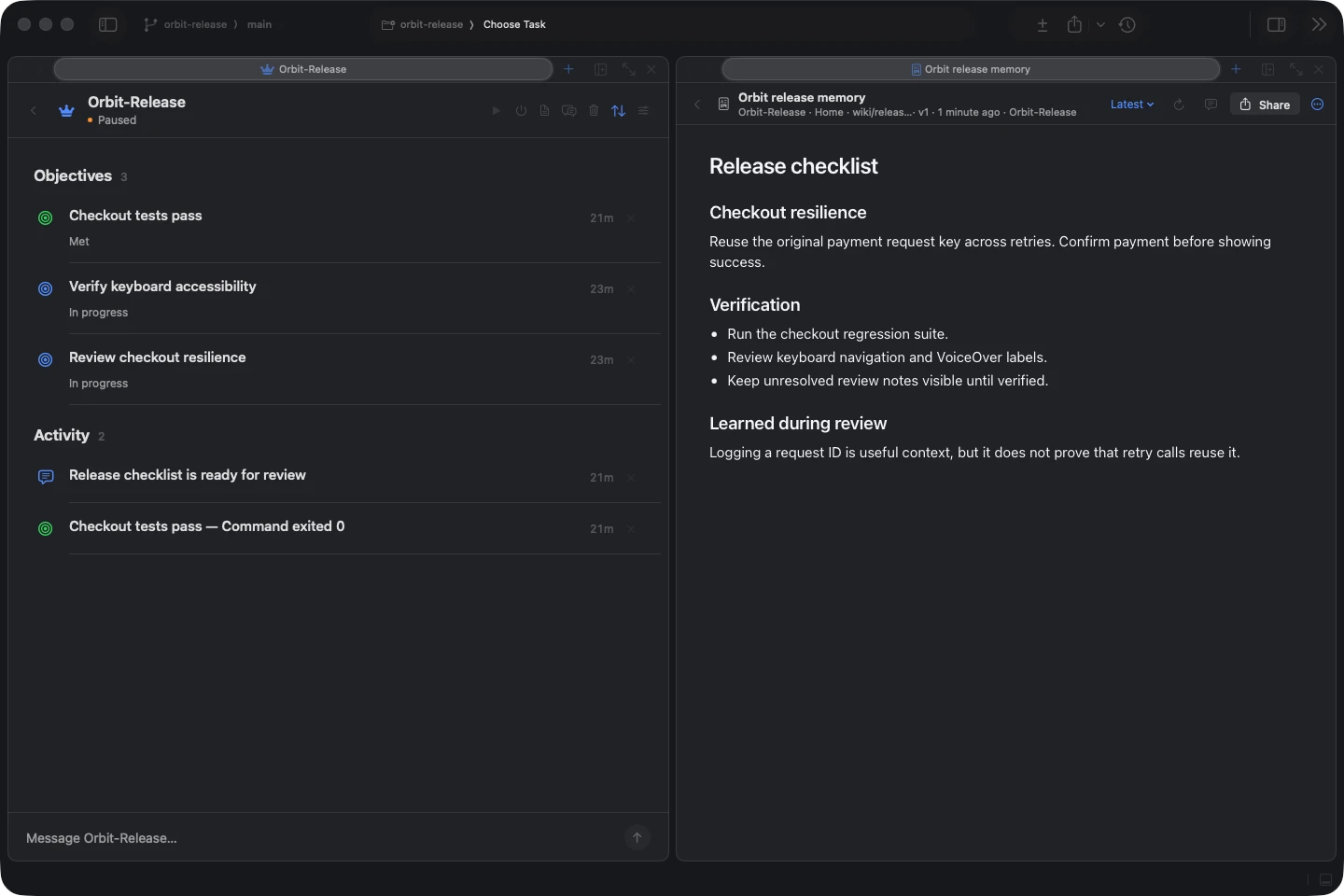
Run nightly bug hunts, weekly docs passes, or any shell command on a schedule, with memory that carries between runs. Tasks on a Remote SSH host keep firing while your Mac sleeps.
Schedule an agent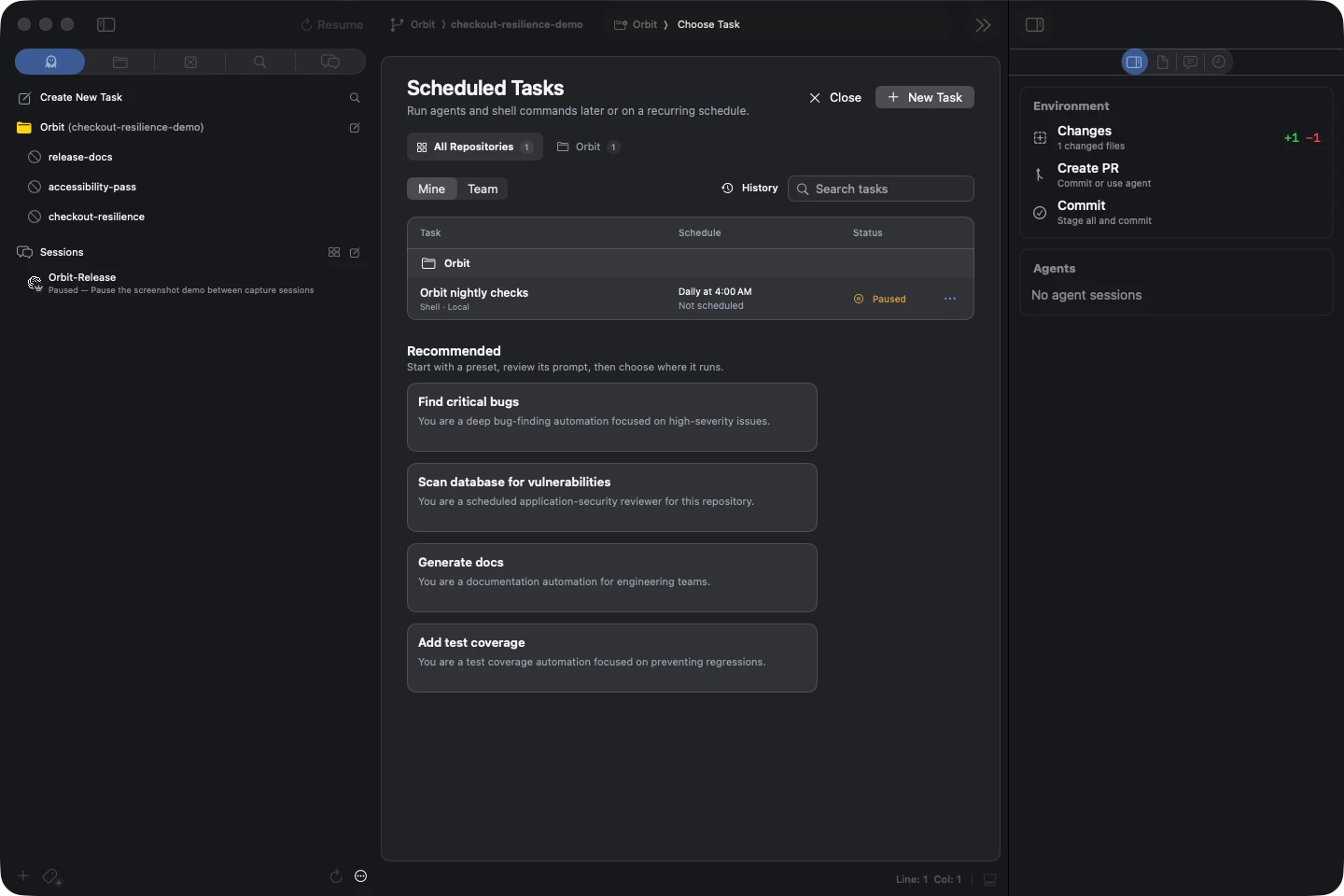
While an agent is working, your Mac won't idle to sleep, so long runs keep going after you step away. The display can still sleep, and closing the lid still sleeps the Mac.
See the General settings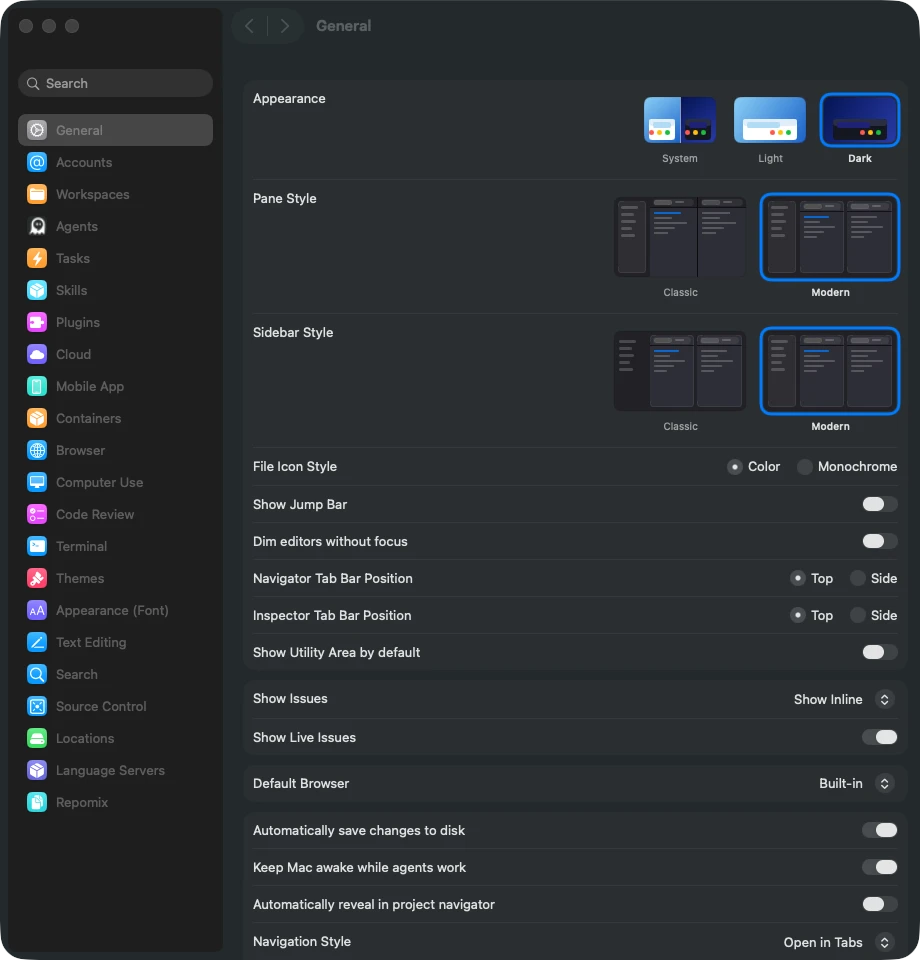
Free for macOS 14 or later.